
For large-scale farms using Optiweigh's weighing crate to easily weigh cattle in the field, you can now see your Optiweigh-recorded weights in Breedr. Using the animals' EID tags, Breedr can identify and pull across weights, so you have full visibility of your animal weights in the Breedr app.
This guide will take you through connecting your Optiweigh account to your Breedr app, checking your sync activity, and managing your Optiweigh connection.
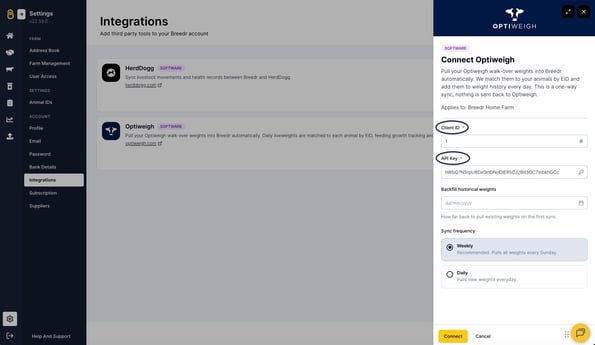
Note: To set up the connection, you will need a 'Client ID' and an 'API key' from Optiweigh to enter into Breedr. You can contact the Optiweigh Support team at support@optiweigh.co.uk, and they can provide these.
Connect to Optiweigh in the web app:
- Head to 'Settings' > 'Integrations'.
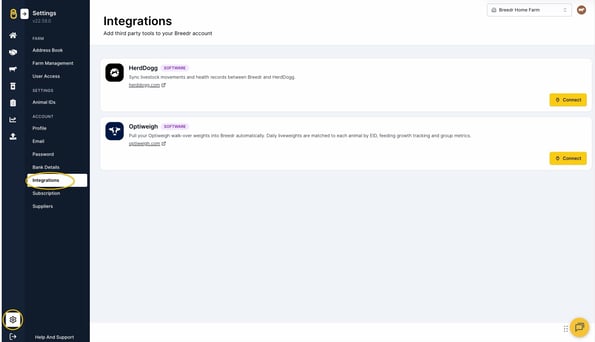
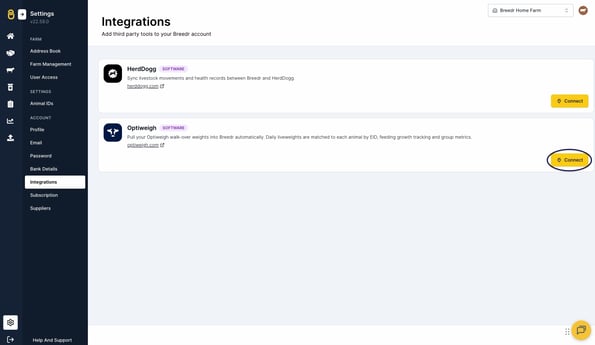
- Under the Optiweigh section, press 'Connect'.
- Enter the 'Client ID' and 'API key' in the respective fields.
- If you'd like to backfill any weights, you can do so by entering a date in the 'Backfill historical weights' field.
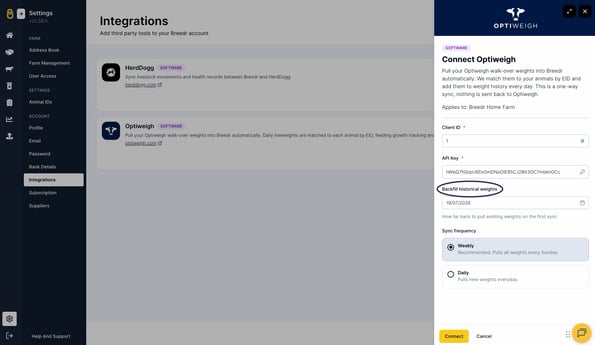
- Pick your 'Sync frequency'. You can select either weekly or daily syncs of weights from Optiweigh. Weekly syncs will pull weights every Sunday.
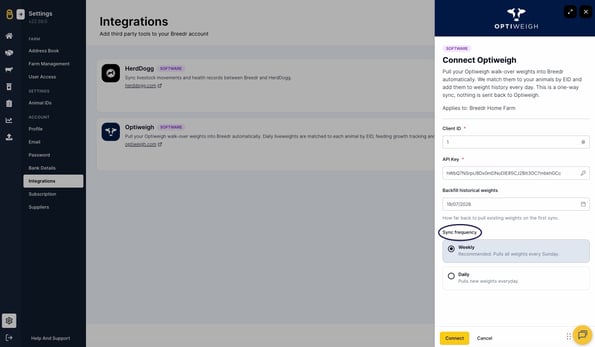
- Press 'Connect'.
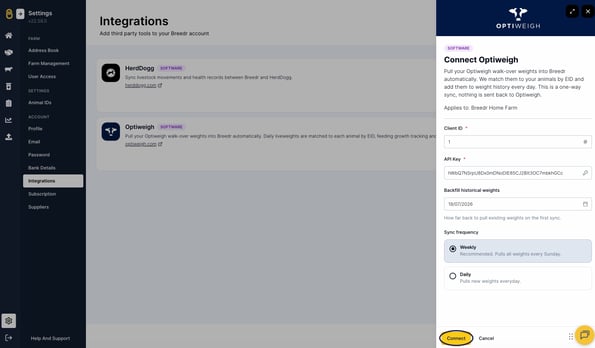
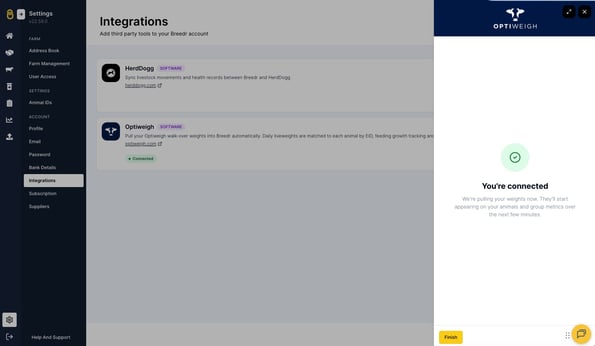
- You'll then see a confirmation screen confirming that you have successfully connected your Optiweigh account to Breedr.
Checking your sync activity:
You can check to make sure your animals weights are syncing correctly to Breedr through the 'Integrations' area in your Breedr web app settings.
- Head to 'Settings' > 'Integrations'.
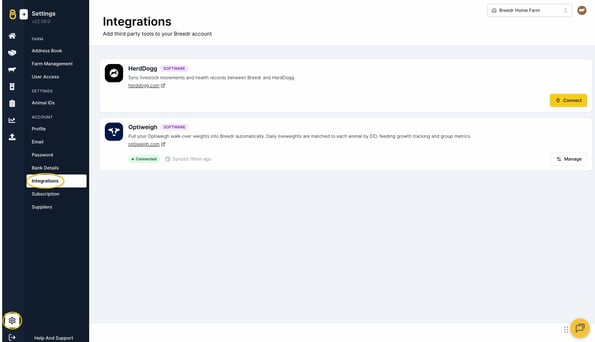
- Under the Optiweigh section, press 'Manage'.
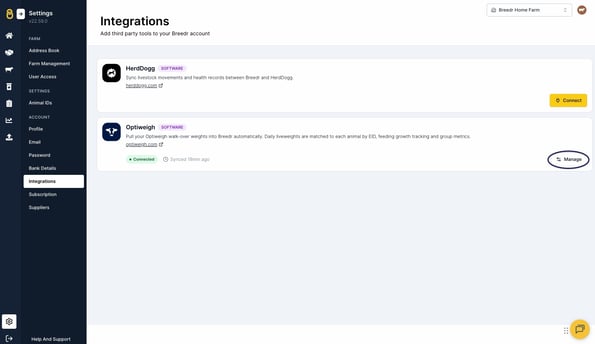
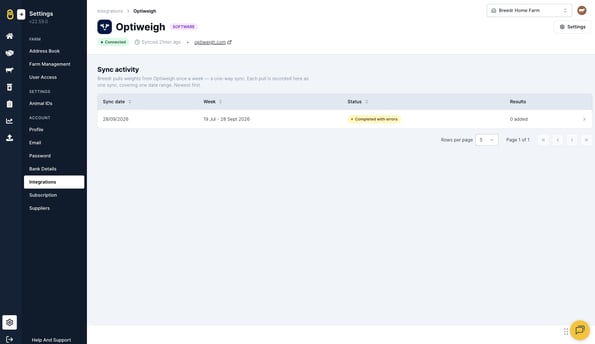
- Any syncs to date will show under 'Sync activity', with the date and status shown, including any errors with syncing the animal weights.
- You can click into any sync record to see more information, including how to resolve some common errors.
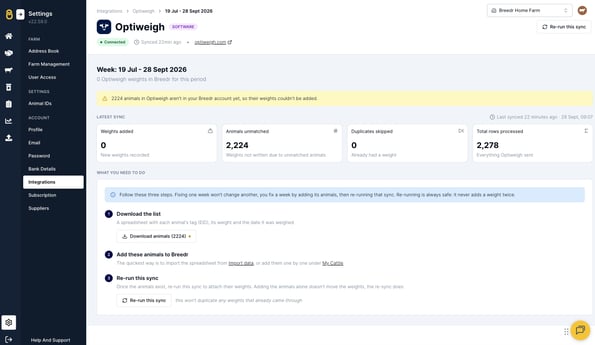
Note: If you come across any errors and are not sure how to resolve them, please get in touch with our Customer Support team.
Managing your Optiweigh connection:
You can manage your Optiweigh connection, including changing sync frequency or disabling the connection, through the 'Integrations' area in your Breedr web app settings.
- Head to 'Settings' > 'Integrations'.
- Under the Optiweigh section, press 'Manage'.
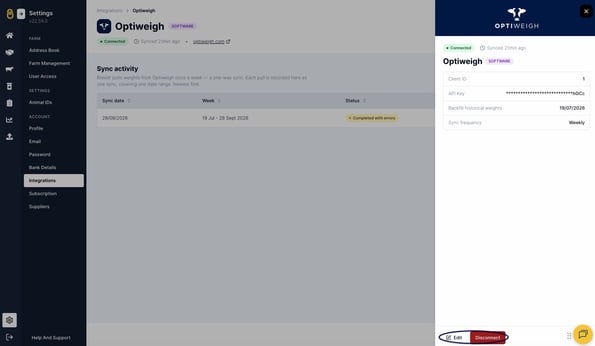
- Select 'Settings' in the top-right corner of the page.
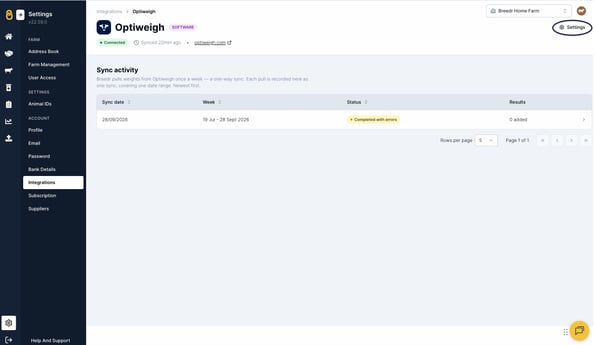
- You then have the options to either 'Edit' the connection details, including backfill history and sync frequency, or you can 'Disconnect' your account.
Need some help? Use the chat window to your right on the web or the help button on your mobile app, call our Customer Support team on +44 (0) 3300 436327 or email support@breedr.co.