
Breedr now connects with the Gallagher TW-1, TW-3, and TWR-5 weigh heads. The connection works slightly differently from our other devices. Read this article to find out how to pair the Gallagher TW weigh heads to your Android devices.
Note: The TW series weigh heads only connect with Android devices.
Step 1: Pair the hardware via Bluetooth settings on the TW weigh head and your mobile/tablet device.
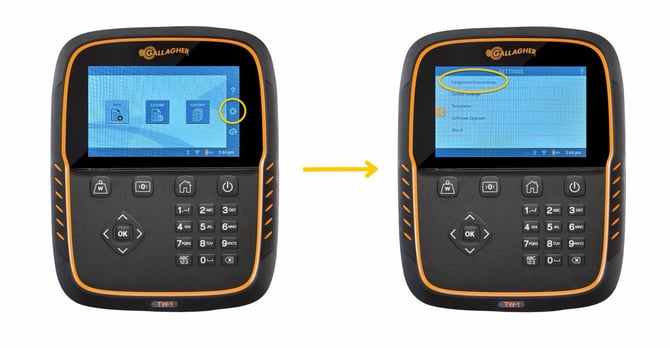
- On your weigh head, select the settings icon > 'Equipment Connections'.
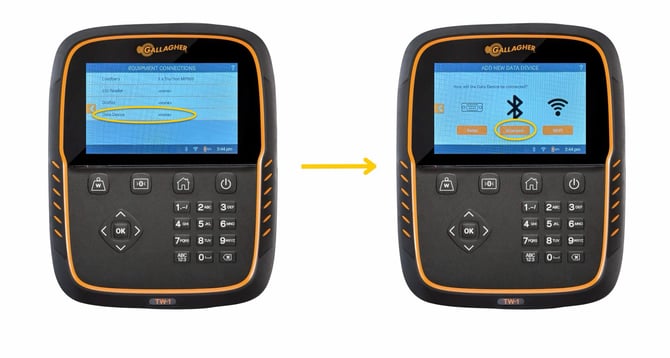
- Click into 'Data Device' > 'Bluetooth'.
- If this is the first time you are connecting your weigh head to Breedr on your Android device, go to 'Settings' > 'Bluetooth'. Find your hardware name under 'Available devices'. If you've previously paired your weigh head, you'll find it in the 'Paired devices' list. Select your chosen weigh head.
- Back on the weigh head, select your Android device from the list of 'Paired Devices', then click 'Connect'.
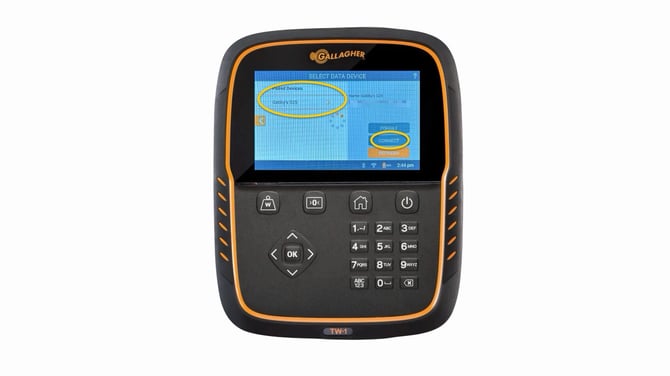
Note: A pop-up may appear on the weigh head saying 'Failed to connect', but don't worry; this is expected. You can dismiss the error and continue with the setup.
Step 2: Connect your weigh head to the Breedr app.
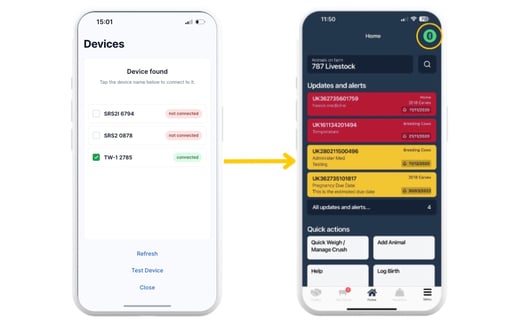
- Go to your Breedr app and click on the Bluetooth icon in the upper-right to see available devices. Select the weigh head (it will display green with 'connected' if successful). Tap 'Refresh' if your device is not yet displaying. 'Close' once connected.
- The Bluetooth icon in the upper right will turn green, confirming the device is successfully connected.
Step 3: Configure your weigh head.
- Back on the weigh head, you will now see the Bluetooth icon highlighted in orange. This means your Android device is successfully connected to the weigh head.
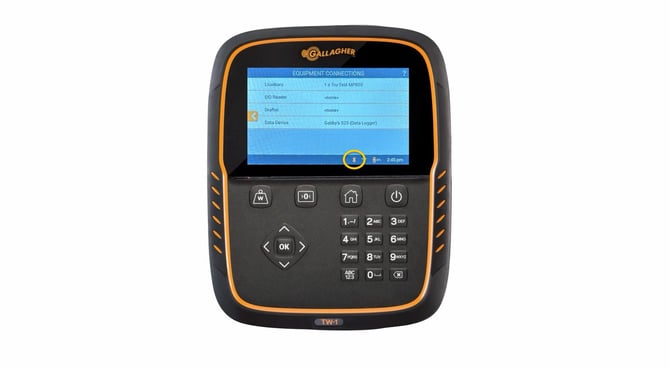
- Head back to the 'Settings' page, then select 'Device Settings' > 'Bluetooth'.
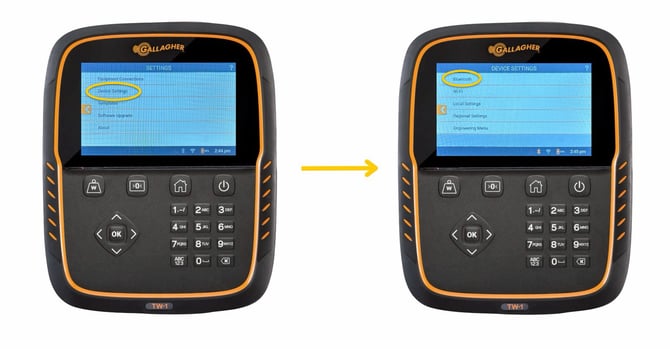
- Click into your Android device under 'Connected Devices' and ensure the device is set to 'Data Device'.
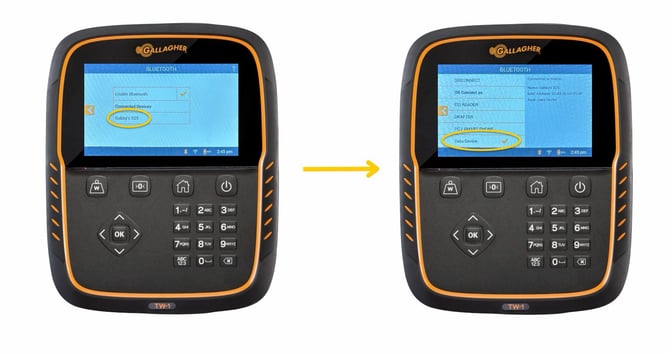
- Head back to the 'Settings' page and select 'Equipment Connections'. In the 'Paired Devices' list, you Android device will show as available; select your Android device.
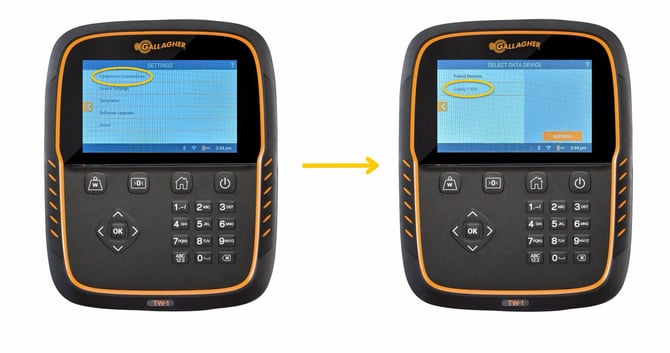
- Select 'Settings'. From here, you can change when the weigh head sends the weight data. The default setting is 'on Weight Lock', but this can be changed depending on your preference. If any changes are made, click 'Save'.
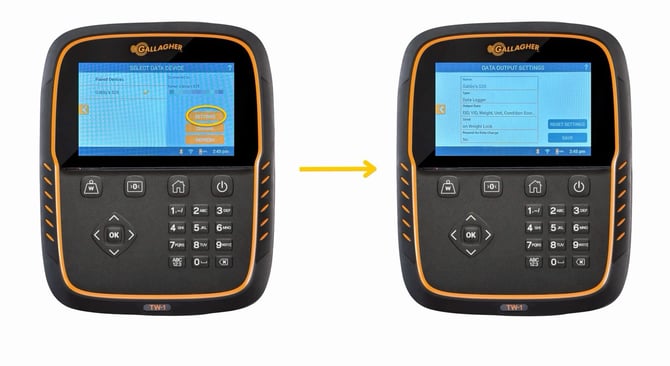
You're now all set to begin your session, and the weights recorded will pull directly into your Quick Weigh session. Learn more about weighing in Breedr here: Quick Weigh overview.
Need some help? Use the chat window to your right on the web or the help button on your mobile app, call our Customer Support team on +44 (0) 3300 436327 or email support@breedr.co.