
If you're reading this, then hopefully you've already checked out our compatible equipment page.
Now you have your compatible hardware, read this article to find out how to pair your hardware to your Apple iOS or Android device.
Top Tip: We recommend that you connect your EID reader to the Breedr app first, and then your weigh head.
Connecting hardware to Apple iOS devices:
|
Step 1 |
Step 2 Connect to Bluetooth in the Breedr app |
|
| Weigh Head | ||
| Tru-Test S3 | Skip to step 2 | ✔ |
| EziWeigh 7i | ✔ | ✔ |
| Tru-Test JR5000 | Skip to step 2 | ✔ |
| Tru-Test XR5000 | Skip to step 2 | ✔ |
| Tru-Test ID5000 | Skip to step 2 | ✔ |
| Gallagher W-0 | Skip to step 2 | ✔ |
| ShearWeigh | Skip to step 2 | ✔ |
| EID Stick Readers | ||
| Tru-Test SRS, SRS2 | ✔ | ✔ |
| Tru-Test SRS2i | Skip to step 2 | ✔ |
| Tru-Test XRS, XRS2 | ✔ | ✔ |
| Tru-Test XRS2i | Skip to step 2 | ✔ |
| Gallagher HR0 | Skip to step 2 | ✔ |
| Allflex RS420 | ✔ | ✔ |
| Allflex AWR300 NEW | ✔ | ✔ |
| Shearwell SDL 440S BLUE HANDLE | Skip to step 2 | ✔ |
| EID Panel Readers | ||
| Tru-Test XRP2i | Skip to step 2 | ✔ |
Switch on your weigh head/EID reader.
Step 1: Pair the hardware via Bluetooth settings on the mobile/tablet device.
- On your Apple device, head to 'Settings' > 'Bluetooth'. Find your hardware name under 'OTHER DEVICES' if you've not paired this device before. If you've previously paired your hardware, you'll find it in the top 'MY DEVICES' list. Select your hardware.
- The Apple device Bluetooth settings should now say 'Connected' next to the equipment name. Your hardware may display a light or an icon to indicate connection to the phone/tablet.
.png?width=670&height=377&name=Apple%20connect%20equipment%20(2).png)
Note: The Apple device may ask you for a pairing pin code for the corresponding hardware if pairing for the first time. The code is usually 0000 (4 zeros). Enter this when requested.
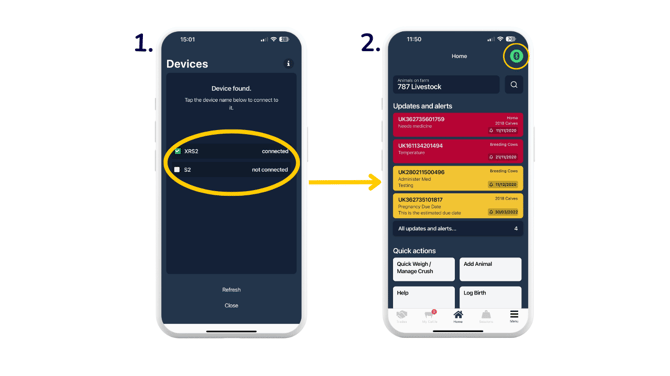
Step 2: Connect to Bluetooth in the Breedr app.
- Go to your Breedr app and click on the Bluetooth icon in the upper right to see available device/s. Select the hardware (it will display green with 'connected' if successful). Tap 'Refresh' if your device is not yet displaying. 'Close' once connected.
- The Bluetooth icon in the upper right will turn green, confirming the device/s are successfully connected.
Connecting hardware to Android devices:
|
Step 1 |
Step 2 Connect to Bluetooth in the Breedr app |
|
| Weigh Head | ||
| Tru-Test S3 | Skip to step 2 | ✔ |
| EziWeigh 7, 7i | ✔ | ✔ |
| Tru-Test JR5000 | ✔ | ✔ |
| Tru-Test XR5000 | ✔ | ✔ |
| Tru-Test ID5000 | ✔ | ✔ |
| Gallagher W-0 | ✔ | ✔ |
| ShearWeigh | ✔ | ✔ |
| EID Stick Readers | ||
| Tru-Test SRS, SRS2 | ✔ | ✔ |
| Tru-Test SRS2i | ✔ | ✔ |
| Tru-Test XRS, XRS2 | ✔ | ✔ |
| Tru-Test XRS2i | ✔ | ✔ |
| Gallagher HR5 | ✔ | ✔ |
| Gallagher HR0 | ✔ | ✔ |
| Allflex RS420 | ✔ | ✔ |
| Allflex AWR300 NEW | ✔ | ✔ |
| Allflex AWR300 OLD | ✔ | ✔ |
| Shearwell SDL 440S BLUE HANDLE | ✔ | ✔ |
| EID Panel Readers | ||
| Tru-Test XRP2, XRP2i | ✔ | ✔ |
Switch on your weigh head/EID reader.
Step 1: Pair the hardware via Bluetooth settings on the mobile/tablet device.
- On your Android device, head to 'Settings' > 'Bluetooth'. Find your hardware name under '+ Pair new device' > 'Available devices' if you've not paired this device before. If you've previously paired your hardware, you'll find it in the 'Saved devices' list. Select your hardware.
- The Android device Bluetooth settings should now say 'Connected' next to the equipment name. Your hardware may display a light or an icon to indicate connection to the phone/tablet.
Note: The Android device may ask you for a pairing pin code for the corresponding hardware if pairing for the first time. The code is usually 0000 (4 zeros). Enter this when requested.
Step 2: Connect to Bluetooth in the Breedr app.
- Go to your Breedr app and click on the Bluetooth icon in the upper right to see available device/s. Select the hardware (it will display green with 'connected' if successful). Tap 'Refresh' if your device is not yet displaying. 'Close' once connected.
- The Bluetooth icon in the upper right will turn green, confirming the device/s are successfully connected.
Need some help? Use the chat window to your right on the web or the help button on your mobile app, call our Customer Support team on +44 (0) 3300 436327 or email support@breedr.co.