
If it is the first time you are updating EIDs for all or a large majority of animals in the weigh session, it is recommended to go to 'Crush Setup' before starting the weigh session. If you have a small number of animals which require an updated EID/VID, you can update this when the individual animal comes through on the weigh session.
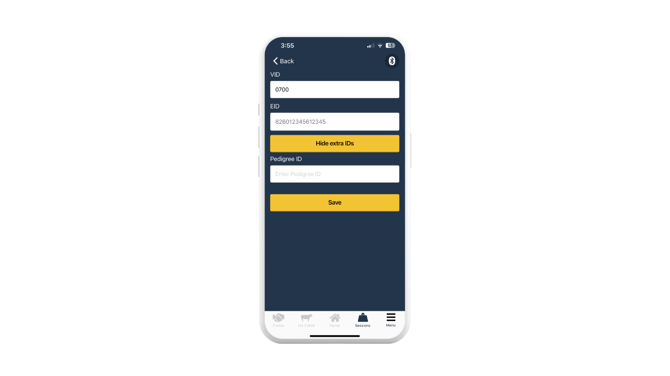
Set up 'Update Animal IDs' fields in Crush Setup before weighing:
The screen above will pop up automatically each time an ID has been entered into the animal field on the Quick Weigh screen for you to update.
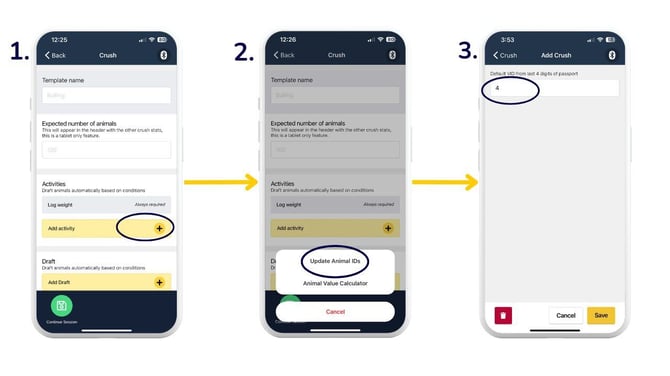
- In the 'Sessions' tab, head to 'Crush Setup'. Enter template details as necessary and tap the '+' button next to 'Add activity'.
- Select 'Update Animal IDs'.
- Type in the number of digits you'd like to use as your default Visual ID from the passport number. This can be overridden when recording the data for each animal (see step 6).
- When you're ready, press 'Start' to begin the session. This takes you to the weigh screen. You can also 'Save as template' to use later.
- If you're connected to an EID reader, this will pull through to the 'Tap to search' bar. If you're not connected, manually type the animal ID.
- Breedr will automatically pop up with this screen. Use your EID reader to scan in the EID tag; this will populate the EID field. 'Show more IDs' opens up a 'Pedigree ID' field for you to input this, should you wish to. Click 'Save'.
.jpg?width=670&height=377&name=Update%20IDs%20through%20crush%20setup%20(2).jpg)
- You will then be back to this screen with your new EID and/or VID, ready to continue recording weights and other activities.
.jpg?width=670&height=377&name=Update%20IDs%20through%20crush%20setup%20(3).jpg)
Update Animal IDs during a Quick Weigh session:
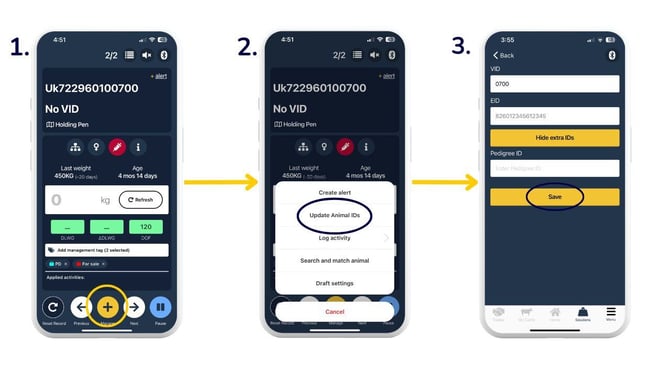
- Scan or enter the animal ID and select 'Manage'.
- 'Update Animal IDs'.
- Use your EID reader to scan in the EID tag; this will populate the EID field. 'Show more IDs' opens up a 'Pedigree ID' field for you to input this, should you wish to. Click 'Save'.
Need some help? Use the chat window to your right on the web or the help button on your mobile app, call our Customer Support team on +44 (0) 3300 436327 or email support@breedr.co.