
What is Chute Setup?
Chute Setup is a functionality where you can set up conditions in which you want to sort your animal/s into pre-recorded groups and/or a location. You can process animals right away following setting up the chute session or save as a template to use for future processing sessions. You can sort based on an animal's weight, sex, tag applied or date on ranch.
Where to find Chute Setup?
1. Select 'Sessions' from the bottom of the screen.
2. Tap 'Chute Setup.'
-png.png?width=349&height=690&name=Add%20Animals%20-%20Chute%20Mode%20(3)-png.png)
Chute Setup Flow
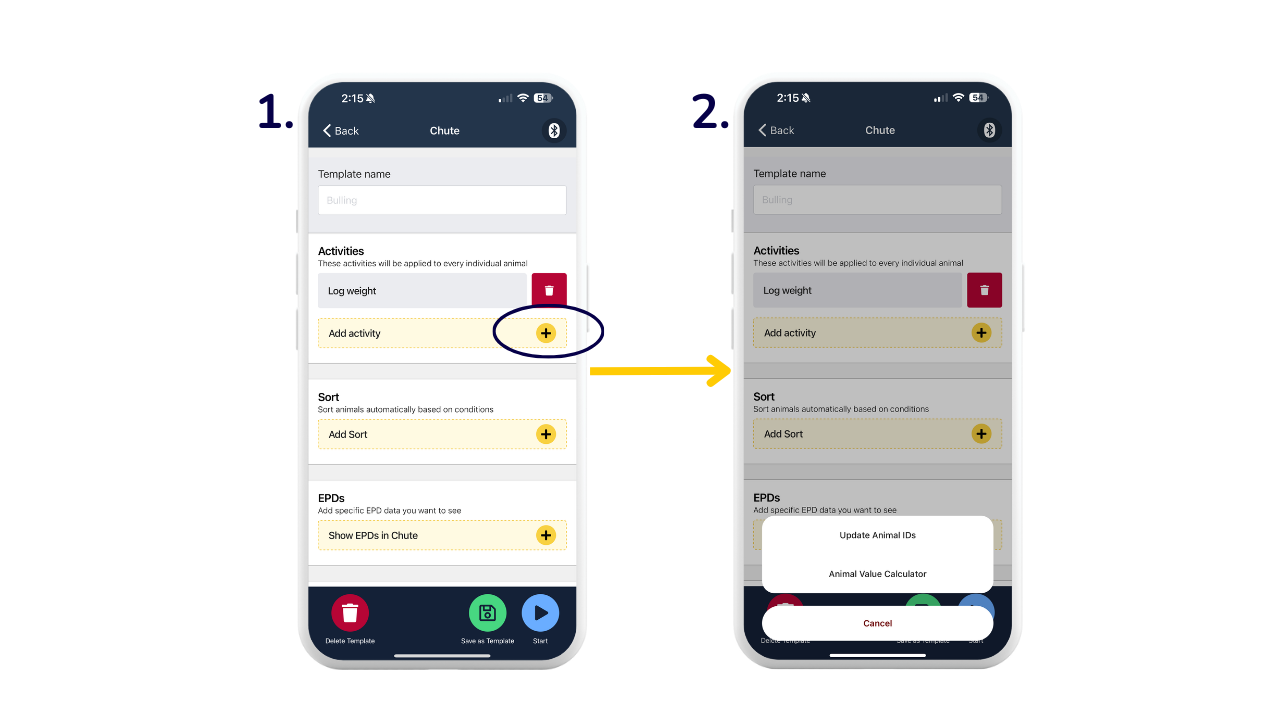
1. Create your "Template name'. You can click 'Add activity +' if you want to additionally match up Animal ID's and/or add financial information against every animal in the session.
2. If you select one or both of those activities, this will produce a pop-up when an animal is entered into the box field for you to fill out before recording each weight.
a. Update Animal IDs: you can update and/or match EID's and VID's with the option of including the Alternative ID, Name, Trich ID, TSU barcode, Registered ID, Tattoo ID, Herddog ID, UHF ID, Brucellosis ID too.
b. Animal Value Calculator: Set the price per pound/lb for either live weight or carcass weight to view the purchase price; current estimated value and change (estimated profit, from purchase to sale value)
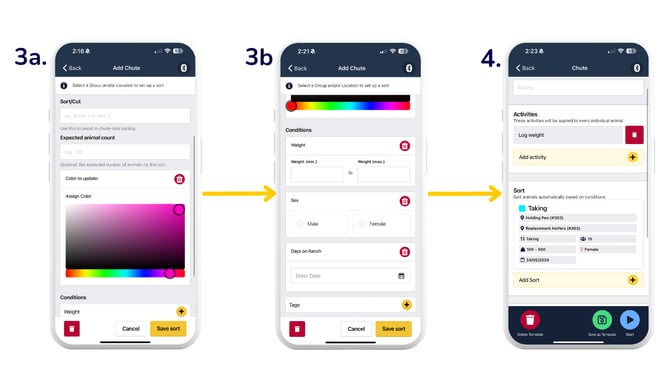
3. Click 'Add sort+' (on screen in screenshot 1 above) to add your sort parameters.
a. Choose which *previously created group/location you'd like to to sort your animals into; add a sort label and choose a color to display as your sort
b. Choose a Weight range and/or Sex and/or Days on ranch and Tags conditions to sort.
4. Check Sort details and add as many sorts as you'd like. You can then click 'Start' or tap 'Save as template.
5. If you 'Save as template', you will be back on the Sessions page. When you're ready to begin a chute session with a template, click 'See templates'.
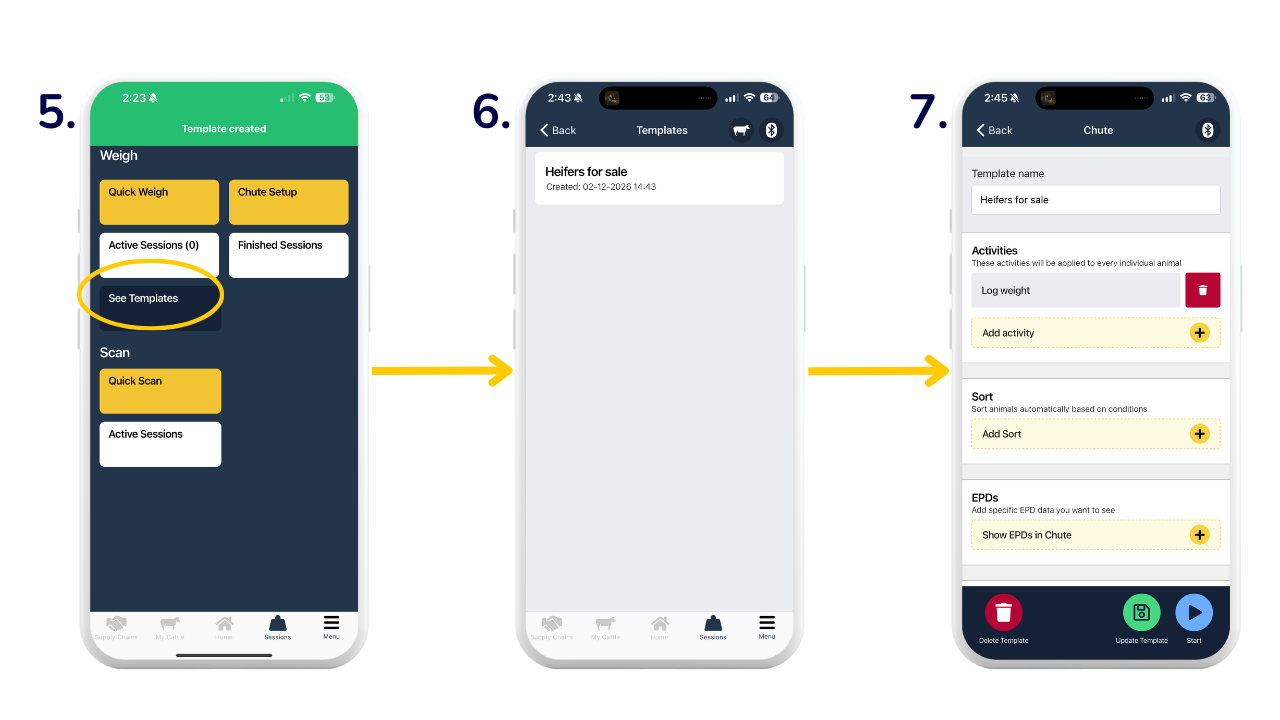
6. Select the template you've created. *Note: This template is only stored on the device of the person who created it.
7. Check the template and make any adjustments needed, then click 'Start'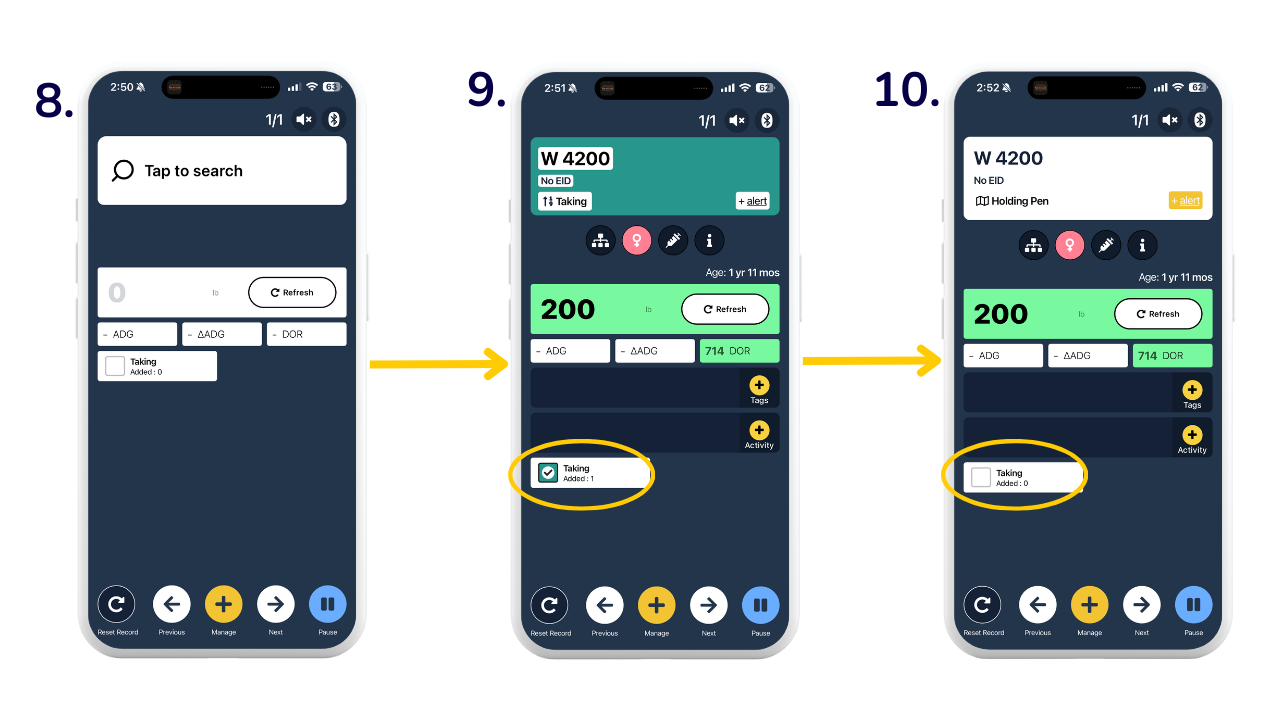
8. Check that your Sort/s are displaying on the session screen and begin processing your cattle.
9. Tick the empty box next to your chosen sort to add animals to that sort. In this example, the sort is “Taking.”
10. If the box next to a sort is left unchecked, animals will not be added to that sort.
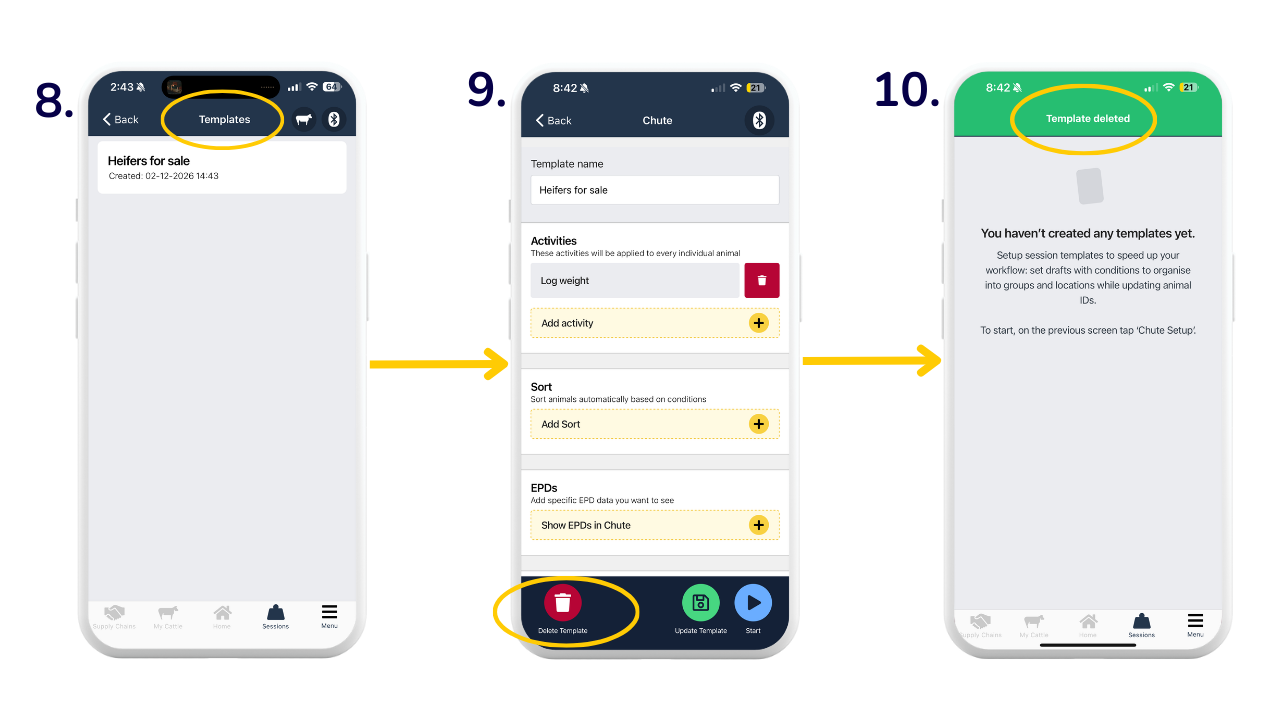
Deleting a Template
1. Go to the 'Sessions' tab, then select 'See templates'.
2. Click your template, then tap the red trash can icon in the bottom-left corner of the screen to delete it.
3. After the template is deleted, a green banner will appear at the top of the Sessions page confirming it has been removed.
Need some help?
Use the chat window, call our Customer Success team at (737) 412-3131 or email support at supportusa@breedr.co