
Connecting to device first
Connect your APR650 to Bluetooth in your mobile or tablet device settings first following these steps:
1. Press the center green button on the APR650 device to power it on and enable Bluetooth connectivity.
If your APR650 device is not powered on, your mobile device will not detect it as a Bluetooth connection option.
2. On your Apple or Android phone or tablet, open the Settings app.
3. Click 'Bluetooth'.
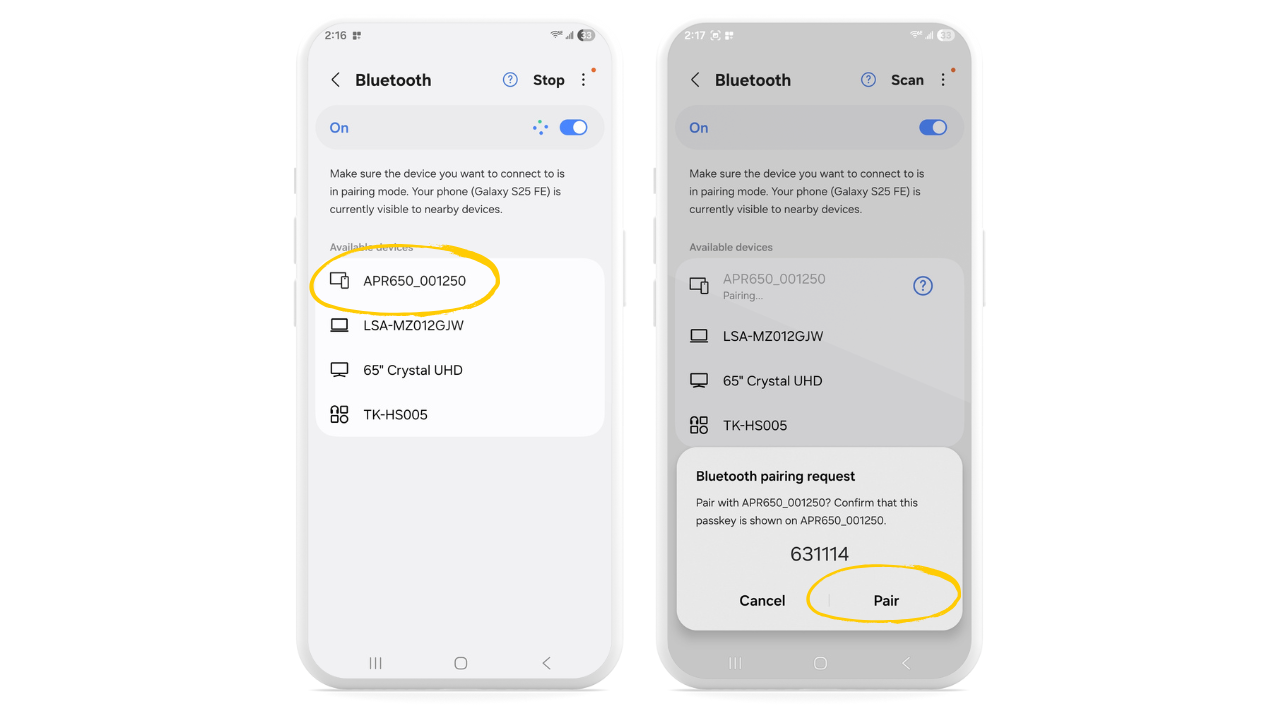
4. Once you’re on the Bluetooth page in your mobile device’s settings, wait for your APR650 device to appear in the list—look for a name like APR650_00XXXX (with XXXX representing the last four digits of the serial number, shown on the back of your reader).
5. When you see your APR650 device listed, click it to continue.
6. When you receive a 'Bluetooth Pairing Request' for the APR650 device, click 'Pair'. The passkey displayed on your mobile device and the APR650 device should match.
Apple
-1.png?width=670&height=377&name=Address%20Book%20guide%20update%20MOBILE%20(3)-1.png)
Android
7. Once bluetooth pairing is confirmed on your mobile device, check your APR650 device screen for a pairing prompt, then click 'Perform Pairing' to complete the process.
.png?width=670&height=377&name=Address%20Book%20guide%20update%20MOBILE%20(4).png)
*Note: If your APR650 was previously paired to your device but isn’t connecting to Breedr, you may need to remove the APR650 from your phone/tablet Bluetooth list by selecting ‘Forget This Device.’ Then re-pair following steps 1–7 above.
Connecting to Breedr
After your mobile device is successfully paired with the APR650 reader via Bluetooth in the device settings, you must connect your APR650 reader directly to the Breedr app by following these steps:
1. In the Breedr app, navigate to the Bluetooth button in the top right corner of your screen, and click it..png?hsLang=en)
2. From there, you’ll be on the ‘Devices’ screen—click ‘Refresh’ if you don't immediately see the device to connect.
3. Your APR650 device should now be visible as an available option in the app. Tap the green ‘Connected’ button beside it to establish the connection..png?hsLang=en)
4. In the drop down menu, select the ID field you'd like the barcode scanner to go to in the Breedr app. For example, if you're scanning TSU barcodes, select TSU barcode.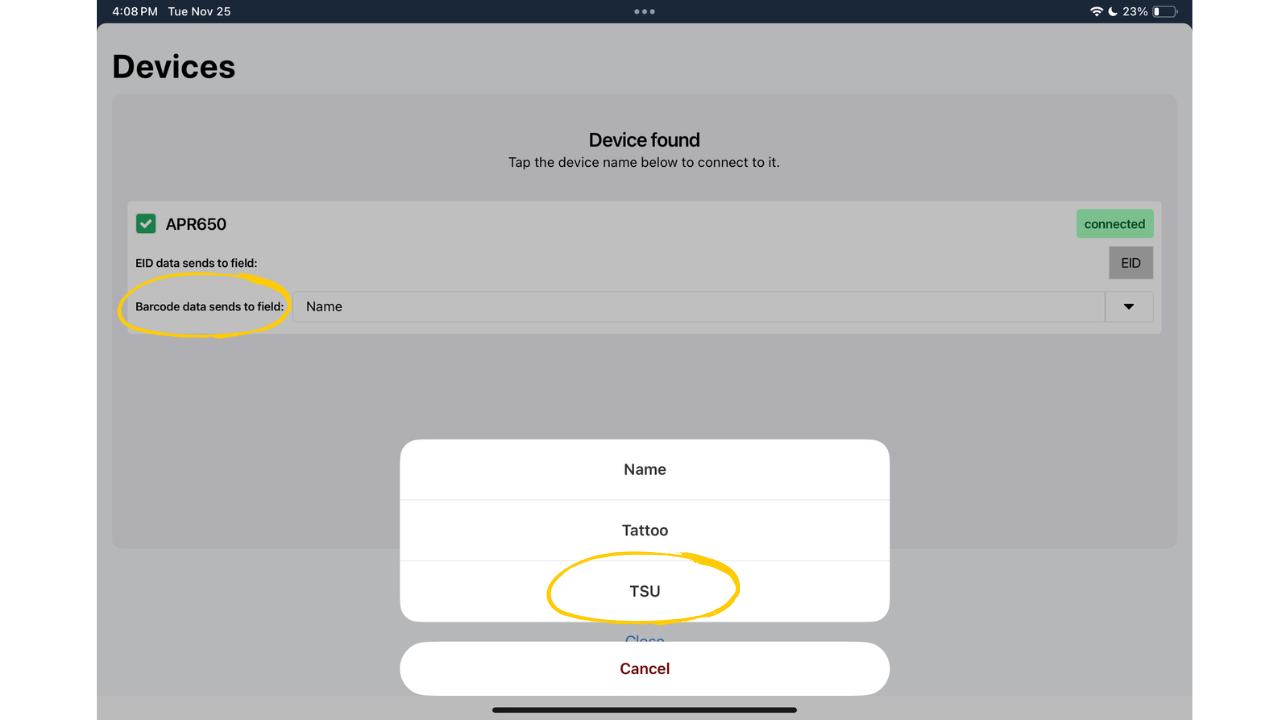
5. Once you're connected and the ID Field is selected, click 'Close.' The bluetooth icon on Breedr will turn green when a device is connected.
Need some help?
Use the chat window, call our Customer Success team at (737) 412-3131 , or email support supportusa@breedr.co