
You don't always need a hotspot. Breedr supports offline chute sessions, you can weigh, scan, and record activities with no internet connection at all. However, if you'd like to get full capacity while weighing and you have a cellular hotspot with service available, you can do that. See Online vs. Offline Mode for how offline sessions work.
This guide covers connecting a Wi-Fi only iPad to either an iPhone or an Android phone's hotspot, and connecting an Android tablet to an Android phone's hotspot.
What you'll need
- A phone with an active cellular data plan that includes hotspot/tethering (iPhone or Android). Check with your carrier: AT&T, Verizon, and T-Mobile all include it on most unlimited plans.
- A Wi-Fi only iPad or Android tablet running the Breedr app.
- Both devices charged before heading out. Running a hotspot drains the phone battery significantly, especially in areas with weak cellular signal.
Part 1: Set up Personal Hotspot
iPhone Devices:
Do this once before heading to the field. You only need to repeat this if your phone's settings change.
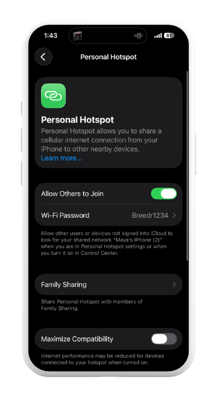
- Open Settings on your iPhone.
- Tap "Personal Hotspot."
On some iOS versions, Personal Hotspot is under Settings > Cellular > Personal Hotspot rather than directly on the Settings menu. If you don't see it at the top level, look under Cellular first. - Toggle "Allow Others to Join" to on.
- Note the Wi-Fi Password shown on this screen you'll need it when connecting the iPad.
Android Devices:
Same as the iPhone, do this once before heading to the field. You only need to repeat this if your phone's settings change.
- Open Settings
- Tap "Connections."
- Tap "Mobile Hotspot and Tethering"
- Toggle "Mobile Hotspot" to on & click on the link.
- Note the Wi-Fi Password shown on this screen you'll need it when connecting to the tablet.
Want to change your hotspot password? Tap the password field to edit it. A short, easy-to-type password saves time in the field.
Part 2: Connect the Tablet to the Hotspot
Instant Hotspot
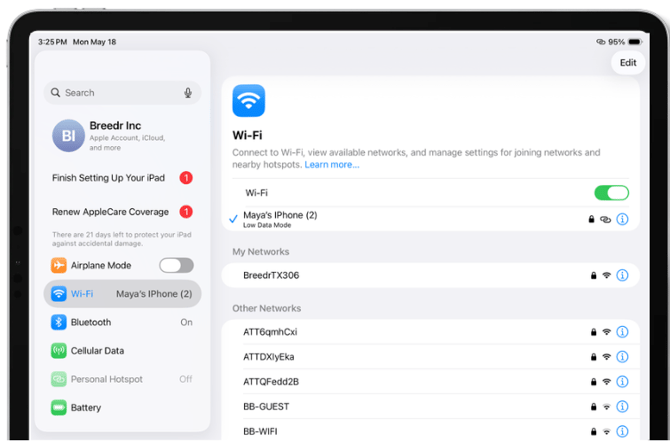
- On your iPad, open Settings and tap "Wi-Fi."
- Under "Personal Hotspot" in the Wi-Fi list, your iPhone's name will appear automatically.
- Tap it to connect, no password required.
- The Wi-Fi icon on your iPad changes to a hotspot icon (linked rings) when connected.
Not seeing the iPhone in the list? Make sure Bluetooth is turned on on both devices, Instant Hotspot uses Bluetooth to detect nearby devices even though the data travels over Wi-Fi.
Part 3: Keep the hotspot stable during a session
A dropped hotspot mid-session means Breedr can't sync. Do these things before you start:
On the phone (iPhone or Android):
- Keep the phone screen on while devices are connecting. Both iPhone and Android can stop broadcasting the hotspot when the screen locks depending on settings.
- Keep the phone close to the tablet, within 30 feet. Walls and metal equipment reduce the effective range.
- iPhone only: Turn on "Maximize Compatibility" if the iPad is having trouble staying connected: Settings > Personal Hotspot > Maximize Compatibility. This switches from 5GHz to 2.4GHz Wi-Fi -- better range at the cost of a small speed reduction. Available on iPhone 12 and later.
- Android only: In the hotspot settings, confirm the band is set to 2.4GHz for better range around metal equipment. The option is typically in the hotspot's Advanced or Configure settings.
On the iPad:
- Set Auto-Lock to Never before the session -- a sleeping iPad will drop the hotspot connection. Go to Settings > Display & Brightness > Auto-Lock > Never.
- Leave the Breedr app open and in the foreground, background apps sync less frequently.
Troubleshooting:
Device cannot find the hotspot in the Wi-Fi list
If using an iPhone as the hotspot:
- Confirm "Allow Others to Join" is turned on: Settings > Personal Hotspot > Allow Others to Join.
- Toggle Wi-Fi off and back on on the iPad or tablet.
- Toggle Bluetooth off and back on on both devices, Instant Hotspot (same Apple ID) requires Bluetooth to detect the iPhone.
- Move the tablet closer to the iPhone, within 10 feet for initial connection.
- If the iPhone name still does not appear, turn Personal Hotspot off, wait 10 seconds, and turn it back on.
If using an Android phone as the hotspot:
- Confirm the hotspot is switched on: Settings > Connections > Mobile Hotspot and Tethering > Mobile Hotspot (path varies by Android version and manufacturer).
- Confirm the hotspot name (SSID) and password are correct -- check the hotspot settings screen on the Android phone.
- Toggle Wi-Fi off and back on on the iPad or tablet.
- Move the tablet closer to the phone -- within 10 feet for initial pairing.
- On some Android phones, the hotspot turns off automatically after a period of inactivity with no connected devices. Check the hotspot timeout setting and set it to "Never turn off" or equivalent.
The hotspot drops mid-session
If the hotspot disconnects mid-session, Breedr will switch to offline mode automatically, your session continues and all data is saved locally on your device. It will sync to your account as soon as the connection is restored.
To prevent drops in the first place:
If using an iPhone as the hotspot:
- Turn on "Maximize Compatibility" on the iPhone: Settings > Personal Hotspot > Maximize Compatibility. This switches the hotspot from 5GHz to 2.4GHz Wi-Fi -- better range around metal equipment and buildings at a small speed cost. Available on iPhone 12 and later.
- Keep the iPhone screen on or set a longer Auto-Lock -- an iPhone that locks its screen may stop broadcasting the hotspot on older iOS versions.
- Check your carrier's cellular signal at the location. No signal on the phone means no internet for the tablet regardless of hotspot status.
If using an Android phone as the hotspot:
- Check the hotspot timeout setting and confirm it is not set to turn off after inactivity.
- Keep the Android phone screen on or adjust the hotspot settings to stay active when the screen is off -- some Android manufacturers turn the hotspot off when the screen locks.
- On Samsung devices: Settings > Connections > Mobile Hotspot > Configure > keep Hotspot active as "Always."
- Check your carrier's cellular signal at the location.
Hotspot option is missing from phone Settings
iPhone: Personal Hotspot may not be included in your carrier plan, or it may need to be activated. Contact your carrier. AT&T, Verizon, and T-Mobile include it on most unlimited plans but it may need to be enabled on your account first.
Android: Mobile Hotspot may be disabled by your carrier plan, or labelled differently depending on your phone manufacturer, look for "Mobile Hotspot," in your Settings. If it is present but greyed out, contact your carrier.
Breedr shows as offline after connecting the hotspot
Breedr may take 15 to 30 seconds to detect the new internet connection after the hotspot connects. Wait briefly and check the connection indicator in the app. If it stays offline, close and reopen Breedr.
Offline mode in Breedr is fully functional, if you see the offline indicator, your session data is still being saved locally and will sync when connectivity returns. See Online vs. Offline Mode for detail on what syncs and when.
Battery running low on the phone mid-session
Running a hotspot is one of the fastest ways to drain a phone battery -- especially in areas with weak cellular signal where the phone works harder to maintain the connection. Before a long session:
- Charge the phone to 100% before heading out.
- Bring a portable battery pack (power bank) to the chute.
- Reduce the phone's screen brightness during the session.
- On Android, enabling battery saver mode while the hotspot is active can extend run time -- confirm this does not disable the hotspot on your specific device before relying on it in the field.
Need some help?
Use the chat window in the bottom right of the screen, call our Customer Success team at (737) 412-3131, or email us at supportusa@breedr.co.