
The Allflex AWR300 is a long-range handheld EID reader designed for scanning cattle in large pens or from a distance. It connects to the Breedr app via Bluetooth and can also read TSU barcodes depending on firmware version.
Before You Start:
- Charge the AWR300 fully before your first session.
- Confirm your AWR300 firmware is up to date.
- Have your phone or tablet nearby with Bluetooth turned on.
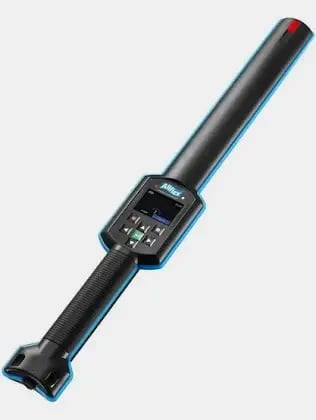
Part 1: Configure Bluetooth settings on the AWR300
The AWR300 must be configured to connect in the correct Bluetooth mode before pairing with Breedr. You should only need to do this once.
Setting 1: Bluetooth profile
- Power on the AWR300.
- Navigate to Menu > Setup > Interface Setup > Bluetooth.
- Select Set BT Profile.
- Select iAP.
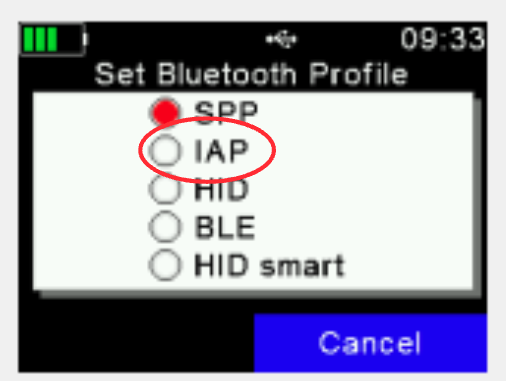
Setting 2: Bluetooth mode
Immediately after setting the BT Profile:
- Select Set Bluetooth Mode.
- Select Slave Mode.
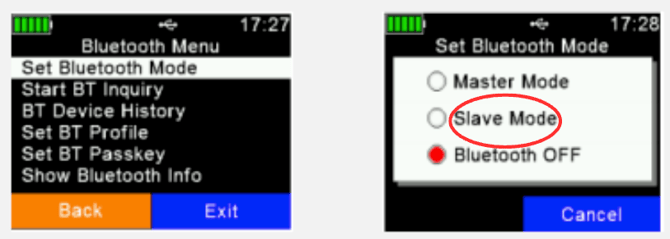
Save the settings. Confirm the settings are saved before powering off the reader. On most Allflex firmware versions, settings save automatically when you navigate back to the main menu.
Part 2: Pair the AWR300 in your phone Bluetooth settings
The AWR300 uses standard Bluetooth and must be paired in your phone or tablet's Bluetooth settings before it will appear in Breedr.
On iPhone or iPad:
- Open Settings > Bluetooth on your iPhone or iPad.
- Power on the AWR300.
- The AWR300 will appear in the list of available devices, it typically shows as "Allflex AWR300" or similar.
- Tap it to pair.
- The AWR300 will show as Connected in your Bluetooth settings.
On Android:
- Open Settings > Connected devices > Bluetooth on your Android device.
- Power on the AWR300.
- The AWR300 will appear in the list of available devices.
- Tap it to pair.
- The AWR300 will show as Paired.
Part 3: Connect the AWR300 in Breedr
- Open the Breedr app.
- Tap the Bluetooth icon in the top right corner of the screen.
- The AWR300 will appear in the device list.
- Tap it to connect.
- The Bluetooth icon turns green when the AWR300 is successfully connected.
Check your settings using the Device Tester Screen. Before starting a full session, use the Device Tester to confirm EIDs are populating correctly and in the right format. See Device Tester Screen.
Part 4: Scan EID Tags in a Chute Session
- Start a session in.
- Point the AWR300 at the animal's EID tag and press the scan button.
- The EID number populates on screen automatically.
Long-range scanning tip: The AWR300 is designed for larger pen distances. You can scan animals from up to several metres away without needing to press the reader against the tag. Keep the reader oriented toward the tag at a consistent angle for best results.
Troubleshooting:
AWR300 not appearing in phone Bluetooth settings
- Confirm the AWR300 is powered on and in Bluetooth discovery mode. On most Allflex firmware, the reader broadcasts automatically when powered on.
- Move closer to your phone, within 3 feet, during initial pairing.
- If the AWR300 previously paired to another device (another phone or a weigh head), it may automatically try to reconnect to that device. On the AWR300, navigate to Settings > Bluetooth > Paired devices and remove the previous pairing before attempting to pair with your phone.
AWR300 paired in phone settings but not appearing in Breedr
- Confirm the Bluetooth icon in the top right of Breedr is tapped to open the device list.
- Tap Refresh in the Breedr Bluetooth screen.
- Confirm the BT Profile is set to iAP and Bluetooth Mode is set to Slave (Part 1 above).
- Close and reopen the Breedr app, then try again.
AWR300 connects but EIDs have a space in the middle
Set the tag format to Decimal 2 (Part 4 above).
AWR300 connects but drops mid-session
- Check the reader battery level. Low battery causes dropped connections.
- Keep your phone within the AWR300's effective Bluetooth range during the session. The AWR300's long-range scanning ability (for tag reading) does not extend its Bluetooth range to the phone -- the Bluetooth connection to your phone still has a practical limit of around 30 to 50 feet in open conditions, less around metal equipment.
- Confirm no other Bluetooth devices are competing for the connection.
AWR300 was working on a different phone and will not connect to a new one
On the AWR300, remove the old device from the paired devices list: Settings > Bluetooth > Paired devices > [old device] > Remove. Then re-pair with the new phone following Part 2 above.
Need some help?
Use the chat window in the bottom right of the screen, call our Customer Success team at (737) 412-3131, or email us at supportUSA@breedr.co.