
This is a one-time setup. Once the D740 is configured, it connects to Breedr quickly every time.
What you will Need:
- Your Socket Mobile DuraScan D740, fully charged
- Your iPhone, iPad, or Android device with Bluetooth turned on
- The free Socket Mobile Companion app (download links below)
- The Breedr app installed and logged in
Part 1: Download and set up the Socket Mobile Companion app
The Companion app configures your D740 into Application Mode so it can communicate with Breedr. Without this step, the scanner may act as a keyboard and send data to the wrong field.
Download the Companion app:
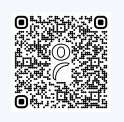
- iOS: Search "Socket Mobile Companion" in the App Store, or scan the iOS QR code.

- Android: Search "Socket Mobile Companion" in the Google Play Store, or scan the Android QR code.
Part 2: Connect the D740 using the Companion app
- Power on the D740 by pressing the power button. The indicator light will blink blue.
- Open the Socket Mobile Companion app on your phone or tablet.
- Follow the in-app prompts to pair the D740:
- The app will search for nearby Socket Mobile devices.
- Select your D740 from the list.
- Follow the prompts to complete pairing.
- Once paired, the Companion app will walk you through switching the D740 to Application Mode.
- The D740 plays a tone and the blue indicator light changes pattern to confirm Application Mode is active.
First time using the D740? The Companion app recommends resetting the device to factory defaults before first setup. Follow the reset prompt in the app if it appears -- this ensures the scanner is in a clean state before configuring.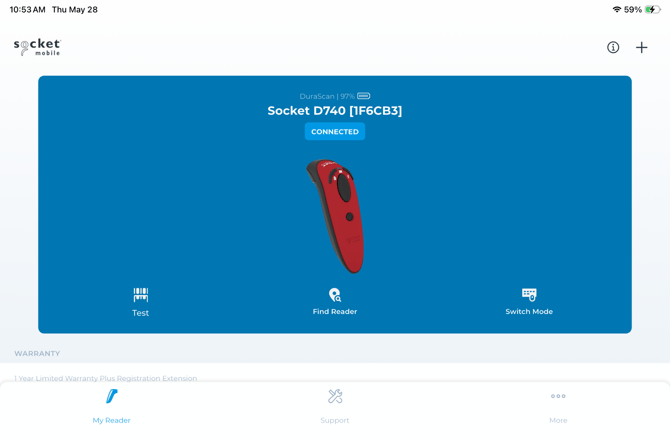
No longer have the Companion app available? Application Mode can also be set by scanning the Application Mode barcode from the D740 Quick Start Guide included in the box, or from the Command Barcodes sheet at socketmobile.com/support/downloads. The Companion app method is recommended as it is faster and more reliable in the field.
Part 3: Connect the D740 to Breedr
- Power on the D740.
- Open the Breedr app on your phone or tablet.
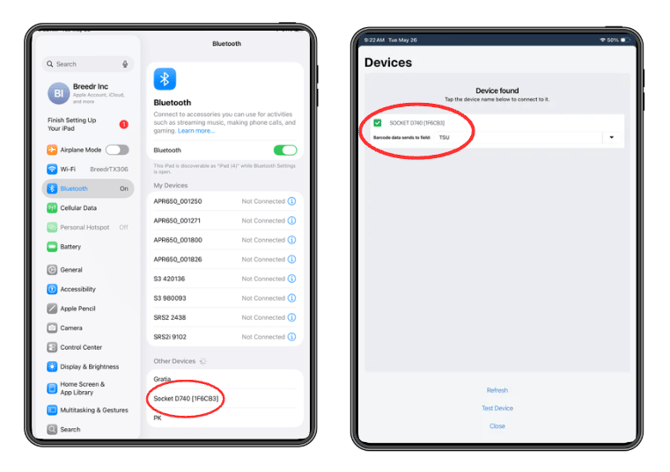
- Tap the Bluetooth icon in the top right corner of the screen.
- Tap "Refresh" if the D740 does not appear immediately in the device list.
- Tap the D740 in the device list to connect.
- Select the ID field you want the scanner to send data to -- for TSU barcodes, select "TSU Barcode."
- Tap "Close." The Bluetooth icon turns green when the D740 is connected.
Part 4: Scan TSU Barcodes in a Session
Once connected, the D740 is ready to scan during a chute session.
- Start a Quick Weigh or Quick Scan session as normal.
- Point the D740 at the TSU barcode and press the scan button.
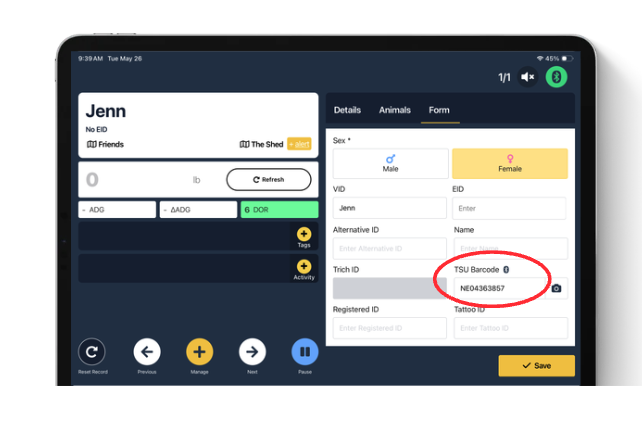
- The barcode number populates the TSU Barcode field on the animal's record automatically.
You can also scan TSU barcodes outside of a chute session from an individual animal's record -- tap the TSU Barcode field and scan.
Troubleshooting:
D740 not appearing in the Breedr device list:
- Confirm the D740 is in Application Mode. If it shipped in HID mode or has been reset, run through Part 2 again using the Companion app.
- Tap "Refresh" in the Breedr Bluetooth screen.
- Close and reopen the Breedr app, then try again.
- Make sure Bluetooth is enabled on your phone or tablet.
D740 connects but scans go to the wrong field or act as a keyboard:
- The D740 is in HID mode, not Application Mode. Open the Socket Mobile Companion app and switch it back to Application Mode.
D740 was working but stopped connecting after a phone restart:
- Power the D740 off and back on, then reconnect from the Breedr Bluetooth screen.
D740 turns off mid-session:
- The auto power-down timer is active. In the Socket Mobile Companion app, go to scanner settings and extend or disable the auto-off timer before your session.
D740 will not pair in the Companion app:
- Press and hold the scan button and power button simultaneously until the scanner plays 3 tones and shuts down. This resets it to a pairable state. Power it back on and try the Companion app again.
- If the D740 is already paired to another device's Bluetooth, unpair it from that device first: go to Settings > Bluetooth on the other device, find the D740, and select "Forget This Device."
For additional troubleshooting, see Issues Connecting Your Breedr App to Your Equipment
Need some help?
Use the chat window in the bottom right of the screen, call our Customer Success team at (737) 412-3131, or email us at supportusa@breedr.co.