
What You Will Need:
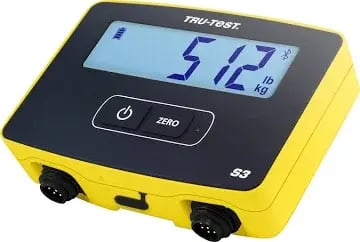
- TruTest S3 weigh head, fully charged
- Your phone or tablet with Bluetooth enabled
- Breedr app installed and logged in.
Before You Start:
- Charge the S3 fully.
- Update S3 firmware using the TruTest Data Link app (free on App Store and Google Play) or Data Link for PC at livestock.tru-test.com. Firmware updates improve Bluetooth stability and weight accuracy.
- Confirm your load bar is connected to the S3 via cable and the bar is on a stable, level surface before zeroing.
Part 1: Zero the S3 before weighing
Always zero the S3 with an empty load bar or platform before starting a session. This ensures weights are accurate against the tare weight of the equipment.
- Power on the S3 by pressing the power button.
- Confirm the load bar is empty and level.
- On the S3, press the Zero button
- The display shows 0.0 when zeroing is complete.
Re-zero if the setup moves. If the load bar shifts position or something rests on it briefly between animals, re-zero before the next animal.
Part 2: Connect the S3 in Breedr
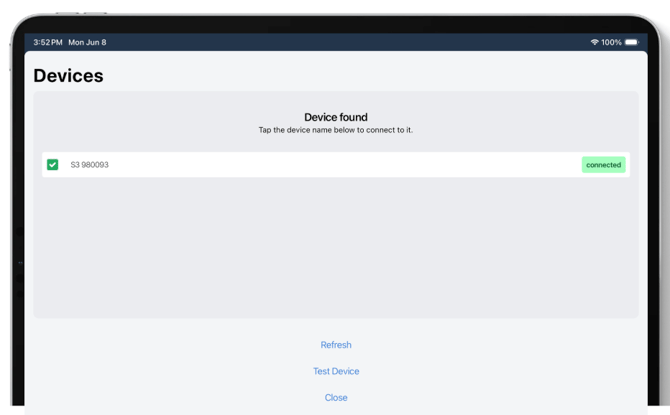
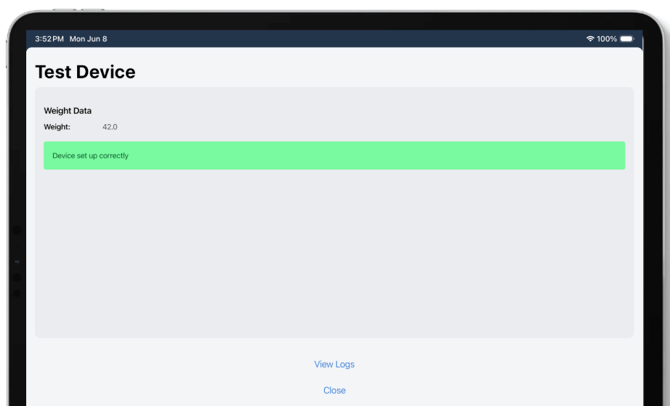
The S3 uses BLE and connects directly in the Breedr app, no phone Bluetooth settings step needed.
- Power on the S3. The indicator light will blink to show it is searching for a connection.
- Open the Breedr app on your phone or tablet.
- Tap the Bluetooth icon in the top right corner of the screen.
- The S3 will appear in the device list. Tap it to connect.
- The Bluetooth icon turns green when the S3 is successfully connected.
Part 3: Recommended Settings for Breedr
Weight Unit
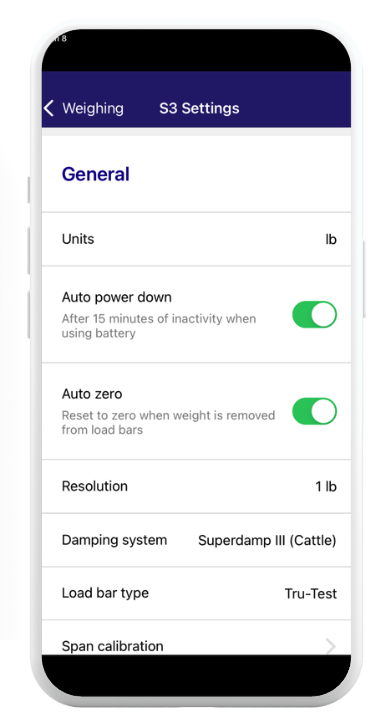
Confirm the S3 is set to display and output weights in pounds (lbs) for US accounts.
- On the S3, navigate to Settings > Units.
- Select lb (pounds).
- Save the setting.
Auto Power-Down
The S3 has an auto power-down timer active by default. Adjust it before a long session to prevent the S3 from switching off mid-weighing.
- Use the TruTest Data Link app to adjust the auto power-down timer.
- Set the timer to at least 60 minutes, or disable it entirely for long processing sessions.
- Re-enable after the session to preserve battery for future use.
If the S3 powers down mid-session: Weights captured before it powered off are already saved in Breedr (if you had a connection). Power the S3 back on, reconnect in Breedr (tap the Bluetooth icon > select S3), and continue. Re-zero the load bar before the next animal.
Filter/averaging settings
The S3 has a weight averaging or filter setting that controls how it handles movement on the load bar. A higher average takes more readings before locking a weight -- better for accurate readings on restless cattle. A lower average responds faster -- better for high-throughput sessions where cattle settle quickly.
Adjust in TruTest Data Link app > S3 settings > Filter based on your operation.
Part 4: Weigh Animals in a Chute Session
- Start a Quick Weigh session in Breedr.
- Scan or search for the first animal.
- Run the animal onto the load bar and allow it to settle.
- The weight reading from the S3 appears on screen automatically.
- Confirm the weight and move to the next animal.
Troubleshooting:
S3 not appearing in the Breedr device list
- Confirm the S3 is powered on before opening the Breedr Bluetooth screen.
- Tap Refresh in the Breedr Bluetooth screen.
- Close and reopen the Breedr app, then try again.
- Confirm Bluetooth is enabled on your phone or tablet.
S3 connected but weight shows 0 or is not updating
- Confirm the load bar cable is securely connected to the S3.
- Confirm the load bar is on a stable surface and not rocking.
- Re-zero the S3 with an empty load bar (Part 1 above).
- Confirm the load bar capacity has not been exceeded. The MP600 is rated to 4,400 lbs in a chute, very large bulls may need the HD5T (11,000 lbs).
Weights are inconsistent or jumping
- The load bar may be on uneven ground. Level it before re-zeroing.
- The animal may be leaning against the chute sides rather than standing freely on the bar. Ensure the animal's full weight is on the platform.
- Adjust the filter/averaging setting to a higher value to dampen movement (see Part 3 above).
- Check for wind loading on the chute -- strong wind against the chute sides can affect load bar readings.
S3 powers off mid-session
- Check the battery level on the S3 before starting. The S3 battery indicator is visible on the display.
- Increase the auto power-down timer using the TruTest Data Link app (Part 3 above).
- Keep the S3 out of direct sun during sessions -- heat affects battery performance.
S3 drops Bluetooth connection mid-session
- Keep your phone within 30 feet of the S3 during weighing.
- The S3 uses BLE which can be affected by interference from other BLE devices (other phones, weight heads). Minimise active BLE devices in the immediate area.
- If the connection drops, tap the Bluetooth icon in Breedr and reconnect. The session will continue with the animals already weighed, re-zero and continue from where you left off.
Need some help?
Use the chat window in the bottom right of the screen, call our Customer Success team at (737) 412-3131, or email us at supportUSA@breedr.co.