
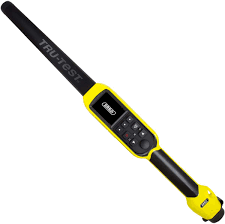
Before starting, identify which reader you have:
| Model | How to identify | Connection method |
|---|---|---|
| SRS2i | "i" suffix on the label. Uses Bluetooth Low Energy (BLE). | Connects directly in the Breedr app, no phone Bluetooth settings step needed |
| SRS2 | No "i" suffix. Uses Classic Bluetooth. | Pair in phone/tablet Bluetooth settings first, then connect in Breedr |
Before You Start:
- Charge your SRS2i or SRS2 fully before connecting. Low battery causes dropped or failed Bluetooth connections.
- Update your reader firmware using the TruTest Data Link app (available free on the App Store and Google Play) or Data Link for PC. Download at livestock.tru-test.com. Outdated firmware is a common cause of connection and EID format issues.
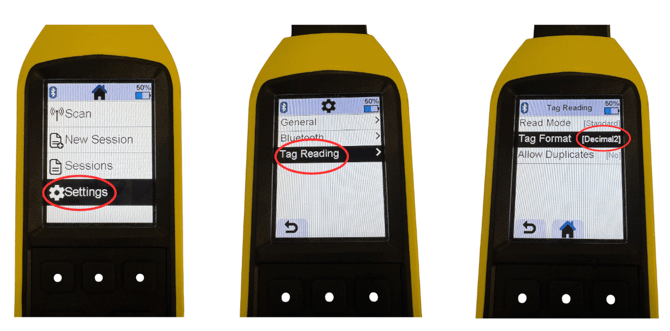
- Check your tag format setting. Your reader must output EIDs in Decimal 2 format for Breedr to read them correctly. See the settings steps below.
Part 1: Configure the Required Settings on the Reader
Do this once before connecting. These settings ensure EIDs read correctly into Breedr.
Setting 1: Tag format (both SRS2i and SRS2)
If EID numbers appear with a space in the middle (e.g. 840 003123456789 instead of 840003123456789), the tag format needs updating.
- On the reader, navigate to Settings.
- Select Tag Reading.
- Select Tag Format.
- Press the round button until Decimal 2 is selected.
- Press Select to confirm.
Setting 2: Bluetooth connection mode (both SRS2i and SRS2)
If the reader connects but drops intermittently during sessions, the connection mode may need updating.
- On the reader, navigate to Settings.
- Select Bluetooth.
- Select Advanced.
- Press the round button until Default is selected.
- Press Select to confirm.
SRS2 on Android only: If you are using an SRS2 on Android and having connection issues, try setting the Bluetooth mode to Manual instead of Default. Navigate to Settings > Bluetooth > Bluetooth on the reader and select Manual.
Part 2: Connect the SRS2i to Breedr
The SRS2i connects directly in the Breedr app. You do not need to go to your phone's Bluetooth settings.
- Power on the SRS2i by pressing the power button.
- Open the Breedr app.
- Tap the Bluetooth icon in the top right corner of the screen.
- The SRS2i will appear in the device list. If it does not appear, tap Refresh.
- Tap the SRS2i in the list to connect.
- The Bluetooth icon turns green when the SRS2i is successfully connected.
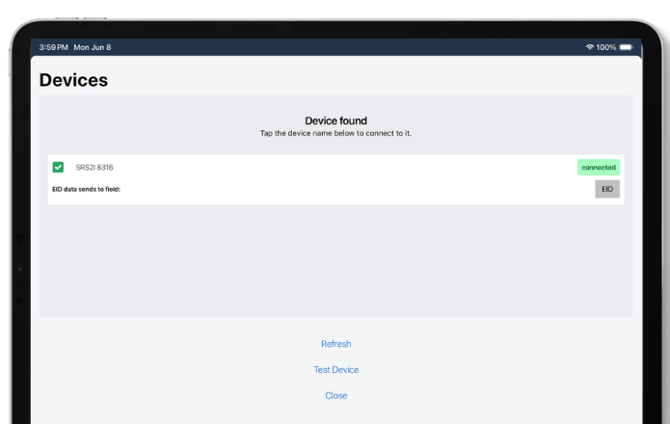
Always power on the SRS2i before opening the Breedr Bluetooth screen. The app cannot detect the reader until it is switched on and broadcasting.
Part 2: Connect the SRS2 to Breedr
The SRS2 uses Classic Bluetooth and must be paired in your phone or tablet's Bluetooth settings before it will appear in Breedr.
Step 1: Pair in phone Bluetooth settings
- Power on the SRS2.
- On the SRS2, navigate to Settings > Bluetooth > Search for devices. The reader will scan for nearby Bluetooth devices.
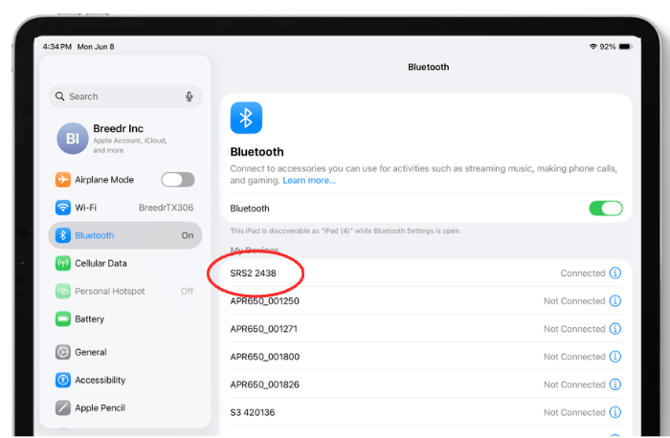
- On your phone or tablet, open Settings > Bluetooth.
- The SRS2 will appear in the list of available devices, it typically shows as "SRS2" or similar.
- Tap it on your phone to pair. Enter a pairing code if prompted.
- The Bluetooth indicator light on the SRS2 will turn solid blue when pairing is successful.
Trouble Connecting?
Press the (i) on the right side of the settings. Forget Device on Apple Settings completely, turn off Bluetooth toggle for five seconds then reconnect on Apple Settings again.
Step 2: Connect in Breedr
- Open the Breedr app.
- Tap the Bluetooth icon in the top right corner.
- The SRS2 will appear in the device list. Tap it to connect.
- The Bluetooth icon turns green when connected.
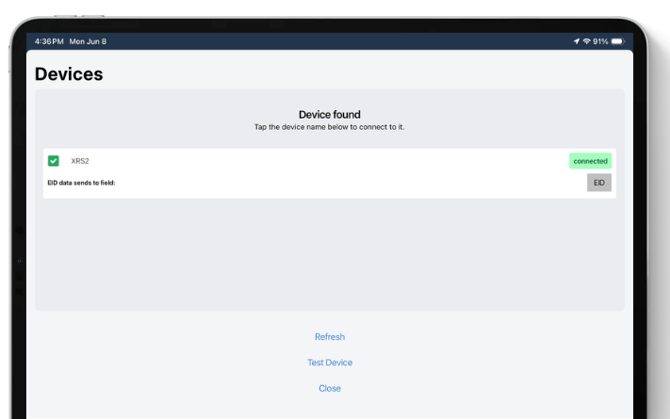
Part 3: Scan EID Tags in a Chute Session
Once connected:
- Start a Quick Weigh or Quick Scan session.
- Point the reader at the animal's EID tag and press the Read button.
- The EID number populates on screen automatically.
- The reader beeps once to confirm a successful scan (if the buzzer is enabled -- it is on by default).
Test before your session: Use the Device Tester Screen to confirm EIDs are reading correctly and in the right format before starting a full session. See Device Tester Screen.
Scanning tip: If animals are moving quickly through a chute, hold the Read button continuously. The reader will scan repeatedly until the button is released.
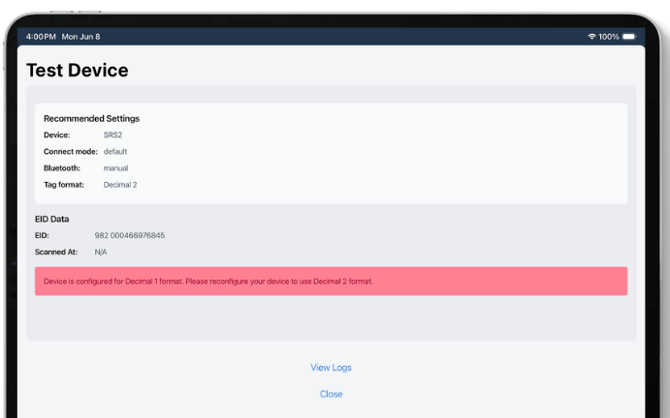
Test the connection first: Before starting a full session, use the Device Tester Screen to confirm scans are coming through correctly and EIDs are in the right format. See Device Tester Screen.
Troubleshooting:
Reader not appearing in the Breedr device list
- Confirm the reader is powered on before opening the Breedr Bluetooth screen.
- Tap Refresh in the Breedr Bluetooth screen.
- For the SRS2, confirm it is paired in your phone's Bluetooth settings (Settings > Bluetooth). If it does not appear there, repeat the pairing steps in Part 2 above.
- For the SRS2i, confirm it is not already connected to another device. The SRS2i can only connect to one device at a time. If it is connected to a TruTest weigh head or another phone, disconnect it from that device first.
Reader connects but EIDs appear with a space in the middle
Your tag format is not set to Decimal 2. Follow Setting 1 in Part 1 above.
Reader connects but drops mid-session
- Confirm the Bluetooth connection mode is set to Default (Setting 2 in Part 1).
- Keep your phone within 30 feet of the reader during the session.
- Check the reader battery -- low battery causes dropped connections even when pairing looks correct.
- Avoid having other active Bluetooth devices (weigh heads, headphones) close to the reader during scanning.
SRS2 previously paired to a TruTest weigh head
The SRS2 automatically reconnects to the last device it was paired with. If your reader previously connected to a weigh head, it may try to reconnect to that instead of your phone.
- On the SRS2, navigate to Settings > Bluetooth.
- Select the weigh head from the paired devices list and select Remove or Forget.
- Repeat the pairing steps in Part 2 to pair with your phone.
Update Firmware on Your Reader
Keeping firmware up to date improves Bluetooth stability and EID reading reliability. Update using:
- TruTest Data Link app: Download free from the App Store or Google Play. Connect your reader via Bluetooth, then go to Tools > Updates > Check for updates.
- Data Link for PC: Download from livestock.tru-test.com. Connect the reader via USB cable and follow the update prompts..
Need some help?
Use the chat window in the bottom right of the screen, call our Customer Success team at (737) 412-3131, or email us at supportusa@breedr.co