
 What You Need:
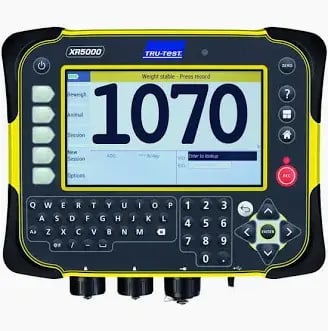
- TruTest XR5000 weigh head with a load bar or scale platform connected
- The Breedr app installed on your iPhone, iPad, or Android device
- Bluetooth enabled on your phone or tablet
Step 1: Prepare the XR5000
- Make sure your load bars or scale platform are properly connected to the XR5000 and the unit is sitting on a stable surface.
- Power on the XR5000 by pressing the power button. The display will light up and show the current weight reading.
- Confirm the unit is zeroed before connecting. With no animal on the scale, press the Zero button to set the baseline.
Step 2: Enable Bluetooth on the XR5000
- On the XR5000, navigate to Settings > Communications > Bluetooth.
- Make sure Bluetooth is turned On.
- The XR5000 will begin broadcasting and should be discoverable by the Breedr app.
Step 3: Connect in Breedr
- Open the Breedr app and navigate to Chute Mode.
- Tap the Bluetooth icon (top right of the Chute Mode screen).
- Breedr will scan for nearby devices. The XR5000 should appear in the list.
- Tap XR5000 to connect.
- Once connected, the equipment icon will show a green indicator and live weight readings will appear on the Chute Mode screen.
Step 4: Verify the Connection
Before starting your session, confirm the connection is working correctly:
- Place a known weight on the scale or walk an animal onto the platform.
- Check that the weight reading in Breedr matches the display on the XR5000.
- If the readings do not match, re-zero the XR5000 and check that the load bars are seated and connected properly.
You can also use the Device Tester Screen in Breedr to confirm the connection before your session. See Device Tester Screen.
Recommended Settings:
For best results, confirm the following settings on your XR5000 before connecting to Breedr:
- Bluetooth: On
- Units: Pounds (lb) for US operations
- Auto-send: Enabled (sends weight to Breedr automatically when the reading stabilizes)
- Stability threshold: Set according to your scale platform and environment
For a full breakdown of recommended settings, see Recommended Settings for Equipment.
Troubleshooting:
The XR5000 does not appear in the device list in Breedr.
- Confirm Bluetooth is enabled on both the XR5000 and your phone or tablet.
- Close and reopen Breedr and try scanning again.
- Make sure no other device (such as a phone or tablet belonging to another user) is already connected to the XR5000. TruTest devices can only be connected to one device at a time.
- Restart the XR5000 and try again.
The weight reading in Breedr is not updating.
- Check that Auto-send is enabled in the XR5000 settings.
- Confirm the connection is still active in the Equipment panel in Chute Mode.
- Move your phone or tablet closer to the XR5000 and avoid obstructions between the two devices.
The weight readings are inconsistent or jumping.
- Check that the load bars are on a flat, stable surface and are not shifting during weighing.
- Re-zero the XR5000 with no animal on the platform.
- Inspect the load bar cables for damage or loose connections.
Bluetooth drops during a session.
- Keep your device within 30 feet of the XR5000 during a session.
- Avoid heavy machinery or other Bluetooth devices operating nearby, as these can cause interference.
- After reconnecting, check that any weights recorded during the dropout were captured correctly before continuing.
Keeping Firmware Up to Date
Keeping your XR5000 firmware current ensures the best connection stability with Breedr. For instructions on updating firmware, see Updating TruTest Firmware.
Need some help?
Use the chat window, call our Customer Success team at (737) 412-3131 , or email support supportusa@breedr.co