
|
Model |
Connection method |
|
|
XRS2i |
Connects directly in Breedr app (no phone Bluetooth settings step) |
|
|
XRS2 |
Pair in phone Bluetooth settings first, then connect in Breedr |
|
|
XRS |
Pair in phone Bluetooth settings first, then connect in Breedr |
|
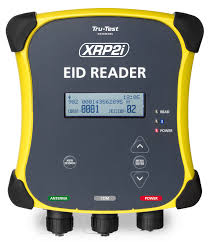

Identifying your model: Check the label on the reader. The XRS2i has an "i" suffix and uses Bluetooth Low Energy (BLE). The XRS2 and XRS use Classic Bluetooth.
Before You Start:
- Charge the reader fully before connecting.
- Update firmware using the TruTest Data Link app (free on App Store and Google Play) or Data Link for PC at livestock.tru-test.com.
- Confirm Bluetooth is enabled on your phone or tablet.
Part 1: Configure Required Settings
Set these once before your first connection. They ensure EIDs read correctly into Breedr.
Tag format: Decimal 2
- On the reader, navigate to Settings > Tag Reading > Tag Format.
- Select Decimal 2.
- Press Select to confirm.
If EIDs appear with a space in the middle (e.g. 840 003123456789), this setting needs updating.
Bluetooth connection mode:
- Navigate to Settings > Bluetooth > Advanced.
- Select Default.
- Confirm.
XRS2 on Android only: If connection is unstable on Android, try setting Bluetooth to Manual instead: Settings > Bluetooth > Bluetooth > Manual.
Part 2a: Connect the XRS2i (direct in-app connection)
The XRS2i uses BLE and connects directly in Breedr -- no phone Bluetooth settings step needed.
- Power on the XRS2i.
- Open the Breedr app and tap the Bluetooth icon in the top right corner.
- Tap Refresh if the reader does not appear immediately.
- Tap the XRS2i in the device list to connect.
- The Bluetooth icon turns green when connected.
Part 2b: Connect the XRS2 or XRS to Your Phone Settings
- Power on the reader.
- On your phone or tablet, open Settings > Bluetooth.
- The reader appears in the available devices list -- tap it to pair. Enter 0000 if prompted for a pairing code.
- Once paired, open the Breedr app and tap the Bluetooth icon.
- Tap the reader in the device list to connect.
- The Bluetooth icon turns green when connected.
Part 3: Scan EID tags in a Chute Session
- Start a Quick Weigh or Quick Scan session.
- Press the Read button and point at the animal's EID tag.
- The EID populates on screen automatically.
Before a full session: Use the Device Tester Screen to confirm EIDs are reading correctly. See Device Tester Screen.
Troubleshooting:
|
Problem |
Likely cause |
Fix |
|
Reader not in Breedr device list |
Not powered on, or XRS2/XRS needs phone pairing first |
Power on reader. For XRS2/XRS: pair in phone Settings > Bluetooth first |
|
EIDs have a space in the middle |
Tag format not set to Decimal 2 |
See Part 1 above |
|
Drops connection mid-session |
Low battery or phone too far away |
Charge reader. Stay within 30 feet. |
|
XRS2i not found after restart |
BLE device may need a moment to broadcast |
Wait 10 seconds after powering on, then tap Refresh in Breedr |
For further troubleshooting see Issues Connecting Your Breedr App to Your Equipment?
Need some help?
Use the chat window in the bottom right of the screen, call (737) 412-3131, or email supportUSA@breedr.co.