
Before you start: You'll need your completed Zoetis results file downloaded from the Zoetis portal. If you haven't received your results yet, start at Step 1 below
Zoetis is one of the two primary commercial genomic testing providers for US beef producers. Tests are ordered through Zoetis directly at beefgenetics.com and samples are collected using an TSU at the time of tagging.
Breedr supports importing results from two Zoetis test types:
|
Test |
What it provides |
Best for |
|
Inherit Select EPD |
Genomic Expected Progeny Differences (GEPDs) and percentile rankings for up to 25 traits -- calving ease, growth, feed efficiency, carcass, fertility, BRD health and survival, plus breed composition, sire parentage, and economic indexes (ZTR, ZCC, ZFC) |
Commercial cow-calf operations selecting crossbred replacement females and heifers |
|
Inherit Optimize EPD |
Genomic predictions and percent ranks for ten key traits for feeder cattle -- growth, feed efficiency, carcass quality, and tenderness -- plus color, polled status, and breed composition. Includes Parentage Discovery, breed composition estimates, the Zoetis Feedlot/Carcass (ZFC) economic index, and optional BVDV add-on. Updated weekly. |
Feeder cattle operations, feedlots, and stocker programs marketing cattle on carcass merit |
What INHERIT Select Results Include:
When you import INHERIT Select results into Breedr, the following data attaches to each animal's record:
Trait GEPDs (updated weekly by Zoetis): Birth Weight (BW) · Weaning Weight (WW) · Yearling Weight (YW) · Dry Matter Intake (DMI) · Feed:Gain · Yearling Height · Milk · Teat & Udder Composite · Docility · Scrotal Circumference · Carcass Weight · Fat · Ribeye Area · Intramuscular Fat (Marbling) · Tenderness · Fertility · BRD Health (BRDH) · BRD Survival (BRDS) · Pulmonary Artery Pressure (optional)
Economic indexes: Zoetis Total Return (ZTR) · Zoetis Cow-Calf (ZCC) · Zoetis Feedlot Carcass (ZFC) · $Ranch (optional) · $Profit (optional) · $BRD
Additional data: Breed composition (up to 15 breeds) · Sire parentage · Color genotype · Polled/horned status
TSU barcodes and Breedr: If you use TSU punches to collect samples, scan the TSU barcode into Breedr during your chute session using Quick Actions or the APR650 / D740 scanner. This links the barcode to the animal record so Breedr can auto-match results when the Zoetis file comes back. See Quick Actions in Chute Mode.
Step 1: Download Your Results From the Zoetis Portal
Results are emailed to you approximately four weeks after Zoetis receives your samples.
- Check your email for the Zoetis results notification. It will include a link or attachment with your results file.
- Alternatively, log in at beefgenetics.com and navigate to your completed orders.
- Download the results file as a CSV or Excel file. Download the full results version (not a summary report) to ensure all trait columns are included.
First time accessing Zoetis results? Contact Zoetis Genetics at 877-233-3362 or visit beefgenetics.com for help accessing your account.
Step 2: Prepare Your Results File for Import
Breedr uses an animal ID column in your results file to match each row to the correct animal record. Before uploading, confirm your results file contains an ID that matches what's stored in Breedr.
Common ID matching scenarios:
|
Zoetis ID in results file |
Matching ID in Breedr |
Next Steps: |
|
TSU Barcode |
TSU Barcode already scanned in Breedr |
Ready to import |
|
TSU Barcode |
Not yet in Breedr |
Add TSU barcodes first via Edit Animal Information or file upload |
|
EID |
EID in Breedr |
Ready to import |
|
Visual ID / Ear Tag |
Visual ID in Breedr |
Ready to import |
EID format check: If your EIDs have a space in the middle (e.g. 840 1234567891011 instead of 8401234567891011), your EID reader may have been set to the wrong format. See Recommended Settings for Equipment, then correct the EIDs in your results file before importing.
Step 3: Import the Results Into Breedr
- Select "Import Data" from the left-hand navigation.
- Select "Partner Imports"
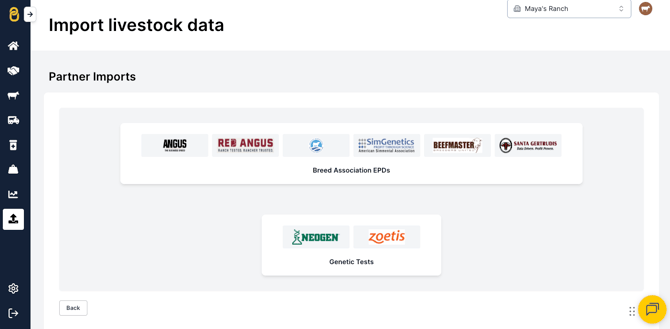
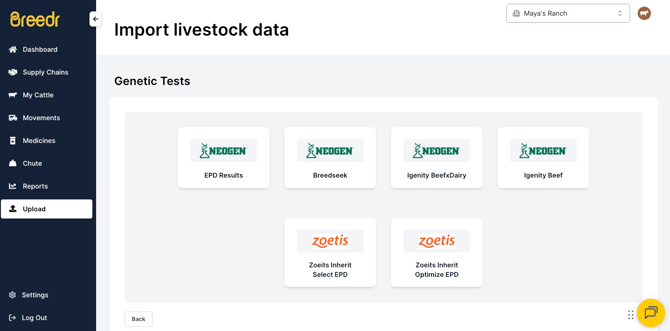
- Select "Zoetis DNA Results" (or the equivalent import type, confirm exact label with checklist note below) from the import type options.
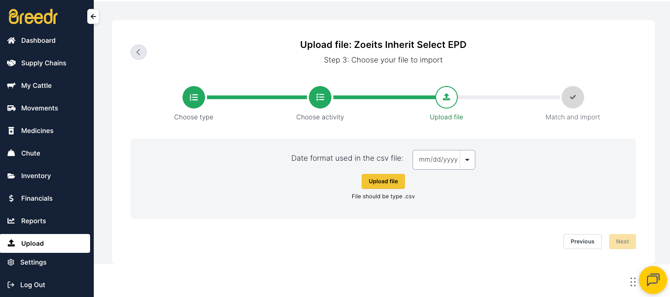
- Select your CSV file and click "Next."
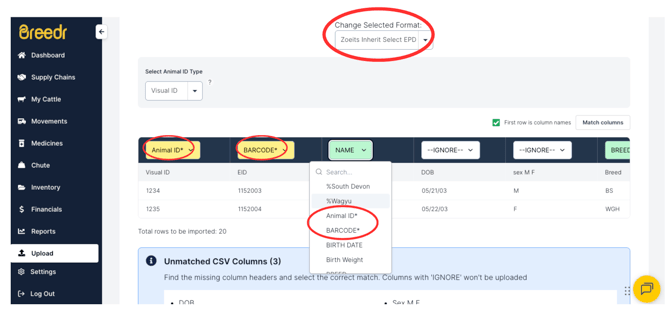
- Map the columns, Breedr will attempt to auto-match Zoetis column headings. Review and correct any that did not map automatically.
- Confirm the animal ID column is mapped so Breedr knows which animal each row belongs to.
- Click "Finish Upload."
- A green screen confirms the import was successful!
Step 4: Verify the Results on an Animal Record
After the import:
- Open My Cattle and tap any animal that was included in the import.
- Open the animal's record and under the "Genealogy" button, find “Genetics”.
- Confirm the results appear correctly.
If Your Import has Errors:
Click "Download un-imported animals" to save a CSV of the failed rows. Check the error column for the cause.
|
Error |
Likely Cause |
Fix |
|
Animal not found |
TSU Barcode, EID, or VID in the results file doesn't match any Breedr record |
Add the TSU barcode to the animal record first, or check for typos and spaces in the ID column |
|
Duplicate match |
Multiple animals in Breedr share the same ID |
Resolve duplicate IDs before re-importing |
|
Invalid column format |
Results file column headers don't match what the importer expects |
Download the Breedr Zoetis import template and reformat your file to match |
|
Missing ID column |
No animal ID column present or not mapped |
Ensure at least one ID column (TSU Barcode, EID, or VID) is included and mapped |
Need some help?
Use the chat window in the bottom right of the screen, call our Customer Success team at (737) 412-3131, or email us at supportusa@breedr.co.