
Once imported, carcass data attaches to each animal's individual record and populates the Carcass Grade and Performance report, the Feedlot Closeout report, and the Sire and Dam Performance report.
When to Use This Method:
Use the CSV import when:
- Your packer or processor provides kill sheet data in a spreadsheet or CSV format
- You have carcass results for 10 or more animals and manual entry would take too long
- You want to bulk-upload retained ownership or carcass sale results after harvest
For a single animal or a small number, log carcass data manually instead. See Recording Performance Data in Breedr.
What You Will Need:
- Your kill sheet or carcass data file from the packer or processor, saved as a CSV
- The animals already in Breedr with at least one matching ID (EID, VID, or Management Tag) that appears in your kill sheet
- Access to the browser portal at app.breedr.tech
- Converting from Excel? If your kill sheet is an Excel file (.xlsx or .xls), convert it to CSV before uploading. See Convert a Spreadsheet to CSV Format.
Carcass Data Fields:
Your CSV can include any of the following fields. Include only the columns you have data for -- unused columns can be left out entirely.
Required: at minimum one animal ID
Matching column header: Breedr uses one ID column to match each row in your CSV to the correct animal record. The column you use must contain IDs that exist in Breedr. If your kill sheet uses a different identifier (e.g. a packer lot number), you will need to add a matching ID column before importing. Contact our Customer Success team if you need help mapping kill sheet IDs to your Breedr records.
Carcass data fields:
|
Column header |
What to enter |
Notes |
|
Quality Grade |
USDA quality grade |
Use: prime, choice, select, standard, commercial, utility, cutter, canner, no roll (lowercase) |
|
Yield Grade |
USDA yield grade |
Numeric value 1 to 5 |
|
Hot Carcass Weight |
Weight immediately after slaughter, before chilling |
In pounds (lbs) |
|
Ribeye Area |
Square inches at the 12th/13th rib |
|
|
Backfat |
Fat depth over the 12th rib |
In inches |
|
KPH |
Kidney, pelvic, and heart fat percentage |
As a percentage e.g. 2.5 |
|
Dressing Percentage |
Hot carcass weight divided by live weight |
As a percentage e.g. 62.5 |
|
Harvest Date |
Date of slaughter |
Format: MM/DD/YYYY |
|
Harvest Weight |
Live weight at harvest |
In pounds (lbs) |
|
Marbling Score |
Marbling score code |
e.g. Sm00, Mt00, Sl00 -- confirm accepted values with the product team |
|
Packer |
Name of the processing facility |
Optional |
|
Notes |
Any additional notes |
Optional |
Step 1: Prepare your CSV File
- Open your kill sheet in Excel or Google Sheets.
- Confirm you have at least one ID column (EID, VID, or Management Tag) that matches your animal records in Breedr.
- Rename your column headers to match the Breedr column names in the table above. Exact matches will be mapped automatically, anything that does not match exactly will need to be mapped manually in Step 4.
- Save the file as a CSV.
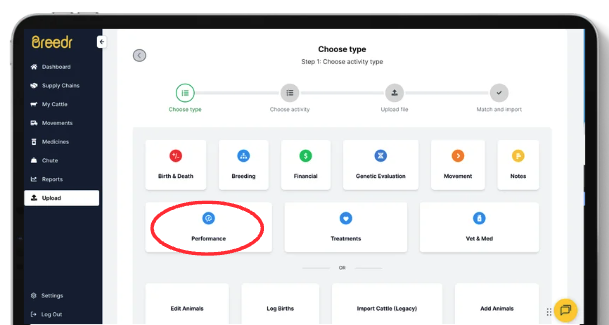
Step 2: Go to the Performance Importer
- Log in at app.breedr.tech.
- Select "Upload" from the left-hand navigation.
- Select "Custom Import."
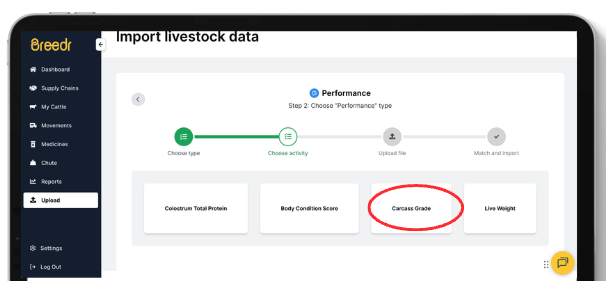
- Select "Performance."
- Select "Carcass Grade" as the performance type.
Step 3: Upload your File
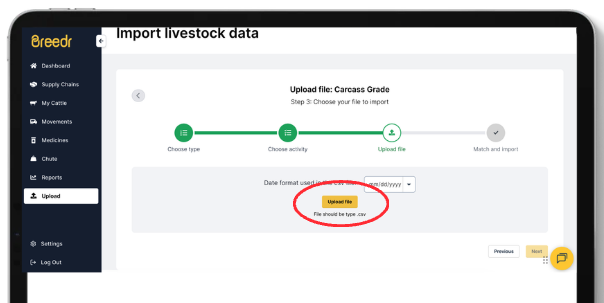
- Click "Choose file" and select your CSV.
- Click "Next."
Step 4: Map your Columns
- Breedr will automatically match any column headers that exactly match the expected names. Matched columns are highlighted in green.
- For any unmatched columns (shown as IGNORE), use the dropdown to select the correct Breedr field.
- Set your Animal Matching Column -- this tells Breedr which ID column to use to match rows to animal records. Select EID, Visual ID, or Management Tag depending on which column you included.
- Review all mappings before continuing.
Step 5: Finish the Upload
- Click "Finish Upload."
- A green banner confirms the upload was successful.
- Open a few animal records in My Cattle to confirm carcass data has attached correctly.
If your Upload Has Errors:
Click "Download un-imported animals" to save a CSV of any rows that failed. Check the error column for the cause.
|
Error |
Likely cause |
Fix |
|
Animal not found |
The ID in your CSV does not match any animal in Breedr |
Check for typos, extra spaces, or leading zeros missing in the ID column. Confirm the animal exists in Breedr with that exact ID. |
|
Invalid quality grade |
Grade value not recognised |
Use lowercase values: prime, choice, select, standard, commercial, utility, cutter, canner, no roll |
|
Invalid date format |
Date not in MM/DD/YYYY format |
Reformat all date columns to MM/DD/YYYY |
|
Invalid numeric value |
A number field contains text or a symbol (e.g. a % sign in the KPH column) |
Remove any % signs or text from numeric columns. Enter numbers only. |
|
Duplicate animal |
More than one animal in Breedr matches the ID in your row |
Resolve the duplicate IDs in your account before re-importing |
Viewing Carcass Data After Import:
Carcass records appear in each animal's activity history timeline under Performance > Carcass Grade. They also flow into:
- Carcass Grade and Performance report -- quality grade and yield grade distribution across your herd
- Feedlot Closeout report -- carcass performance summarised by group or pen
- Sire and Dam Performance report -- carcass merit by sire and dam
See How to Download a Report for report access steps.
Need some help?
Use the chat window in the bottom right of the screen, call our Customer Success team at (737) 412-3131, or email us at supportusa@breedr.co.