
Section 1: Night Before You Process
Do this before you leave for the chute so your session runs smoothly once you're out there.
Connect to Wi-Fi and open Breedr.- Open the iPad's Settings app, tap Wi-Fi, and make sure it's connected (you'll see a blue checkmark next to the network name).
- Then open the Breedr app from the home screen.
- When Breedr opens, look for the "Data Ready" screen.Check your data is up to date.
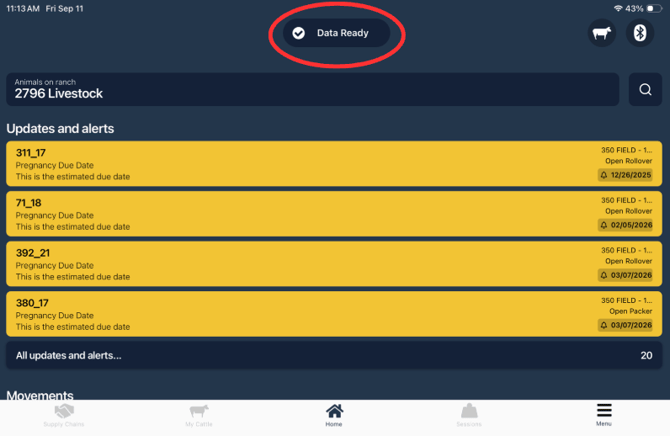
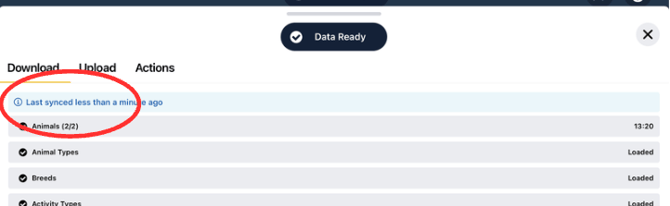
- If it shows the data synced a while ago, tap the blue text to force a fresh sync.
-
- Give it 1 to 2 minutes, and wait until it finishes before you leave Wi-Fi range. Once you're out of range, it can't sync.
- Check your cattle list.
-
- Go to My Cattle and confirm the animals you plan to work are showing on the iPad.
- If recently added animals are missing, make sure the device that added them saved successfully, then sync again.
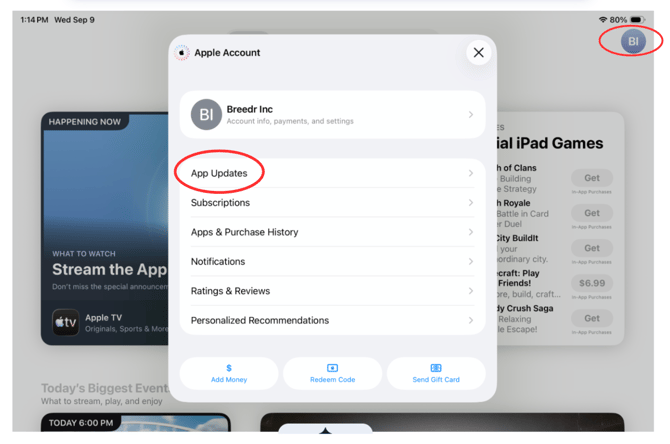
- Check for app updates.
- Open the App Store app.
- Tap your profile icon in the top right corner.
- Scroll down to App Updates.
- If Breedr is listed, tap Update next to it (or Update All).
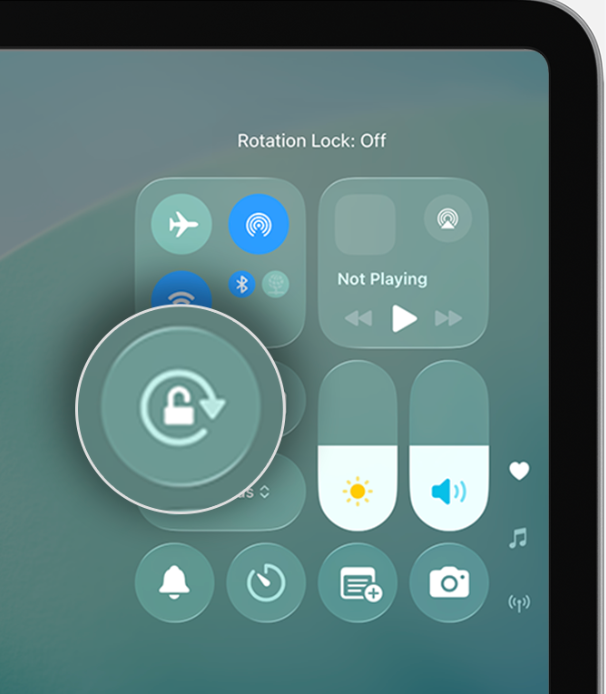
- Set Auto-Lock to Never.
- A sleeping iPad during a session can cause data loss.
- Go to Settings > Display & Brightness > Auto-Lock > Never.
- Charge the iPad.
- Plug the iPad into its charger and let it reach 100% before you leave.
- Running offline with Bluetooth equipment connected drains the battery faster than normal.
- Optional: plan a hotspot.
- If you want data to sync in real time during the session, connect the iPad to an iPhone hotspot before you start. See Connect an iPad to a Hotspot.
- Sessions work fully offline without one.
Section 2: At the Chute
Most of what you do in Chute Mode works without a connection. Your data saves to the iPad as you enter it, not only when it syncs.
|
Works offline |
Needs a connection |
|---|---|
|
Run a session from Quick Weigh or a template |
Viewing animals that haven't loaded on your iPad |
|
Scan EID tags and record weights |
Syncing session data to other devices or the web portal |
|
Log activities (medicines, treatments, preg checks, BCS, notes) |
Reports on the web portal |
|
Add or remove Management Tags |
Uploading files or importing data |
|
Search animals already loaded on your iPad |
Saving a chute session once it's complete |
|
All Quick Actions on iPad |
- Low battery? Tap Pause & Save to be safe.
- Offline indicator showing but you have signal? Turn airplane mode on and off, or close and reopen Breedr. Also check Settings > Breedr > Cellular Data is turned on.
- Need the web portal? app.breedr.tech doesn't work offline. Use the mobile app in the field.
Section 3: After You Process
Reconnect at the end of each day so your team sees your updates.
- Get back on Wi-Fi or cell service and open Breedr.
- Tap Save and Finish, not just Pause. A paused session is still active and only shows on the iPad it was recorded on.
- Wait for the sync to finish. If you saved on a weak signal, open the app again on a stronger connection and give it a moment.
- Check the session on another device or the web portal.
If the session still doesn't show up, contact us. We can pull session data from the database. Don't log out, delete the app, or delete the session until it's sorted out.
Need some help? Use the chat window in the bottom right of the screen, call our Customer Success team at (737) 412-3131, or email supportusa@breedr.co.