
Everything you need appears on the right side of the screen so you can tap, enter a value, and move straight to the next animal.Everything you need appears on the right side of the screen so you can tap, enter a value, and move straight to the next animal.
Quick Actions are designed for high-throughput sessions: preg checking a cow herd, scoring body condition, recording hip height or horn status, or running a bull BSE all without breaking your processing rhythm.
Tablet required.
Quick Actions are only available on an iPad or Android tablets, and the tablet must be held horizontally (landscape) to see the Actions panel. The panel does not appear in portrait orientation.
Before You Start:
- Open Breedr on your tablet and rotate it to landscape orientation.
- Confirm your EID reader or weight head is connected if you're using equipment. See Chute Mode and Connecting Equipment.
- Quick Actions are available in both Quick Weigh and Quick Scan sessions.
How to use Quick Actions:
Step 1: Start a chute session
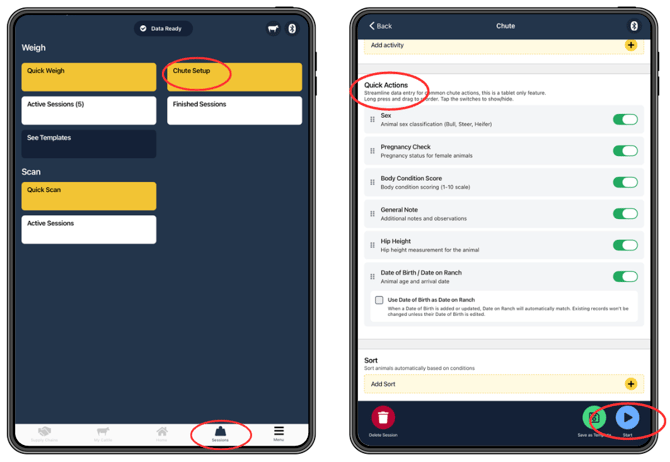
- Tap "Sessions" from the bottom navigation bar.
- Tap "Chute Setup" and scroll to "Quick Actions" section.
- Tap the switches on (green) or off (grey) to select which action to be shown in sessions.
- Long press and drag each action to reorder them.
- When satisfied with selected options and order, tap "Start" and run a Chute Session.
Step 2: Scan the Animal
Scan the animal's EID tag with your reader, or enter its Visual ID (VID) manually using the search bar. The animal's record loads on screen
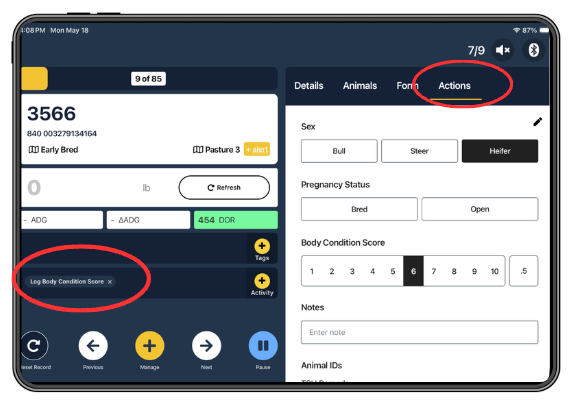
Step 3: Tap "Actions" on the Right Side of the Screen
With the tablet in landscape, an "Actions" panel appears on the right side of the session screen. Tap it to expand the list of available Quick Actions for that animal.
Can't see the Actions panel? Rotate your tablet to landscape if it's in portrait. The panel only appears in landscape orientation.
Step 4: Select and Record Your Actions
Tap any action from the list to record it for the current animal. You can record as many or as few actions as needed, not every action is required for every animal.
Available Quick Actions:
Identification
|
Action: |
What it Records: |
|
Update DOB / DOR |
Correct date of birth or date on ranch (Option to use Date of Birth as Date on Ranch automatically) |
|
Animal ID's |
Add TSU Barcode, Name and Tattoo ID |
|
Sex |
Update the animal's sex |
|
Note |
Free-text note attached to the animal record |
Physical Assessment
|
Action: |
What it Records: |
|
Body Condition Score (BCS) |
Score on the 1–10 scale |
|
Hip Height |
Height in inches |
Breeding & Reproduction
|
Action: |
What it Records: |
|
Pregnancy Status |
Log bred or open with days bred |
Recording Multiple Actions for the Same Animal:
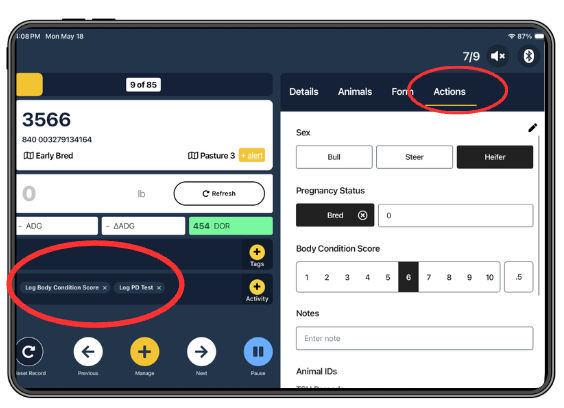
You can record as many Quick Actions as needed before moving to the next animal. For example, during a pregnancy check session you might record Pregnancy Status & Body Condition Score for each animal in sequence: tap each action, enter the value, and confirm before tapping the next.
Reviewing Quick Action Data After a Session:
All Quick Action data saves to each animal's activity history exactly the same as activities logged through the standard path.
To review after your session:
- Tap "Pause" then "Save and Finish" to close the session.
- Tap "View Animals" to see the session list.
- Tap any animal to open its record and confirm the activities were saved correctly.
Quick Action data also flows through to the relevant reports: pregnancy results, BCS averages, BSE records, and breeding data all appear in Reports. See Reports.
Need some help?
Use the chat window in the bottom right of the screen, call our Customer Success team at (737) 412-3131, or email us at supportusa@breedr.co.