
Where to find the Scan List?
From the mobile app home screen, either click 'Quick Weigh / Manage Chute' (left image) or go to the 'Sessions' tab (right image) to find the 'Scan List' button..png?hsLang=en)
Completing a Quick Scan with an EID Reader Connected
1. If this is the first time you are connecting your EID reader to Breedr, follow these connection steps.
2. The following are 3 different scenarios in which you can populate your list of animals.
- The list will auto-populate as EID's are scanned by your EID reader
- If you scan an ID that isn’t already in your Breedr account, you can either add the animal, match the EID to an existing animal ID, or use the search bar to manually enter the animal’s EID or VID and select the correct animal.
- Tap the far right boxes against each individual animal to select (green) and de-select (grey) individual animals. Click 'Done' when you are happy with your list.
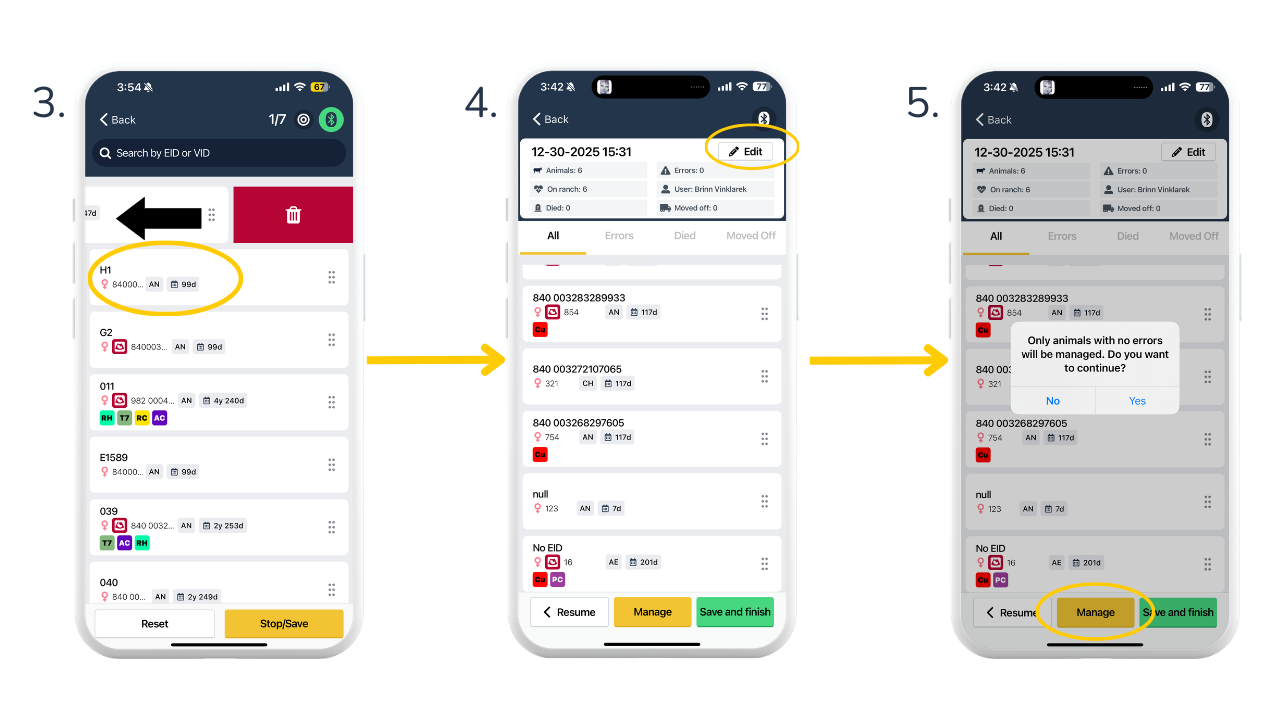
3. Swipe left on any animal to remove it from your list. Tap an individual animal to view its full details.
4. You can edit your session name by clicking 'Edit', circled in the top right corner.
5. Click 'Manage' to apply activities to the animals in your list. Activities can only be logged against animals that do not have any errors.
During a Scan List session, you can also see animals with errors, animals that have died, and animals that have been moved off.
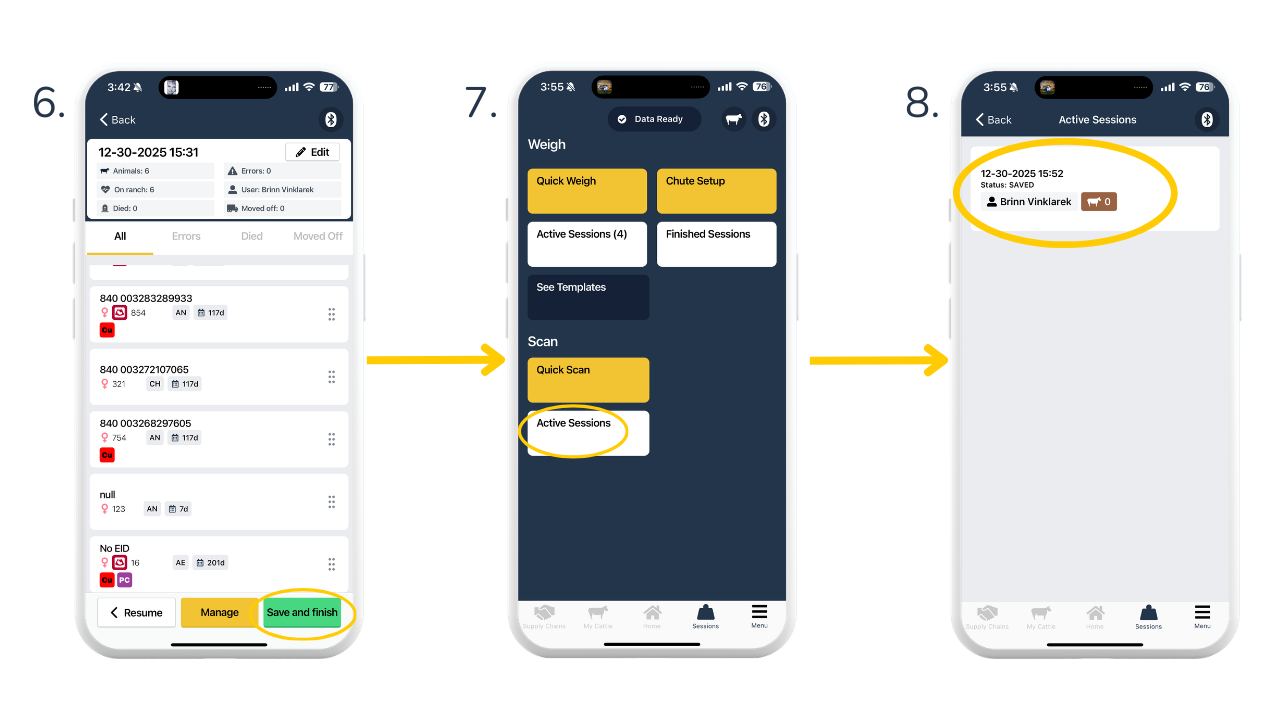
6. Once you have your list of animals and you've recorded what you want against your list of animals, click 'Save and finish.'
7. You will be directed to the Sessions page where a green banner will display at the top of the page to indicate that the Scan List session has saved. You can go to the Active Sessions if you'd like to access this list again.
8. Under Active Sessions, you’ll see a list of any Quick Scan sessions you’ve created. Tap any session to reopen the animal list and record additional activities if needed. You can return to this list at any time.
Completing a Scan List by manually searching for an animal
.png?hsLang=en)
1. Tap 'Scan List' and search for an animal ID by typing it into the search bar or scrolling through your existing animal list.
2. Tap the green checkbox on the right-hand side to add an animal to your list.
3. To manage this list of animals and save your session, follow steps 7–12 in the section above.
Need some help?
Use the chat window, call our Customer Success team at (737) 412-3131 or email support supportusa@breedr.co