
TruTest load bars are the weighing surface that sits under your chute or alley. They connect to a TruTest weigh head (S3 or EziWeigh 7i) via cable, the load bar itself does not connect directly to Breedr or your phone. Once the weigh head is connected to Breedr, live weights from the load bar flow into your session automatically.
The load bar does not have Bluetooth. It is a passive sensor, it measures weight and sends it to the weight head via a physical cable. To get weights into Breedr, you need both a load bar and a compatible weight head.
Choose the Right Load Bar for Your Setup:
|
Load bar |
Capacity |
Best for: |
|
|
MP600 / 23" |
4,400 lbs / 3,300 lbs |
Standard chutes, cow-calf operations |
|
|
MP800 / 32" |
6,600 lbs / 4,400 lbs |
Heavier cattle, commercial cow herds |
|
|
HD5T / 39" |
11,000 lbs |
Multiple heavy bulls, large breeding stock |
|
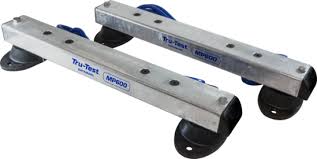
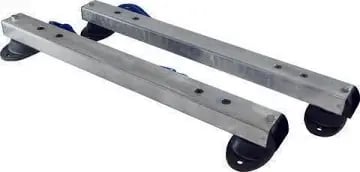
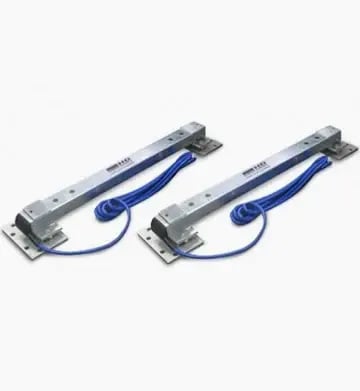
Alley vs chute capacity: Each load bar has two capacity ratings, the higher number is for chute use (animal contained on four sides) and the lower is for alley use (animal can step off sideways). Always use the lower alley rating when the bar is in an open alley.
Do not exceed the rated capacity. A very large bull on an MP600 may give inaccurate readings or damage the load cell.
To order, contact our Customer Success team: supportUSA@breedr.co or (737) 412-3131.
Compatible Weigh Heads
All three load bars connect to either of the following TruTest weigh heads:
|
Weigh head |
Connects to Breedr via |
Setup article |
|
TruTest S3 |
Bluetooth Low Energy (BLE) direct in-app connection |
|
|
TruTest EziWeigh 7i |
Standard Bluetooth pair in phone settings first |
Physical Setup
Step 1: Position the Load Bar
- Place the load bar in your chute or alley on a stable, level surface. Even a slight slope causes weight variation between animals.
- The bar should sit flat with no rocking. If the surface is uneven, use shims to level it before use.
- Confirm the load bar is positioned so the animal's full weight rests on it -- not bridging onto the chute frame or ground.
- In a chute setup, the bar typically sits on the floor of the chute directly behind the squeeze gate.
- In an alley setup, the bar sits flush with the alley floor so animals walk onto it without stepping up.
Step 2: Connect the Load Bar to the Weigh Head
- Route the load bar cable to your TruTest weigh head (S3 or EziWeigh 7i).
- Plug the cable into the load bar input port on the weigh head.
- Confirm the connection is secure, a loose cable causes erratic or zero readings.
Cable routing tip. Route the cable so it does not create a trip hazard and cannot be stepped on by cattle. Use cable ties to secure it to the chute frame where possible.
Step 3: Zero the Weigh Head
Always zero the weigh head with an empty, level load bar before your first animal.
- Confirm the load bar is empty, nothing resting on it, gates not pushing against it, no debris.
- On the weigh head, press the Zero button.
- The display shows 0 when zeroing is complete.
- Re-zero if the bar is bumped, shifted, or anything rests on it between animals.
Why zeroing matters. The load bar measures the difference between its empty state and the loaded state. If the zero is set with the chute gate resting on the bar, every weight will read lighter than the animal's true weight by that amount.
Step 4: Connect the Weigh Head to Breedr
Once the load bar and weigh head are physically set up and zeroed, connect the weigh head to the Breedr app via Bluetooth. Follow the relevant guide:
- TruTest S3: Connecting Your TruTest S3 Weigh Head
- TruTest EziWeigh 7i: Connecting Your TruTest EziWeigh 7i
Use in a Chute Session:
- Start a Quick Weigh session in Breedr.
- Scan or search for the first animal.
- Run the animal onto the load bar and allow it to settle.
- The weight reading appears in Breedr automatically from the connected weigh head.
- Confirm the weight and move to the next animal.
Let animals settle. Cattle that are moving, shifting their weight, or pushing against the chute gate will give unstable readings. Allow 2 to 5 seconds for the weight to stabilise before confirming.
Troubleshooting:
Weight shows 0 or does not update
- Confirm the load bar cable is fully seated in the weigh head -- a partially connected cable can cause a 0 reading.
- Re-zero the weigh head with an empty load bar (Step 3 above).
- Confirm the load bar capacity has not been exceeded.
- Confirm the weigh head is connected to Breedr (Bluetooth icon is green in the app).
Weights are inconsistent between animals
- Level the load bar. Even small tilts cause variation.
- Confirm nothing is contacting the load bar other than the animal -- a chute gate resting on the edge of the bar adds a constant offset.
- Increase the averaging/filter setting on the weigh head to reduce the effect of animal movement.
- Re-zero before each animal if the bar has been moved or bumped.
Weights read lighter than expected
- Check whether the zero was set correctly. If the zero was set with the chute gate or any weight on the bar, all readings will be offset by that amount.
- Re-zero with a confirmed empty bar and reweigh.
Load bar sits unevenly on the floor
- Use rubber shims or anti-slip mats under the bar to level it.
- Ensure the bar is not sitting on a drain cover, expansion joint, or uneven concrete that creates a fulcrum point under the bar.
Cable is too short to reach the weigh head
- TruTest offers extension cables for the S3 and EziWeigh 7i. Contact our Customer Success team.
Need some help?
Use the chat window in the bottom right of the screen, call our Customer Success team at (737) 412-3131, or email us at supportUSA@breedr.co.