
How to Access the Test Device Screen:
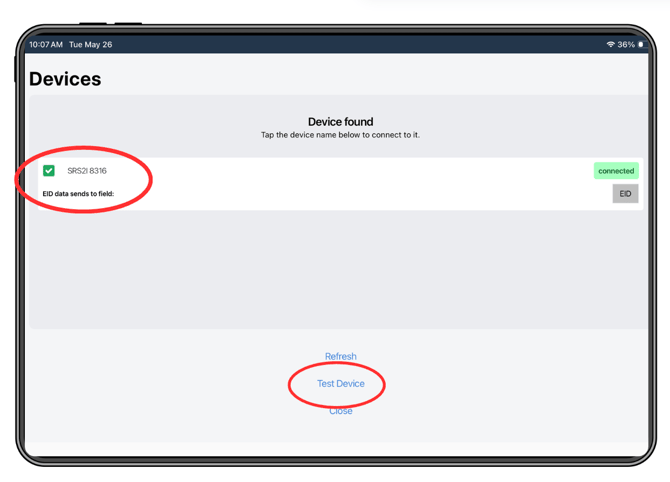
- Tap "Bluetooth" in the top right corner of the app.
- Select the device you want to connect to the app. Ex: SRS2i 9102
- Tap "Test Device."
What the Test Device Screen Shows:
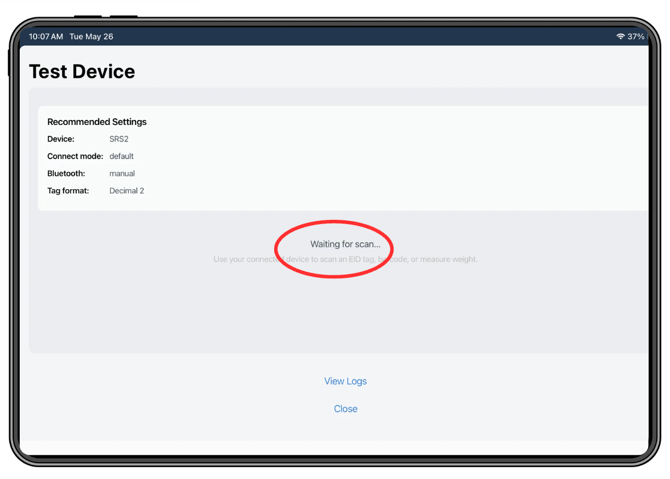
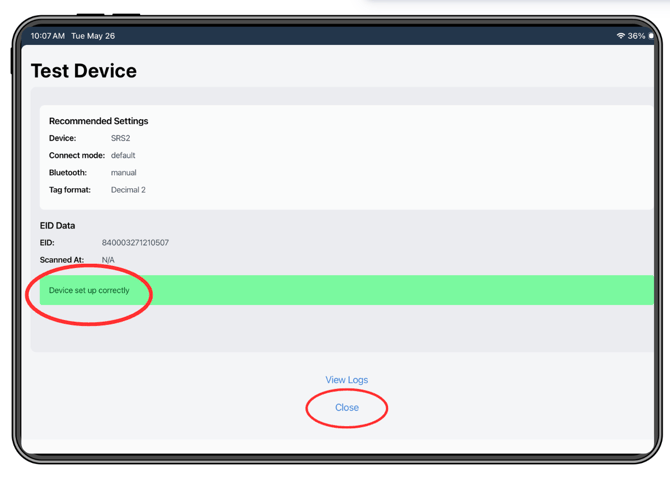
Once your equipment is connected via Bluetooth, the Test Device Screen displays:
|
Information: |
What it tells you: |
|
Connected devices |
Which EID reader, weigh head, or barcode scanner is currently paired and active |
|
Live scan output |
The raw data coming from the reader when you scan a tag or barcode -- lets you confirm the correct number is being sent to the app |
|
ID field routing |
Which field in Breedr the device is sending data to (e.g. EID, VID, TSU Barcode) |
|
Weight output |
Live weight reading from a connected weigh head |
How To Use It:
- Access the Test Device Screen (steps above).
- Confirm your equipment is listed as connected. If not, see Issues Connecting Your Breedr App to Your Equipment?
- Scan a tag or barcode with your reader.
- Confirm the number that appears on screen matches the tag you scanned and is in the correct format (no extra spaces, correct digit count for EIDs).
- For weigh heads, place a known weight on the scales and confirm the reading matches.
- Once everything looks correct, return to the session screen and start your chute session.
Common Uses:
-
Checking EID format before a session: If your EIDs are coming through with a space in the middle (e.g. 840 1234567891011 instead of 8401234567891011), the Device Tester will show this before the session starts. Fix the reader's tag format setting before proceeding. See Recommended Settings for Equipment.
-
Confirming TSU barcode routing: If you are using the Allflex APR650 or Socket Mobile D740 to scan TSU barcodes, the Device Tester confirms the barcode is going to the TSU Barcode field rather than an ID field. Adjust the ID field setting in the Bluetooth device screen if needed.
-
Checking a weigh head is sending live data: Place a known weight on the scales while on the Device Tester Screen. The reading should appear in real time. If it does not, troubleshoot the weigh head connection before starting the session.
Need some help?
Use the chat window in the bottom right of the screen, call our Customer Success team at (737) 412-3131, or email us at supportusa@breedr.co.