
To either add or edit your animals' Electronic ID (EID) or Visual ID (VID) tag numbers, you first need to create a CSV file. This must contain:
- Animal ID (Visual ID, Registered ID, Breedr ID, Tattoo #, EID #)
- EID and/or
- VID
If required, you can download the Update ID template provided to create your CSV file.
Update EIDs and/or VIDs via CSV import in the web app:
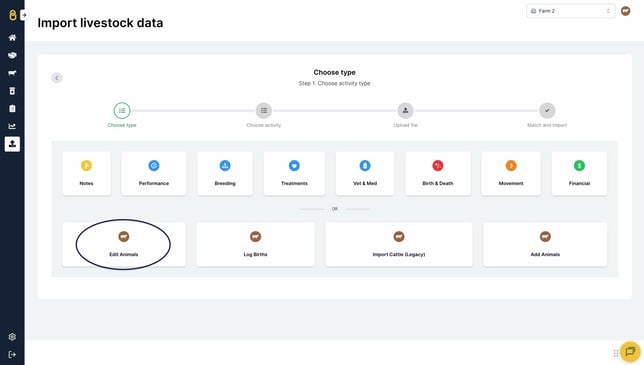
- From the 'Upload' tab, select 'Custom Import' > 'Edit Animals'.
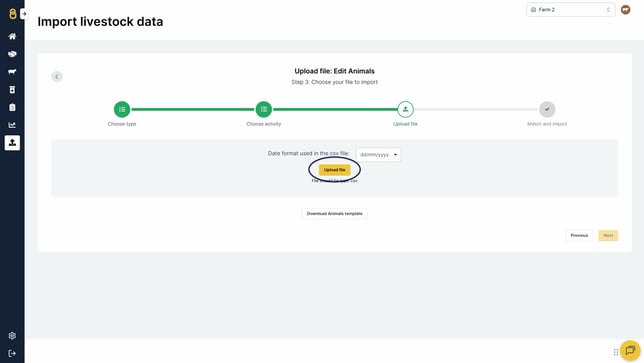
- Upload your CSV file by clicking 'Upload file' and selecting the file you wish to upload.
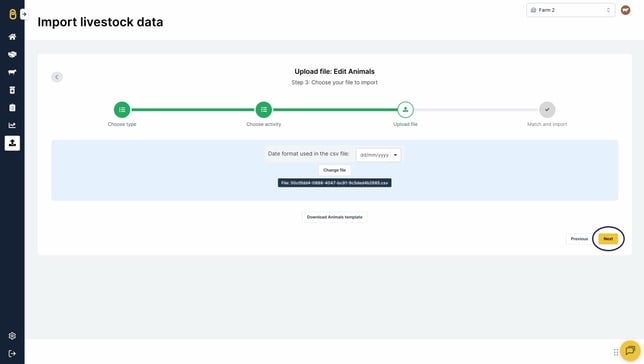
- Click 'Next', or, if you have uploaded the incorrect file, select 'Change file'.
- Match the headings as necessary. To assign or change a column header, use the dropdown arrows to find the appropriate heading.
- Green indicates an exact match with our system's column headings.
- Yellow means that the system has made an assumed match, or you've manually selected a heading.
- 'IGNORE' columns will be excluded from the upload, so if these columns are required, ensure a heading has been selected.
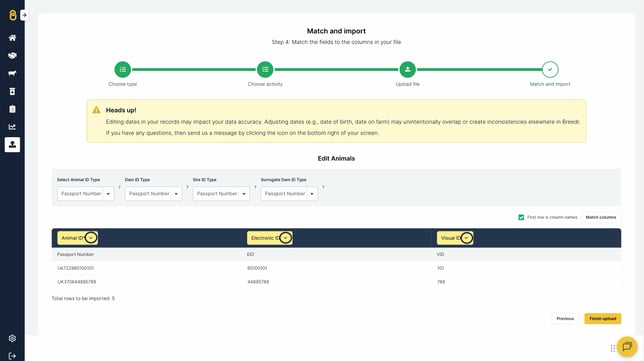
Important: Please double-check that all column headers are correctly matched before clicking 'Finish upload'.
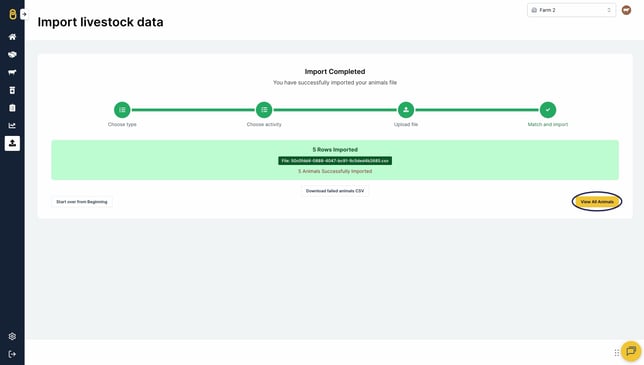
- A green banner will display if you have successfully updated the IDs against the animals. Click 'View all animals' to see the updated information.
- If you want the EIDs and/or VIDs to display in the 'My Cattle' tab, head to 'Columns' > tick 'EID' and/or 'VID' column headings > scroll down and 'Save'.
Need some help?
Use the chat window, call our Customer Success team at (737) 412-3131 or email us supportusa@breedr.co