
Upload Animals from EID Reader
Learn how to upload data from your Tru-Test XRS2/XRS2i and SRS2/SRS2i stick reader to Breedr
- Download the Datalink app on your phone and connect to your stick reader.
- Find the TruTest device you want to connect & click on the "CONNECT" button on the left. It will prompt you to select an accessory and select the device you are connecting.
- Once connected, go to 'All Sessions' and click on the session you need.
Click on the share icon in the top right corner.

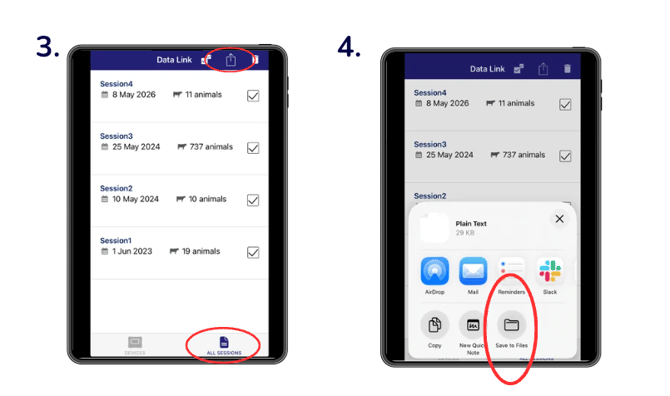
Step 4: Save the file to your email or cloud storage
You need to get the file from your phone to a computer where you can open it in Excel or Google Sheets and add the required animal details before uploading to Breedr.
Option A: Email the file to yourself (recommended):
- Tap Share > Mail (iPhone) or Share > Gmail / Email (Android).
- Enter your own email address as the recipient.
- Tap Send.
- Open the email on your computer and download the attachment.
Option B: Save to Cloud storage:
- Tap Share > Save to Files (iPhone) or Share > Google Drive / OneDrive (Android).
- Save to a folder you can access from your computer.
- Open the file from your cloud storage on your computer.
Step 5 : Open the file and add required animal details
The file exported from your reader contains EID numbers and scan timestamps only. Before uploading to Breedr, you need to add the additional information that Breedr requires to create complete animal records.
Open the file in Excel or Google Sheets on your computer.
Need to convert to CSV? If the file is an Excel file (.xlsx), you can upload it as-is or save it as a CSV before importing. See Convert a Spreadsheet to CSV Format if needed.
Required Fields: Add these columns to your spreadsheet
Every animal record in Breedr requires the following. Add a column for each and fill in the values for every row.
| Column to add | What to enter | Notes |
|---|---|---|
| Sex | male, female, steer, heifer, cow, or bull |
First letter only also accepted: m, f, s, h, c, b |
| Estimated DOB | Date of birth | Format: MM/DD/YYYY. Use an approximate date if exact DOB is unknown |
| Date On Ranch | Date the animal arrived on your ranch | Format: MM/DD/YYYY. Use today's date if they arrived today |
| Breed | Breed name or code | See Breed Codes for the full list of accepted values |
Optional fields -- add these if you have the data
| Column to add | What to enter |
|---|---|
| Face Pattern and Hide Colors | See list of acceptable codes: Hide Colors and Face Patterns |
| Group | Group name to assign at import (must already exist in Breedr) |
| Location | Location/pen name to assign at import (must already exist in Breedr) |
| Purchase Price | What you paid per head |
Example:
| Electronic ID | Sex | Estimated DOB | Date On Ranch | Breed | Visual ID | Source |
|---|---|---|---|---|---|---|
| 840003123456789 | Steer | 03/15/2024 | 05/20/2026 | Angus | 123456 | Maya's Ranch |
How to Import Data to Breedr:
You should now have an Excel file saved on your computer. You can now log into the Breedr web portal and import this CSV file using the 'Custom Import' tool.
Need some help?
Use the chat window, call our Customer Success team at (737) 412-3131 , or email support supportusa@breedr.co