
Set up your equipment correctly before your first chute session. The settings below ensure each device connects reliably and sends data to Breedr in the right format.
First time connecting? Complete these settings once on each device before you pair it with the Breedr app. You won't need to repeat them unless you factory reset your equipment.
TruTest EID Readers (SRS2, SRS2i, XRS2, XRS2i)
Before connecting your SRS2i to Breedr, confirm two settings on the reader: the tag format and the Bluetooth connection mode. Both affect whether EID numbers read correctly into the app.
Setting 1: Tag format
If your EID numbers appear with an extra space (e.g. 840 1234567891011 instead of 8401234567891011), your tag format needs to be updated.
- On the SRS2i, press "Settings".
- Scroll to and select "Tag Reading".
- Select "Tag Format".
- Press the round black button until "Decimal 2" is selected.
.png?hsLang=en)
Already uploaded animals with a space in the EID?
Export your animal data from Breedr, remove the space in your spreadsheet, then use the Edit Animals importer to update your records. You can also use the chat window and our team will fix it for you.
Setting 2: Bluetooth connection mode
If your SRS2i connects but drops the connection intermittently, the connection mode may be incorrect.
- On the SRS2i, press "Settings".
- Scroll to and select "Bluetooth".
- Select "Advanced".
- Press the round black button until "Default" is selected.
.png?width=539&height=303&name=Address%20Book%20guide%20update%20MOBILE%20(6).png)
If you are having connection issues, try setting the Bluetooth mode to Manual instead of Default. Navigate to Settings > Bluetooth > Bluetooth on the reader and select Manual.
*Note: If your EID number was uploaded with an extra space, simply export your animal data from Breedr, remove the space in your spreadsheet, and use the Edit Animals importer to update your records. You can also reach out to us via chat to help you fix this!
Allflex APR650: EID & Barcode Reader
The APR650 reads both EID tags and TSU barcodes in a single device. Before pairing it with Breedr, you need to configure two settings on the reader itself: the Bluetooth profile and the Bluetooth mode.
Setting 1: Bluetooth profile
- Power on the APR650 by pressing the center green button.
- Select "Menu".
- Select "Setup".
- Select "Interface Setup".
- Select "Bluetooth".
- Select "Set BT Profile".
- Select "iAP".
Setting 2: Bluetooth mode
Immediately after setting the BT Profile:
- Select "Set Bluetooth Mode".
- Select "Master Mode".
.png?hsLang=en)
Once these settings are saved, the APR650 will automatically recognise and connect to your phone or tablet each time. You will still need to pair it in your phone's Bluetooth settings the first time, see Connecting your Allflex APR650 Reader for the full pairing steps.
Selecting the ID field: When you connect the APR650 in the Breedr app, you will be prompted to select which ID field the scanner sends data to. If you are scanning TSU barcodes, select "TSU barcode". If scanning EID tags, select the appropriate EID field. This can be changed each session depending on what you're scanning.
TruTest XRP2 / XRP2i: EID Panel Reader:
The XRP2 and XRP2i are panel readers used for scanning animals as they move through a chute without hand-held scanning. Pair the reader in your phone or tablet's Bluetooth settings before connecting it in the Breedr app.
Tag Format
Set the tag format to Decimal 2 following the same steps as the SRS2i above. If your firmware version uses a different menu structure, refer to your TruTest XRP2 manual or contact TruTest support.
Output Settings
Confirm the panel reader is configured to output EID data (not weight-only). On most XRP2 firmware versions:
- On the reader, navigate to Settings > Connections > Bluetooth.
- Confirm Output is set to include EID.
Firmware varies: Menu paths on TruTest panel readers differ between firmware versions. If the steps above don't match your screen, refer to the manual at livestock.tru-test.com or contact TruTest directly.
TruTest S3 Weigh Head
The S3 uses Bluetooth Low Energy (BLE) and connects directly in the Breedr app — you do not need to pair it in your phone or tablet's Bluetooth settings first.
Before Connecting:
- Ensure the S3 is fully charged before a session. It has up to 15 hours of battery life but has no internal memory — if it powers off mid-session, weight data will not be saved to the device.
- Confirm your S3 firmware is up to date. Use the TruTest Data Link app or Data Link for PC to check for updates before your first session. Download Data Link from livestock.tru-test.com.
Connecting to Breedr:
The S3 connects directly through the Breedr app:
- Power on the S3.
- In the Breedr app, tap the Bluetooth icon in the top right corner.
- The S3 will appear in the device list — tap it to connect.
- The Bluetooth icon turns green when the S3 is connected.
No pairing code needed. The S3 does not require a pin code to connect via BLE.
Auto Power-Down:
The S3 has an auto power-down setting that is on by default. To prevent it switching off mid-session:
Use the TruTest Data Link app to extend or disable the auto power-down timer before you start.
Socket Mobile DuraScan D740: Barcode Scanner
The D740 connects directly to the Breedr app, you do not need to pair it in your phone or tablet's Bluetooth settings first.
Application Mode:
The D740 must be in Application Mode to work with Breedr. In HID mode (the factory default for some units), the scanner acts as a keyboard and will not send data to the correct field in the app.
To switch to Application Mode:
Scan the Application Mode setup barcode from the D740 Quick Start Guide included in the box.
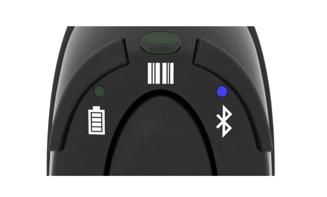
- The D740's indicator light will blink blue while searching for a connection.
- It will turn solid blue once successfully connected to the Breedr app.
Auto-Off Setting:
The D740 will power off automatically after a period of inactivity. To avoid it switching off mid-session, scan the Extended Auto-Off barcode from the Command Barcodes sheet to extend the timer before starting.
iPad: Prevent data loss during chute sessions
This applies regardless of which equipment you are using. If your iPad goes to sleep during a chute session, you risk losing data captured in that session.
Before every chute session on iPad:
- Open Settings.
- Tap Display & Brightness.
- Tap Auto-Lock.
- Select "Never".
Remember to turn Auto-Lock back on when you're done to preserve your battery.
Need some help?
Use the chat window, call our Customer Success team at (737) 412-3131 , or email support supportusa@breedr.co