
You can add animals, log births, and edit animal information via CSV import in the web app. You can use your own CSV file, or you can use the templates provided in this article.
Top Tip: You can upload animals into pre-existing locations on farm. When creating your CSV, you can add a column for 'Location'. If you have more than one holding on your Breedr account, you will also need a column for 'Address' and populate this with the business unit name that corresponds to the holding. You can learn more about setting up locations on your Breedr account in our help guide on groups and locations.
Add animals via CSV import:
Note: Make sure movements are switched on within your account settings before you add your animals if you want to register the movement with BCMS/ScotEID through Breedr in the Regulatory Dashboard.
- Head to 'Upload' and click 'Custom Import'.
- Select 'Add Animals'.
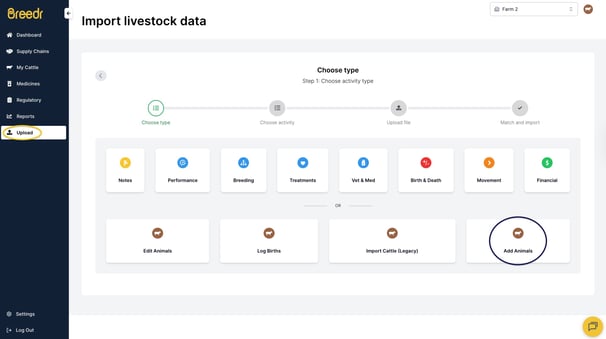
- Upload your CSV file. This must contain 'Passport Number', 'Breed', 'Sex', 'DOB' and 'Date On Farm', along with any other details you wish to upload. You can use your own CSV file, or you can download and fill out the 'Add Animals' template provided.
- Match the headings as necessary. To assign or change a column header, use the dropdown arrows to find the appropriate heading.
- Green indicates an exact match with our system's column headings.
- Yellow means that the system has made an assumed match, or you've manually selected a heading.
- 'IGNORE' columns will be excluded from the upload, so if these columns are required, ensure a heading has been selected.
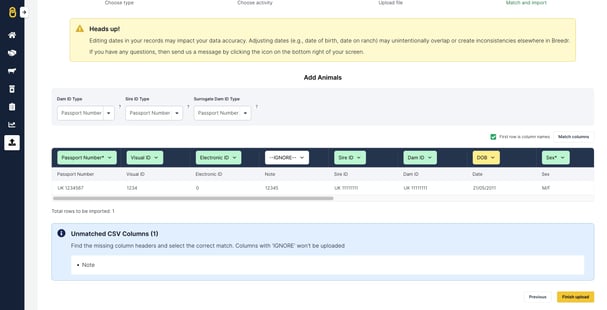 Important: Please double-check that all column headings are correctly matched before clicking 'Finish upload'.
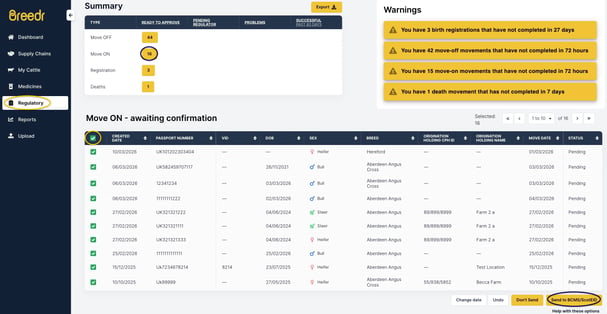
 - A green banner will display if you have successfully added the animals. Click 'View all animals' to see the new animals.
- If you are connected to BCMS/ScotEID, you can then head to your Regulatory Dashboard to approve the movements. You can find out more about this here.
Note: If you just enter 'M' or 'F' under 'Sex', the animals will pull through as a 'Bull' or 'Heifer'. If you want to add animals that have either been castrated or given birth, you can specify the animal as a 'Steer' or 'Cow' in the 'Sex' column in your CSV file.
Log births via CSV import:
Note: Make sure movements are switched on within your account settings before you log animal births if you want to register these with BCMS/ScotEID through Breedr in the Regulatory Dashboard.
- Head to 'Upload' and click 'Custom Import'.
- Select 'Log Births'.
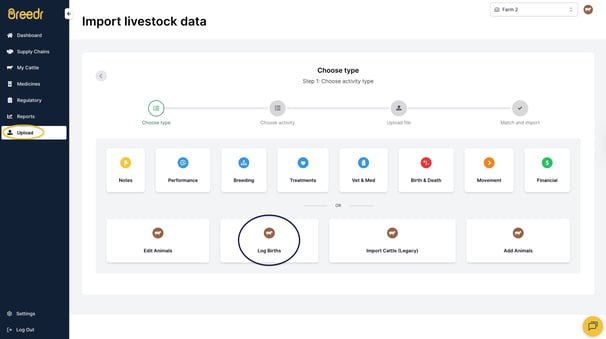
- Upload your CSV file. This must contain 'Passport Number', 'Dam ID', 'Breed', 'Sex', and 'DOB' (date of birth), along with any other details you wish to upload. You can use your own CSV file, or you can download and fill out the 'Log Births' template provided.
- Match the headings as necessary. To assign or change a column header, use the dropdown arrows to find the appropriate heading.
- Green indicates an exact match with our system's column headings.
- Yellow means that the system has made an assumed match, or you've manually selected a heading.
- 'IGNORE' columns will be excluded from the upload, so if these columns are required, ensure a heading has been selected.
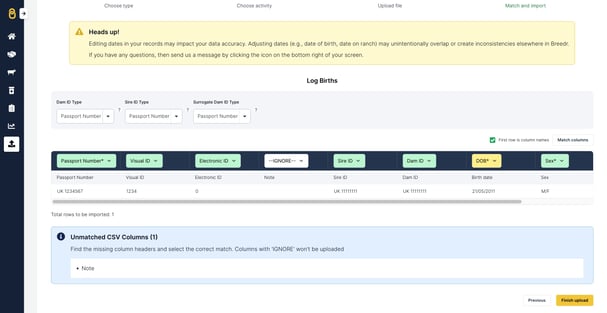 Important: Please double-check that all column headings are correctly matched before clicking 'Finish upload'.
 - A green banner will display if you have successfully logged the births. Click 'View all animals' to see the new animals.
- If you are connected to BCMS/ScotEID, you can then head to your Regulatory Dashboard to approve the registrations. You can find out more about this here.
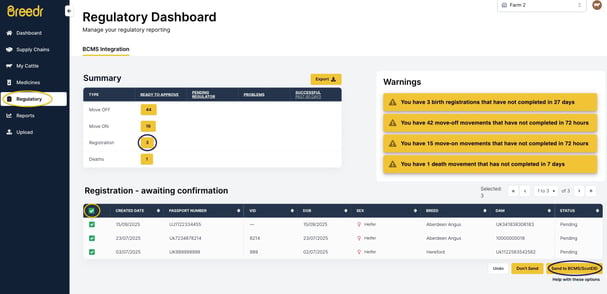
Top Tip: If you are entering sires via CSV import when logging births, you must use the sires' passport numbers in the 'Sire ID' column to populate sires against animals. These sires will then automatically pull across to your 'Sires List'.
Edit animal information via CSV import:
Note: BCMS/ScotEID-connected animals will pull details from BCMS/ScotEID upon syncing up each night, so they will override any edited details in Breedr if BCMS/ScotEID have not been notified directly. If you notice you've edited an animal but it has reverted, get in touch with BCMS/ScotEID.
- Head to 'Upload' and click 'Custom Import'.
- Select 'Edit animals'.
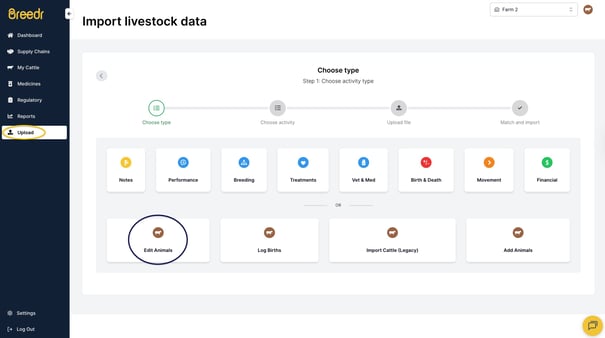
- Upload your CSV file. This must contain 'Animal ID' (either passport number or EID), along with any animal details you wish to edit in separate columns. You can use your own CSV file, or you can download and fill out the 'Edit Animals' template provided.
- Match the headings as necessary. To assign or change a column header, use the dropdown arrows to find the appropriate heading.
- Green indicates an exact match with our system's column headings.
- Yellow means that the system has made an assumed match, or you've manually selected a heading.
- 'IGNORE' columns will be excluded from the upload, so if these columns are required, ensure a heading has been selected.
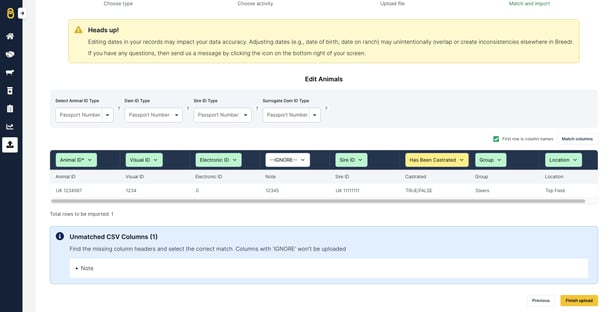 Important: Please double-check that all column headings are correctly matched before clicking 'Finish upload'.
 - A green banner will display if you have successfully edited the animal information. Click 'View all animals' to check the updated information.
Note: Any edits that have been rejected will be highlighted after uploading the CSV file. You can then 'Download failed animals CSV' to correct the information where necessary and upload to Breedr.
Need some help? Use the chat window to your right on the web or the help button on your mobile app, call our Customer Support team on +44 (0) 3300 436327 or email support@breedr.co.