
You can sort your animals into groups and locations. This allows for easier tracking and reporting of the performance of your animals in Breedr. An animal can only be in one group and one location at any given time.
Groups:
- Create a group on the mobile app
- Add animals to the group on the mobile app
- Create a group and add animals to the group on the web app
Locations:
- Create a location on the mobile app
- Add animals to the location on the mobile app
- Create a location and add animals to the location on the web app
Create a group on the mobile app:
- Go to 'My Cattle'.
- Head to 'Groups'.
- Press 'Create' to create a new group.
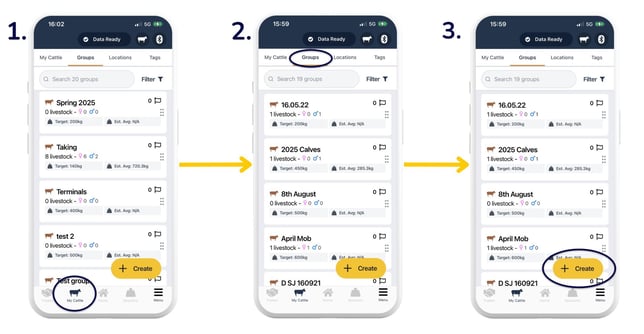
- You then have two options:
- Select 'Herd of Animals' to create a group of animals with no IDs in Breedr. You are prompted to enter the number of animals, sex, and breed before saving. This is primarily used for sheep.
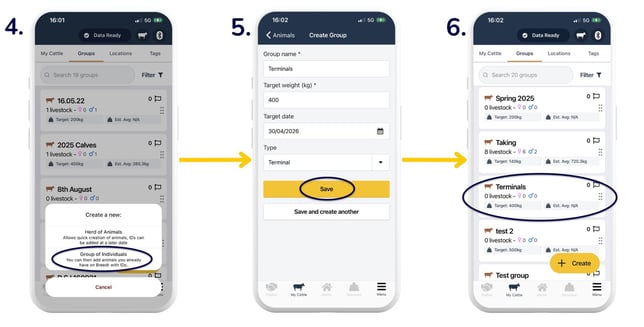
- Select 'Group of Individuals' to create a group of animals, which already have IDs in Breedr. This is primarily used for cattle. Step 5 follows on from selecting 'Group of Individuals'.
- Enter the 'Group name', 'Target weight (kg)' and any other details you require. Press 'Save' if you are only creating one group, or 'Save and create another' to create another group.
- See your newly created group under the 'Groups' tab.
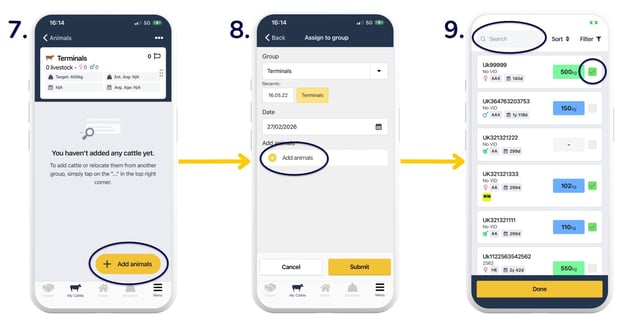
- You can now add animals to the group. Tap into your group > 'Add animals' to assign animals to this group.
- 'Add animals'.
- Either search for animals in the top field, or tick the tickboxes to the right of each individual animal. Selected animals will show a green tick. Click 'Done'.
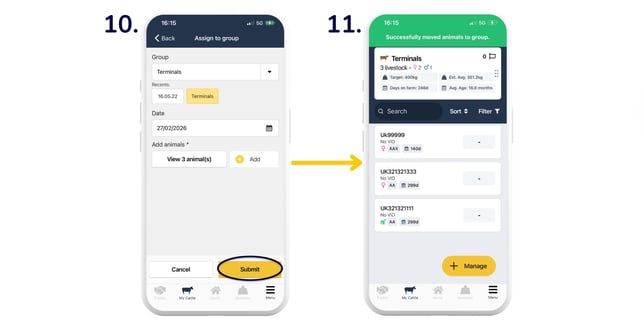
- 'Submit'.
- You will now see your newly added animals in the group. From here, you can then click 'Manage' to log activities to the whole/individuals within that group.
Manage groups in the web app:
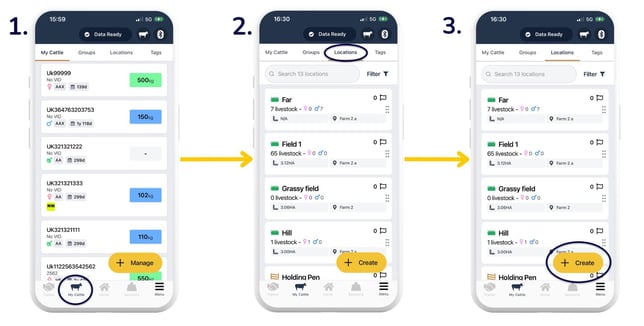
Create a location on the mobile app:
- Go to 'My Cattle'.
- Head to 'Locations'.
- Select 'Create' to create a new location.
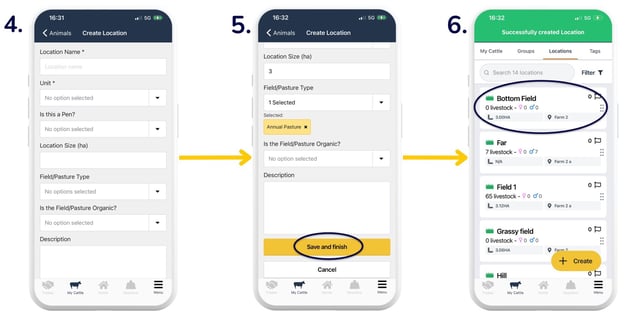
- Enter the location details.
- 'Save and finish'.
- See your newly created location under the 'Locations' tab.
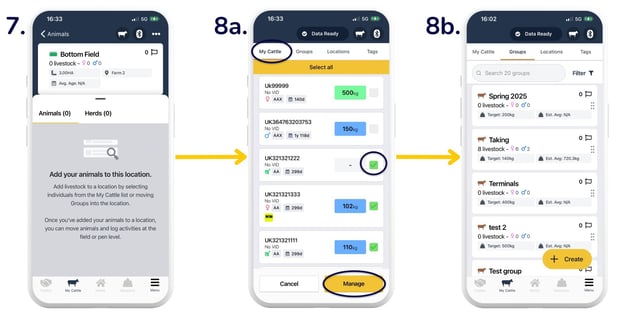
- Tap into your location, and you will see instructions on how to add animals.
- You can add animals:
- From the 'My Cattle' tab: 'Manage' > 'Manage' > select all/individual animals > 'Manage'.
- From the 'Groups' tab: select group > 'Manage' > select all/individuals > 'Manage'.
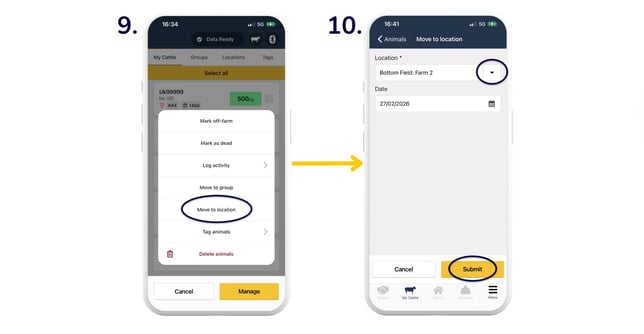
- Select 'Move to location'.
- Use the dropdown arrow to select your location. Select the date of movement into the location and click 'Submit'. Your animal/s have successfully moved into the location.
Note: If you need to add another location address to your account, head to 'Menu' > 'Settings' > 'Address Book' > yellow '+' button > enter details along with the CPH number > 'Save'. This will then be an option for you to select in the dropdown list.
Manage locations in the web app:
Top Tip: If you want to mark animals across various groups and/or locations, you can use management tags.
Relevant articles:
View animal information on your mobile app
Filtering animals on your mobile and web app
Add another holding to your Breedr account
Need some help? Use the chat window to your right on the web or the help button on your mobile app, call our Customer Support team on +44 (0) 3300 436327 or email support@breedr.co.