
If you want to share your medicine cabinet across your holdings, follow the steps below.
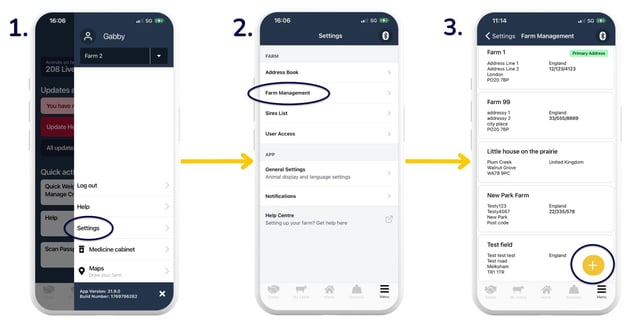
Add another holding from the mobile app:
- Go to 'Menu' > 'Settings'.
- 'Farm Management'.
- Tap the yellow '+' button.
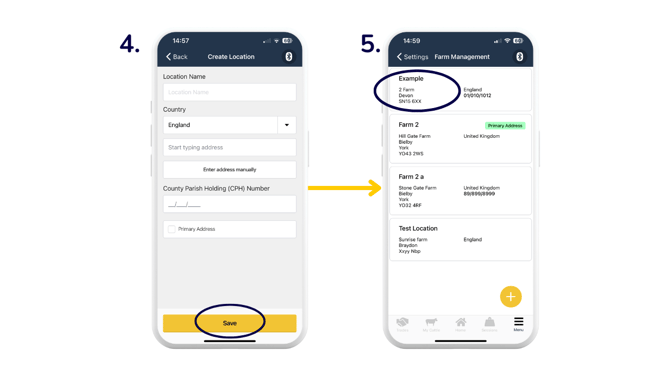
- Enter details of the holding > 'Save'.
- This new location will now appear in your Farm Management list. Go to step 2 below if you want to connect this holding to BCMS/ScotEID.
Add another holding from the web app:
-
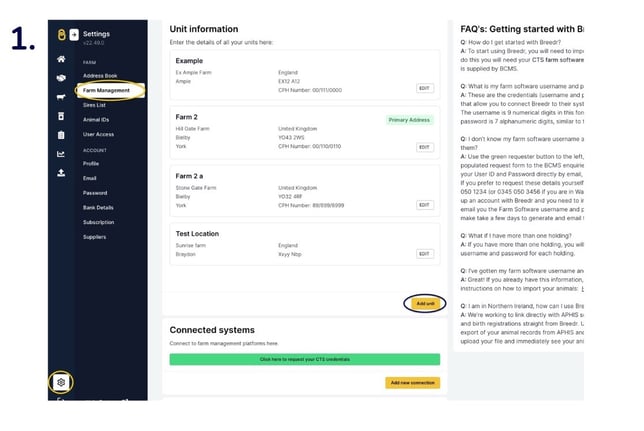
On the web app, head to the settings cog in the bottom left corner > 'Farm Management' > 'Add unit'.
-
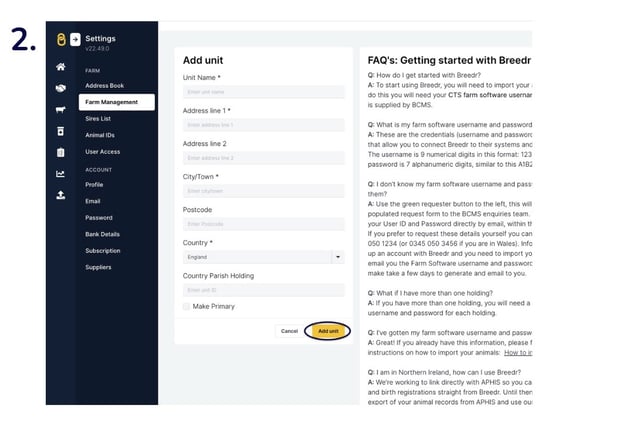
Enter the details of the holding you want to add > 'Add unit'.
-
If you want to connect to BCMS/ScotEID, click 'Add new connection' and enter a second set of farm software details, different to your existing holdings details. See our article here for more information on the BCMS/ScotEID connection.

Note: If you want to add a separate holding that does not share a medicine cabinet with your original holding, get in touch with Customer Support.
Moving animals between your holdings?
You can move animals between holdings by selecting animals on the mobile or web app > 'Move to location' and select the holding. If you connected this additional holding to BCMS, then go to your Regulatory Dashboard and 'Send to BCMS/ScotEID' to complete your move off event first, and then your move on event.
Relevant articles:
Moving animals between holdings
Organise animals into groups and locations
Set up BCMS/ScotEID connection
Need some help? Use the chat window to your right on the web or the help button on your mobile app, call our Customer Support team on +44 (0) 3300 436327 or email support@breedr.co.