
Creating a mob of sheep with no ID tags simply achieves a number of animals against a group that you can move to different locations.
This guide will show you how you can create a mob of untagged sheep via the mobile and web app, followed by how to convert untagged animals into animals with IDs.
Note: You cannot record any activities, including weights or medicines, against these animals until individual tags have been added. Numbers do not count towards your overall stock tally on farm until they have been converted to identifiable animals. You can only convert untagged animals via the mobile app.
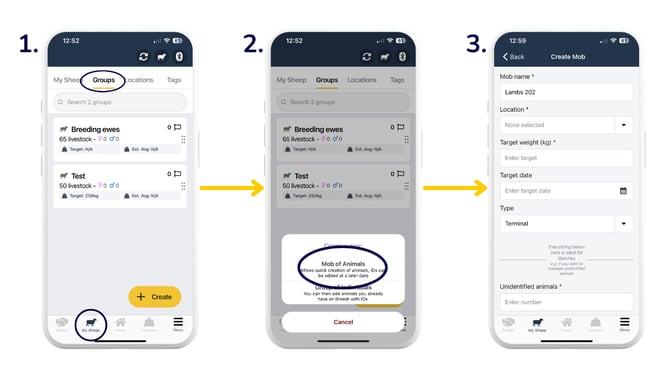
Create a mob of untagged sheep in the mobile app:
-
Head to 'My Sheep' > 'Groups'.
-
Click 'Create', then select 'Mob of Animals'.
-
Enter the details required and hit 'Save'.
-
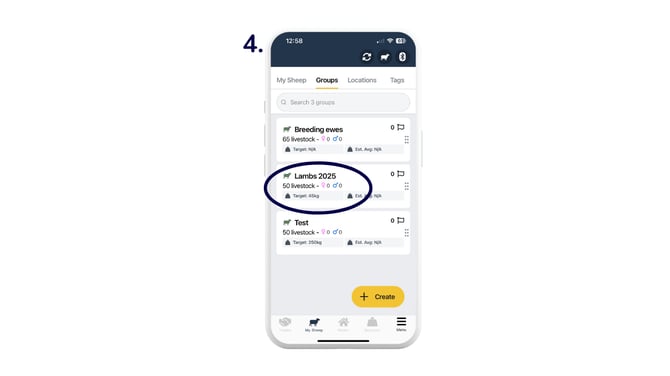
Your group will now be available to view under the 'Groups' tab.
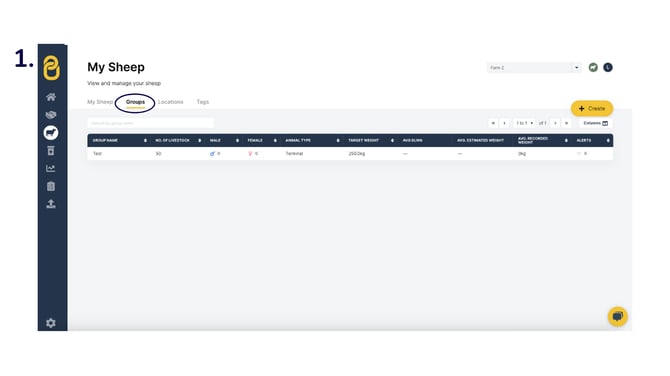
Create a mob of untagged sheep in the web app:
- Head to 'My Sheep' > 'Groups'.
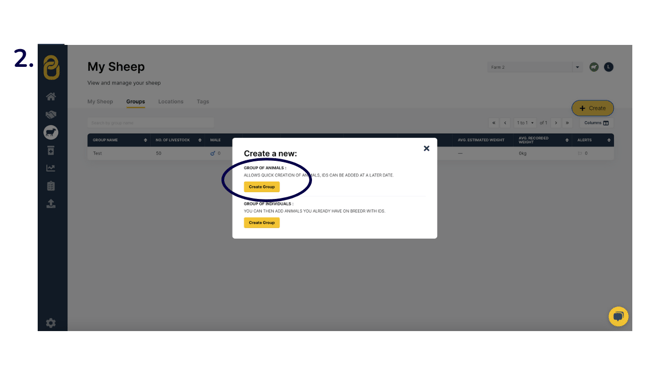
- Select 'Create Group' under 'Group of Animals'.
- Enter the details required and click 'Create group'.
-2.png?width=670&height=377&name=Sheep%20mob%20(2)-2.png)
- The group details will then be saved and displayed. You can then move animals or add identifiable animals.
-2.png?width=670&height=377&name=Sheep%20mob%20(3)-2.png)
- By CSV import by uploading a CSV in the 'Upload' section.
- By heading to the mobile app to convert the animals to identifiable animals.
- By selecting 'Add animals to group' and following step 5 below.
- Once you have selected 'Add animals to group', you can either search animal IDs or use the filters to narrow down your animal search. Tick the animals you wish to move to this group > 'Add to group'.
-1.png?width=670&height=377&name=Sheep%20mob%20(4)-1.png)
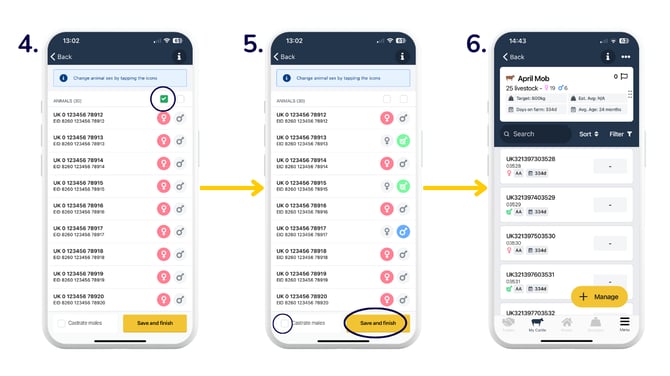
Tag animals to convert them to identifiable animals in the mobile app:
- Click into the mob of animals. Use the - or + to adjust the number of tags you have for this mob, then select 'Add Eartags to these animals'.
- Enter the 'Breed', confirm the 'Number of tag IDs to create', and enter the 'First ID' > 'Generate ID List'.
- This will generate a list of tag numbers in sequential order. Then tap 'Next: Select sex'.
-1.png?width=670&height=377&name=mob%20(2)-1.png)
- Use the tickboxes in the upper-right to select all of one sex.
- Tap on the appropriate icon against each animal to change the sex. Tick the 'Castrate males' box to castrate selected males. The light green colour indicates castrated males. 'Save and finish'.
- A list of identifiable animals is now on your account. You can now record activities, such as weights and medicines, against these animals.
Relevant articles:
Update EIDs and/or VIDs via CSV import
Organise animals into groups and locations
Need some help? Use the chat window to your right on the web or the help button on your mobile app, call our Customer Support team on +44 (0) 3300 436327 or email support@breedr.co.