
Record treatments, weights, breeding data, and more against individual animals as they come through the chute, or apply the same activity to a whole group after your session is saved.
There are two ways to log activities in Chute Mode:
- During a session: one animal at a time. Scan the animal, tap "+ Manage," and log the activity before moving to the next animal. Best when each animal is getting something different.
- After a session: to multiple animals at once. Save and finish your session, then apply the same activity to all animals or a selected sort from the session list. Best for treatments where every animal gets the same thing.
On iPad in landscape? Use Quick Actions for the fastest way to log common activities like pregnancy check, BCS, and notes without extra taps. See Quick Actions in Chute Mode.
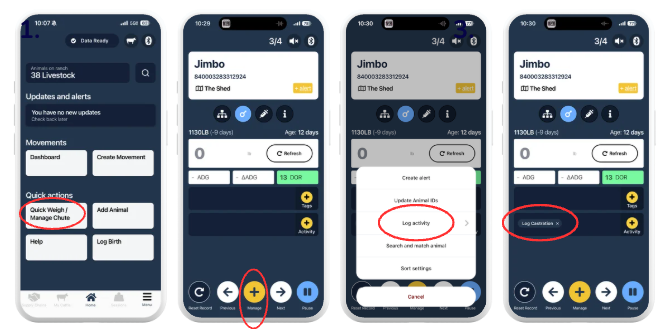
Method 1: Log an Activity to one Animal During a Session
Use this method when animals are getting different treatments, doses, or results.
- Start a chute session. See Get Started with Chute Mode
- Scan the animal's EID or enter its VID manually, the animal's record loads on screen.
- Tap the yellow "+ Manage" button.
- Tap "Log activity."
- Select the activity category from the list, see the full activity list below.
- Select the specific activity type within that category.
- Fill in the details for that animal.
- Tap "Save and continue" to save and return to the session screen, ready for the next
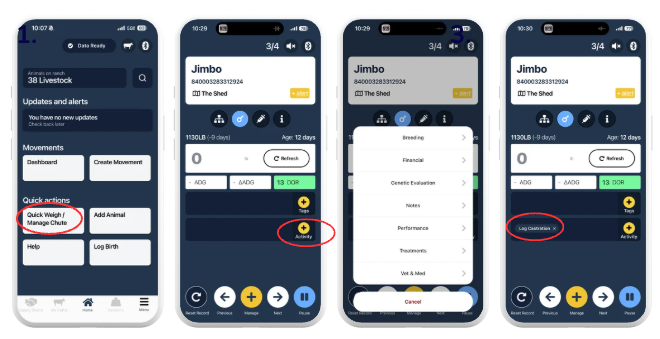
Alternative Way:
- Start a chute session.
- Scan the animal's EID or enter its VID manually, the animal's record loads on screen.
- Tap the yellow "+ Activity" button.
- Select the activity category from the list, see the full activity list below.
- Select the specific activity type within that category.
- Fill in the details for that animal.
- Tap "Save and continue" to save and return to the session screen, ready for the next
Favoriting activities you use often: If you log the same activities in every session, mark them as favorites so they appear at the top of the activity list fewer taps every time. See How to 'Favorite' an Activity.
Adding an alert? From the same "+ Manage" menu, tap "+ Alert" to set a follow-up reminder on the animal, for example, a recheck date or a withdrawal period end date. See Create an Alert - Mobile.
Method 2: Log an Activity to Multiple Animals After a Session
Use this method when every animal in the session (or a sort within it) gets the same treatment for example, administering a vaccine to the whole session.
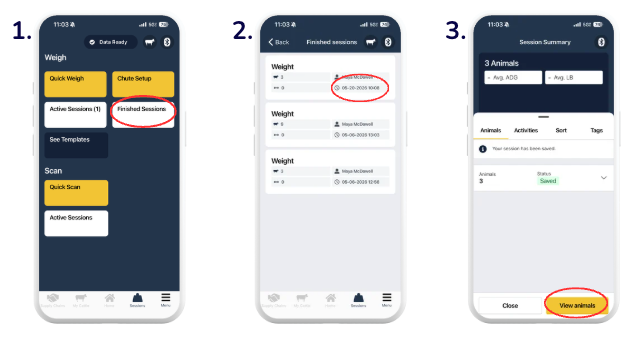
- From the session screen, tap "Pause" then "Save and Finish." This can only be done while online or in-service.
- The session moves to "Finished Sessions" tap it to open. You may have to pull the screen down to refresh and see your recently saved session.
- You'll see a list of all animals in the session. Tap “View Animals”.
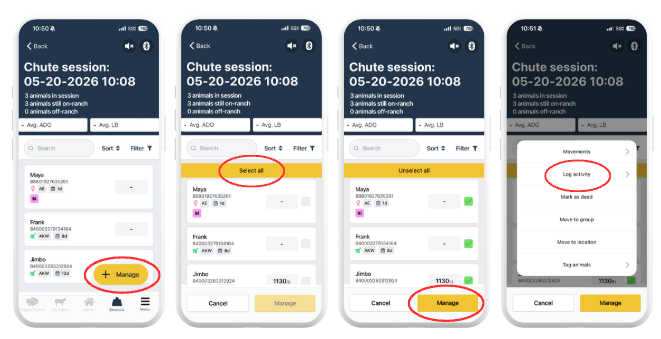
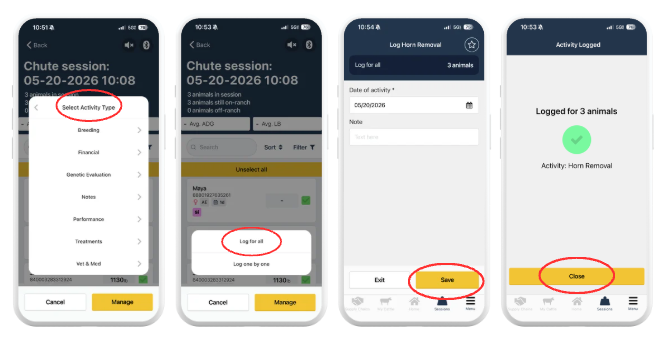
- Tap "+Manage" then Tap "Select all" to apply to every animal in the session, or Tap individual animals to select a subset.
- Tap "Log activity" & select the activity category and type.
- Fill in the details, these will apply to all selected animals. '
- Choose how to apply:
-
"To all selected animals" same details go to every animal at once.
- "To individual animals" enter different details for each animal one by one.
-
Viewing activity data after a session:
All activities logged in Chute Mode appear on each animal's record under their activity history timeline. They can also be viewed in Reports on the browser portal:
- Herd Health Report treatment overview across the herd
- Medicine Record all medicine administrations
- Breeding History pregnancy checks, AI, servicing records
- Sessions complete session records with all data captured
See Reports for how to access and download each report.
Need some help?
Use the chat window, call our Customer Success team at (737) 412-3131 or email support supportusa@breedr.co