
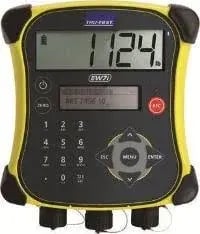
TruTest EziWeigh 7i is a Bluetooth weigh head that pairs with TruTest load bars to capture live animal weights in your Breedr chute session. Unlike the S3, the EziWeigh 7i uses standard Bluetooth and must be paired in your phone's Bluetooth settings before it will appear in Breedr.
Contact our Customer Success team to order compatible equipment: supportUSA@breedr.co or (737) 412-3131.
What You Will Need:
- TruTest EziWeigh 7i weigh head, powered on
- A compatible TruTest load bar or platform (MP600, MP800, or HD5T; see Compatible Hardware for sizing)
- Your phone or tablet with Bluetooth enabled
- Breedr app installed and logged in
Before You Start:
- Confirm the EziWeigh 7i is connected to the load bar via cable and the load bar is on a stable, level surface.
- Ensure the EziWeigh 7i is fully powered -- it runs on a power adapter or rechargeable battery depending on your setup.
- Update firmware if needed. Use the TruTest Data Link app (free on App Store and Google Play) or Data Link for PC at livestock.tru-test.com.
Part 1: Zero the EziWeigh 7i Before Weighing
Always zero with an empty load bar before starting a session.
- Power on the EziWeigh 7i.
- Confirm the load bar is empty and level.
- Press the Zero button on the EziWeigh 7i.
- The display shows 0 when zeroing is complete.
Part 2: Pair the EziWeigh 7i in Your Phone Bluetooth Settings
The EziWeigh 7i uses standard Bluetooth and must be paired in your phone or tablet's Bluetooth settings before it will appear in Breedr.
On iPhone or iPad:
- On the EziWeigh 7i, enable Bluetooth pairing mode -- refer to your EziWeigh 7i manual for the exact step (typically via a menu option or button combination).
- Open Settings > Bluetooth on your iPhone or iPad.
- The EziWeigh 7i will appear in the list of available devices.
- Tap it to pair. Enter 0000 (four zeros) if prompted for a pairing code.
- The EziWeigh 7i will show as Connected in your Bluetooth settings.
On Android:
- Open Settings > Connected devices > Bluetooth.
- Enable Bluetooth pairing mode on the EziWeigh 7i.
- The EziWeigh 7i will appear in available devices.
- Tap it to pair. Enter 0000 if prompted.
- It will show as Paired.
Part 3: Connect the EziWeigh 7i in Breedr
- Open the Breedr app.
- Tap the Bluetooth icon in the top right corner.
- The EziWeigh 7i will appear in the device list.
- Tap it to connect.
- The Bluetooth icon turns green when the EziWeigh 7i is successfully connected.
Part 4: Recommended Settings for Breedr
Weight unit: pounds (lbs)
- On the EziWeigh 7i, navigate to Settings > Units (or equivalent).
- Select lb.
- Save the setting.
Auto power-down
The EziWeigh 7i has an auto power-down timer. For long sessions, extend or disable it to prevent the weigh head from shutting off between animals.
Navigate to Settings > Auto power-down on the EziWeigh 7i and adjust the timer. Alternatively, adjust using the TruTest Data Link app.
Averaging / filter settings
The EziWeigh 7i has a weight averaging setting that controls how it handles animal movement on the load bar. Start with the default factory setting and adjust based on how quickly your cattle settle.
Check your setup using the Device Tester Screen. Stand on the load bar and confirm your known weight appears correctly in Breedr before starting a full session. See Device Tester Screen.
Part 5: Weigh Animals in a Chute Session
- Start a Quick Weigh session in Breedr.
- Scan or search for the first animal.
- Run the animal onto the load bar and allow it to settle.
- The live weight reading from the EziWeigh 7i appears on screen in Breedr.
- Confirm the weight and move to the next animal.
Using an EID Reader and the EziWeigh 7i together
If you are using both an EID reader (SRS2i, AWR300, APR650, or XRP2i) and the EziWeigh 7i in the same session, always connect the EID reader first. The EziWeigh 7i's Bluetooth signal can interfere with EID reader pairing if the weigh head is connected first.
Troubleshooting:
EziWeigh 7i not appearing in phone Bluetooth settings
- Confirm the EziWeigh 7i is in Bluetooth pairing mode. Refer to your manual for how to activate pairing mode on your specific firmware version.
- Move closer to your phone -- within 5 feet -- during initial pairing.
- If the EziWeigh 7i was previously paired to another device, remove that pairing from the EziWeigh 7i's Bluetooth menu before re-pairing with your phone.
- Confirm Bluetooth is enabled on your phone.
EziWeigh 7i paired in phone settings but not appearing in Breedr
- Tap Refresh in the Breedr Bluetooth screen.
- Confirm the EziWeigh 7i is still showing as Connected in your phone's Bluetooth settings. If it shows as Not Connected, re-pair following Part 2.
- Close and reopen the Breedr app.
EziWeigh 7i connected but weight shows 0 or is not updating
- Confirm the load bar cable is securely connected.
- Re-zero with an empty load bar (Part 1 above).
- Confirm the load bar is on stable, level ground.
Weights are inconsistent
- Level the load bar before re-zeroing.
- Ensure the animal is standing freely with its full weight on the platform -- not leaning against the chute.
- Increase the filter/averaging setting to reduce the effect of movement.
EziWeigh 7i powers off mid-session
- Extend the auto power-down timer before starting (Part 4 above).
- If it powers off, reconnect via the Breedr Bluetooth screen, re-zero, and continue.
iPad Auto-Lock causing the session to pause mid-weighing
Set iPad Auto-Lock to Never before every chute session: Settings > Display and Brightness > Auto-Lock > Never. A sleeping iPad causes Bluetooth to disconnect and can interrupt session data.
Need some help?
Use the chat window in the bottom right of the screen, call our Customer Success team at (737) 412-3131, or email us at supportUSA@breedr.co.