
- Online: Full access. Data syncs in real time across all devices and the browser portal.
- Offline: The app works normally for recording weights, activities, and session data. Data is saved on your device and syncs when you reconnect - sometimes automatically and sometimes when forced to..
- You do not need to do anything to switch between modes. Breedr detects your connection status automatically.
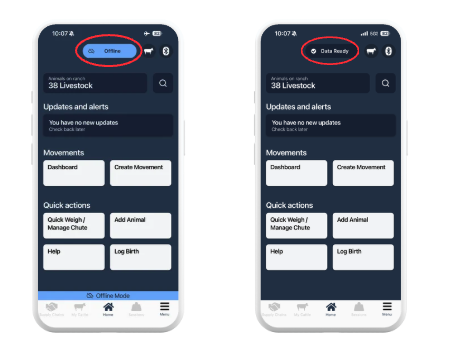
How to tell which mode you are in: Look for the connection indicator in the Breedr app. When you are offline, the app displays an offline indicator so you know your data is being saved locally rather than syncing to the cloud.
Offline Features:
Most day-to-day tasks in Chute Mode work fully offline. The following all work without a connection:
- Run a session from Quick Weigh or a template
- Scan EID tags and record weights
- Log activities against individual animals (medicines, treatments, pregnancy checks, BCS, notes)
- Add or remove Management Tags
- Search for animals already loaded on your device
- Record all Quick Actions on iPad
Online Only Features:
- Viewing animal records that have not previously loaded on your device
- Syncing session data to other devices or the browser portal
- Accessing reports on the browser portal
- Uploading files or importing data
- Saving a chute session once complete
Before heading out to the field: Open the Breedr app while connected to Wi-Fi or a cellular signal and let it fully sync. This downloads the latest animal data to your device so your records are up to date when you go offline. If you head out without syncing first, you may be working from older data.
Preparing for an offline session:
Follow these steps before heading to a field or location without signal:
- Open the app on Wi-Fi or cellular signal. Give it 1 to 2 minutes to sync and download the latest animal data.
- Check your animal list. Go to My Cattle and confirm the animals you expect to work with are showing on your device.
- Set iPad Auto-Lock to Never if you are using an iPad. A sleeping iPad during a session can cause data loss. Go to Settings > Display and Brightness > Auto-Lock > Never.
- Charge your device fully. Running sessions offline with Bluetooth equipment connected drains the battery faster than normal use.
- Consider a hotspot. If you want real-time sync during the session, connect your iPad to an iPhone hotspot before you start. See Connect an iPad to a Hotspot. A hotspot is optional, sessions work fully offline without one.
Troubleshooting:
Will I lose data if my phone dies while I am offline? No. Data is saved to your device as you enter it, not just when you sync. We recommend hitting Pause & Save when you're phone gets low on battery just to be safe.
How long can I work offline? There is no time limit. However, we recommend reconnecting to service at the end of each day to sync the data before making significant decisions based on your records. Other team members will not see your updates until you do.
What if two people record conflicting data while offline? Breedr uses timestamps to handle conflicts. The most recently saved record will generally take precedence. If this causes an issue, you can edit the record manually after syncing. Or contact us to help reconcile anything.
Does Offline Mode work on both iOS and Android? Yes, Offline Mode is available on both platforms.
My session is not appearing on other devices after I saved it:
-
Confirm you tapped "Save and Finish" and not just "Pause" once you're back in wi-fi or service. Sessions left on Pause are still active and only visible on the device they were recorded on in offline mode.
-
Check that the device has a working internet connection after saving. If you saved on a weak signal, the sync may not have completed. Open the app while on a stronger connection and wait a moment.
-
If the session still does not appear after reconnecting, contact our Customer Success team. We can retrieve session data from the database. Do not logout, delete the app, or delete the session from your device until the issue is resolved.
My animal list is out of date when I go offline:
-
Sync the app before you leave. Open Breedr on a good signal and give it a couple of minutes to pull the latest data before heading to the field.
-
If animals added recently are not showing, check that the device adding them saved successfully. New animals added on one device only sync to others once the data has been saved and the connection is restored.
The offline indicator is showing but I have a signal:
-
Weak signal can sometimes throw the Breedr auto detector off. Toggle airplane mode on and off to reset the connection.
-
Close and reopen the Breedr app.
-
Check that cellular data is enabled for Breedr in your phone settings: Settings > Breedr > turn on Cellular Data.
-
If you are on Wi-Fi, check that the network is actually connected to the internet and not just showing a Wi-Fi symbol.
No Offline Browser: The browser portal at app.breedr.tech is not available offline. It requires an active internet connection at all times. All session management, reporting, and file imports must be done online. If you need access to your data in the field, use the mobile app on your phone or tablet.
Need some help?
Use the chat window in the bottom right of the screen, call our Customer Success team at (737) 412-3131, or email us at supportusa@breedr.co.