
Before you Troubleshoot:
Check these three things first: they resolve most connection issues:
- Your equipment is charged and switched on. Low battery causes dropped or failed Bluetooth connections even when pairing looks correct.
- Bluetooth is enabled on your phone or tablet. Open your device Settings and confirm Bluetooth is on.
- Your Breedr app is up to date. Open the App Store (iPhone/iPad) or Google Play Store (Android), search "Breedr Livestock," and install any available update.
Don't have compatible equipment with you? You can still run a chute session, use the search bar in Chute Mode to look up animals by ID manually and enter weights by keypad.
Troubleshooting:
The equipment shows in the app but won't turn green
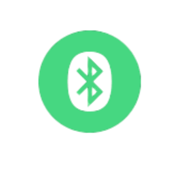
The Bluetooth icon in the Breedr app turns green when your equipment is successfully connected.
Paired/Ready for Use:
Unpaired/Idle:
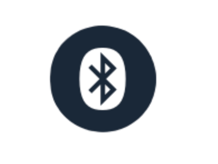
If it stays black or fails to connect, Try this first:
Forget and Re-Pair:
- Open Settings on your phone or tablet and tap Bluetooth.
- Find the equipment in your paired devices list.
- Tap the "i" icon (iPhone/iPad) or the gear icon (Android) next to the device name.
- Tap "Forget This Device" (iPhone/iPad) or "Unpair" (Android).
- Turn the equipment off, wait 10 seconds, then turn it back on.
- Re-pair following the connection steps in Chute Mode and Connecting Equipment.
If forget and re-pair doesn't work: check the equipment settings:
-
Connecting your Allflex APR650 Reader — full pairing steps for the APR650
- Connecting your TruTest SRS2i/SRS2 - full pairing steps for TruTest EID equipment
-
Connecting your Socket Pocket Mobile Reader — full pairing steps for the D740
Equipment is connected but EID scans aren't coming through:
-
See Test Your Device before you run a session
Using both an EID reader and a weigh head together
If you're running an EID reader and a weight head at the same time, always connect the EID reader first. The weight head's Bluetooth signal can interfere with the EID reader pairing if connected in the wrong order.
Once both devices show a green icon in the Breedr app, you're ready to start your session.
Equipment keeps dropping the connection mid-session
|
Cause |
Fix |
|
Low battery |
Charge or replace batteries before starting |
|
Distance from phone |
Stay within 15–20 feet of the equipment during the session |
|
Metal equipment interference |
Metal chutes and panels can reduce Bluetooth range; keep your phone on the same side as the reader |
|
Other Bluetooth devices nearby |
Move away from or switch off other Bluetooth devices at the chute |
|
Cellular signal interfering |
Switch your phone to airplane mode, then turn Bluetooth back on manually |
|
Device going to sleep |
Set Auto-Lock to Never before the session starts (see below) |
Prevent your iPad from going to sleep during a chute session:
- Open Settings on your iPad.
- Tap Display & Brightness.
- Tap Auto-Lock.
- Select Never.
Important: If your iPad sleeps during a session, you risk losing data recorded in that session. Always set Auto-Lock to Never before you start.
Still not connecting? Do a full reset
- Close the Breedr app completely, swipe it closed on iPhone/iPad; use the recent apps button on Android.
- Turn Bluetooth off on your phone or tablet.
- Power the equipment off completely.
- Wait 30 seconds.
- Power the equipment back on.
- Turn Bluetooth back on your phone or tablet.
- Open the Breedr app and attempt to connect again from the Bluetooth icon.
If the connection still fails, call or message our Customer Success team, details below. Some issues require a firmware update on the equipment itself and our team can walk you through that.
You can still run your session without equipment (Offline)
If you can't resolve the connection issue on the day, don't stop the session. You can run the whole chute manually:
- Use the search bar in Quick Weigh or Quick Scan to find animals by Visual ID (VID) or Electronic ID (EID).
- Type weights in manually using the keypad.
Your data is saved exactly the same way, the equipment just makes it faster.
Need some help?
Use the chat window in the bottom right of the screen, call our Customer Success team at (737) 412-3131, or email us at supportusa@breedr.co.