
To enable you to restart using the Breedr account, you need to get your Herdbook and Medicine Cabinet up to date for compliance reasons. You can also retrospectively add weights and other activities into the system, should you want to.
Get your Herdbook up to date by marking non-synced animals off your account:
A list of animals you've moved off-farm direct via BCMS/ScotEID will flag up under 'Update Herdbook'. They will not be synced and need to be marked off-farm in your Breedr account on either your mobile or web app.
Update your Herdbook on the mobile app:
- Click the red 'Update Herdbook' banner.
- A list of animals that are no longer synced to BCMS/ScotEID displays. Tap '+ Manage'.
- 'Manage'.
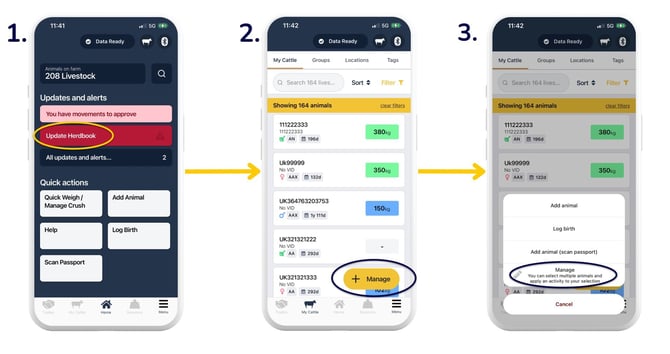
- 'Select all' if you want to bulk select the list, or, to individually select an animal/s, tap the grey boxes to the right of the specific animal/s.
- Green tick boxes show up against an animal/s selected > 'Manage'.
- 'Mark off-farm'.
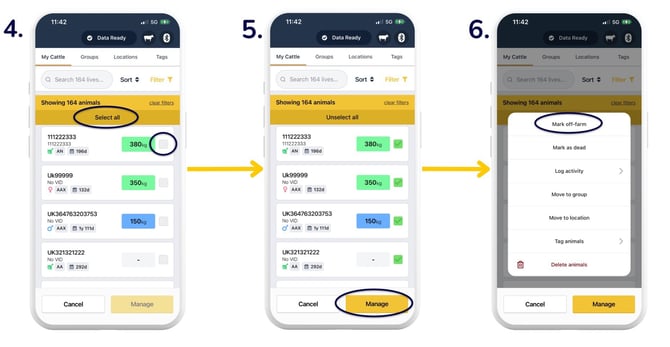
- A list of the animals you've selected displays. Check this list. Use the arrow in the upper left to go back and redo the animal selection if required.
- At the bottom of the list, fill out the details. If you are just clearing up your animals and have records of their off-movements outside of Breedr, you can simply mark the animals off-farm without entering details. Select 'Confirm move'.
- This screen will show when you've successfully moved animals off-farm.
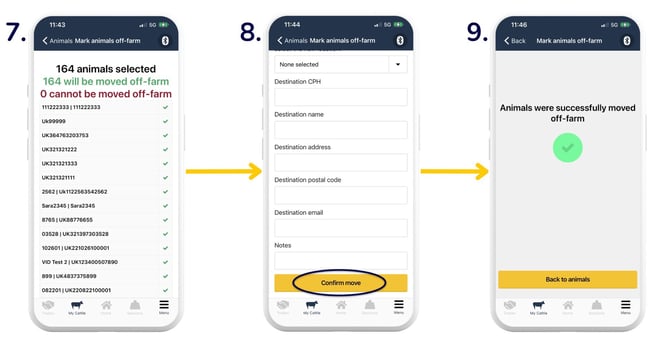
Your red banner will no longer show on the homepage of the app, indicating your account is all up to date.
Note: You can also do this move-off event from the web app - click here to find out more.
Update your Regulatory Dashboard:
Select the animal/s you have just marked off-farm. Selected animals have a green tickbox to the left of them. Click 'Don't Send'. This will move them off your Breedr account but will not notify BCMS/ScotEID. 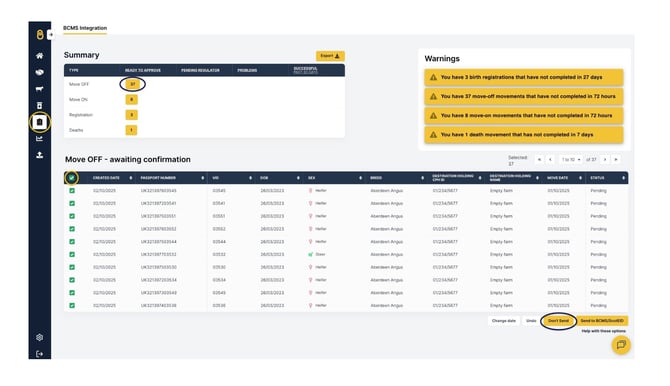
Top Tip: Be sure you make a note of the date you transitioned between systems for inspection purposes.
Get your Medicine Cabinet up to date by disposing of old remaining medicine:
We do not recommend deleting previous medicine data from your Breedr account. If you used another system, we recommend that you keep a note of this time period to stay compliant, but start fresh again with Breedr.
Dispose of old medicines:
-
Go to your Medicine Cabinet on your mobile app and click on the medicine you need to dispose of.
-
Use the '-' button.
- Fill in the quantity to dispose, select the route of disposal and then 'Log disposal'. The amount will have been deducted from your medicine cabinet (back to 0), and the disposal is shown in the activity list against the medicine.
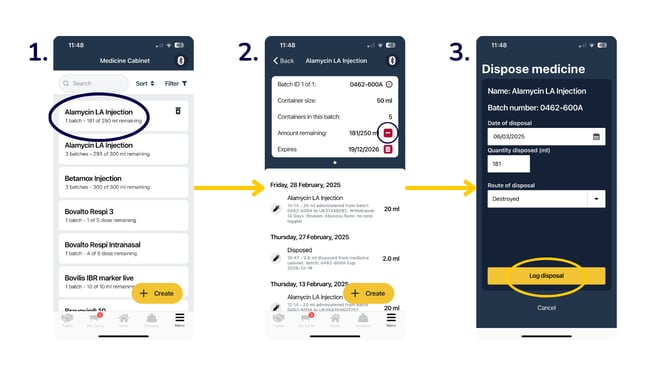
Note: If you no longer have this medicine in your cabinet and will not use it again in the future, you can then archive this medicine. Click here for more information.
Uploading medicine into your cabinet:
- On your mobile app, go to the Medicine Cabinet.
- Search the medicine name in the bar at the top.
- Tap on the medicine.
- 'Create' to add a new batch of the medicine.
Note: If you have not previously added this medicine into Breedr, read this article to learn how to add a new medicine into your cabinet.
Upload previous medicine application activities (optional):
You can upload medicine data via a CSV file:
- You'll need the following information saved in a CSV spreadsheet:
- Full passport number
- Activity date of when you administered the medicine
- Name of the medicine
- Batch number
- Dosage
- Withdrawal
- Reason for treatment
- Go to Breedr on the web app > 'Import data' > 'Custom Import'.
- 'Vet & Med'.
- 'Administer Medicine'.
Top Tip: You need to have added the medicine to your Medicine Cabinet in the mobile app with its correct quantity in order to record administering a medicine.
Upload previous weigh sessions (optional):
You can also bulk upload historical data, such as weight records, into Breedr via the web app, using the import data functionality described above.
Note: Animal/s must be in Breedr so we can match the activity data to them via their passport number. Click here to read the article on how to add animals.
Update users if required:
- On the mobile app, 'Menu' > 'Settings' > 'User Access' > '+' to invite a user.
- On the web app, head to 'Settings' > 'User access' > 'Invite user' or tap into a user. You can also edit or delete users on the web app.
Need some help? Use the chat window to your right on the web or the help button on your mobile app, call our Customer Support team on +44 (0) 3300 436327 or email support@breedr.co.